
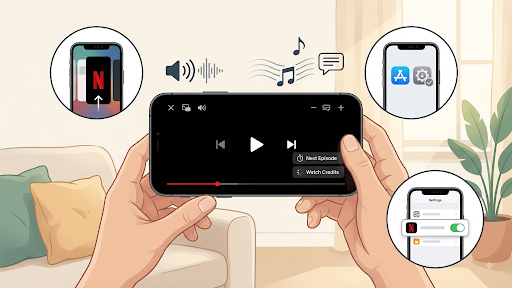
If Netflix goes black with the sound still playing during the last 2 minutes of an episode on your iPhone, the fastest fix is to force-close the Netflix app, restart your iPhone, and update both Netflix and iOS. If it keeps happening, reset the app from iPhone Settings or delete and reinstall it.
This exact problem tends to show up right when the end credits or the “Next Episode” countdown starts, and it usually comes from the app, not your screen. Below you’ll find why it happens at that exact moment, the fixes that work, and quick workarounds so you never miss a final scene again.
Quick Overview
- Force-close Netflix from the App Switcher and reopen it.
- Restart your iPhone to clear playback and video decoding glitches.
- Update the Netflix app in the App Store and install the latest iOS from Settings > General > Software Update.
- Turn on the Reset switch in Settings > Netflix, then sign in again.
- Delete or offload and reinstall Netflix if the reset doesn’t help.
- Stop screen recording, AirPlay, screen mirroring, and VPNs, since these can block Netflix video.
- Use a workaround (Picture in Picture, a downloaded copy, or a web browser) while you wait for a fix.
Why Does Netflix Go Black With Sound Only at the End of an Episode on iPhone?
The black screen near the end of an episode is usually an app playback glitch that kicks in when Netflix switches from the main episode to its end-of-episode mode. That is the point where the credits start, the “Next Episode” button and countdown appear, or a preview of the next title begins loading.
This isn’t a new problem. In September 2021, a wave of iPhone and iPad users reported that the last few minutes of nearly every episode played as a black screen with audio. Netflix support publicly acknowledged the issue and said it was still investigating, then told users to update or reinstall the app and upgrade to iOS 15. Netflix never shared an official root cause.
Today, the same symptom can come back for a few reasons:
- An outdated or corrupted Netflix app that mishandles the switch to the credits or post-play screen
- Old cached app data left over after an iOS or app update
- Screen recording running in the background, which triggers Netflix’s copy protection (DRM) and blacks out the video
- AirPlay or screen mirroring, which Netflix no longer supports
- A VPN or unstable connection that interrupts the stream as the next video starts loading
- An older iPhone that can’t run the newest Netflix app, so it never gets the latest bug fixes
Important Point to be Considered! A small number of titles intentionally fade to a black screen over the final music or end credits. If it happens on only one episode of one show, play the same episode on another device. If it’s black there too, that’s simply how the episode ends.
How Do You Fix the Netflix Black Screen at the End of an Episode on iPhone?
Work through these fixes in order. Test the same episode after each step by skipping to the last 3 minutes so you can see right away if it worked.
1. Force-Close and Reopen the Netflix App
Closing Netflix completely clears a stuck player session. This is the first step Netflix’s own black screen with sound guide recommends for iPhone and iPad.
- On an iPhone without a Home button, swipe up from the bottom of the screen and pause in the middle. On an iPhone with a Home button, press it twice.
- Find the Netflix card and swipe it up and off the screen.
- Open Netflix again and replay the end of the episode.
2. Restart Your iPhone
A restart resets the video decoder and clears temporary memory that the app relies on during playback.
- Press and hold the side button and either volume button until the power slider appears.
- Drag the slider to turn off your iPhone.
- Wait about 10 seconds, then press and hold the side button until you see the Apple logo.
3. Update the Netflix App and iOS
Updates are how Netflix fixed the 2021 end-of-episode black screen bug, so this step matters more than it sounds.
- Netflix app: Open the App Store, tap your profile picture, scroll to pending updates, and tap Update next to Netflix.
- iOS: Go to Settings > General > Software Update and install anything available.
Important Point to be Considered! According to Netflix’s iPhone and iPad requirements, the most up-to-date version of the app needs iOS or iPadOS 26 or later. Older iPhones running iOS 12 or later can still redownload Netflix, but they may be stuck on an older app build that keeps the bug. If your iPhone can’t update to iOS 26, the browser and download workarounds below are your best options.
4. Reset the Netflix App From iPhone Settings
The Reset switch clears Netflix’s saved app data and signs you out, which fixes corrupted settings without deleting the app. Many Reddit users in r/netflix said this was the step that finally fixed the end-of-episode black screen for them.
- Open the Settings app on your iPhone.
- Scroll down and tap Netflix. On newer iOS versions, you may need to tap Apps first, then Netflix.
- Turn on the Reset switch.
- Force-close Netflix, wait about 10 seconds, then open it and sign in again.
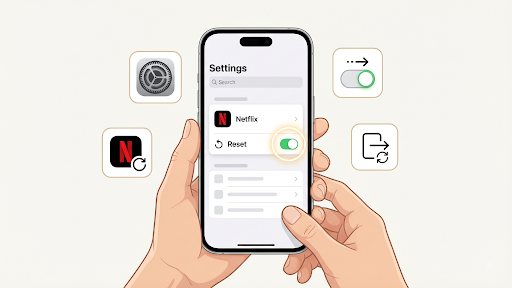
Pro Tip! Have your Netflix email and password ready before you reset. The app signs you out, and any downloaded episodes may need to be downloaded again.
5. Offload or Reinstall Netflix
Reinstalling gives you a clean copy of the app. You have two choices:
- Offload App: Go to Settings > General > iPhone Storage > Netflix > Offload App, then tap Reinstall App. This removes the app but keeps some documents and data.
- Delete App: In the same menu, tap Delete App, then download Netflix again from the App Store. This is a full clean install and removes all downloads.
If offloading doesn’t fix it, delete the app fully. Corrupted data is more likely to be cleared that way.
6. Turn Off Screen Recording, AirPlay, and Screen Mirroring
Netflix blocks its video whenever it detects screen capture or an unsupported mirror, and you’ll get a black picture with working audio. Netflix states it no longer supports AirPlay or Screen Mirroring at all.
- Open Control Center and make sure the screen recording button isn’t red.
- In Control Center, tap Screen Mirroring and choose Stop Mirroring if it’s active.
- Close any third-party recording or streaming apps running in the background.
7. Disable Your VPN and Test Another Network
A VPN or weak signal can cut the video stream right as Netflix starts loading the next episode preview. Turn off your VPN in Settings > VPN (or inside the VPN app). Then switch between Wi-Fi and cellular data and replay the ending. Some Reddit users reported that simply switching networks brought the picture back.
8. Check Screen Time Content Restrictions
Screen Time restrictions can block some content types inside apps. Go to Settings > Screen Time > Content & Privacy Restrictions and temporarily turn it off, then test the episode again. If that fixes it, turn restrictions back on and adjust only the settings that affect Netflix.
What Quick Workarounds Let You Watch the Last 2 Minutes Right Now?
If you’re mid-binge and don’t want to troubleshoot, these workarounds can get you through the ending tonight. Users in r/netflix and Apple Support Communities have shared most of them.
| Workaround | How to Do It | Best For |
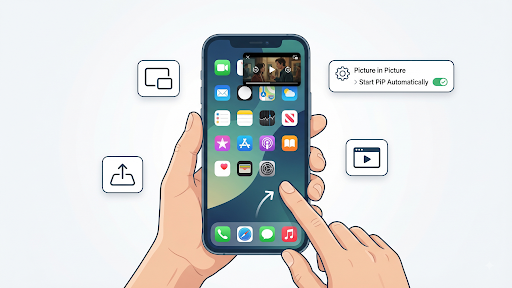
| Picture in Picture | While the episode plays, swipe up to go to your Home Screen. Netflix shrinks into a floating window (iOS 14 or later). | Seeing the final scene in seconds |
| Rotate the screen | Turn your iPhone from landscape to portrait and back, or toggle Portrait Orientation Lock in Control Center. | Forcing the player to redraw the video |
| Scrub back and replay | Drag the progress bar back 5 to 10 seconds before the black screen starts. | A one-time glitch |
| Play a downloaded copy | Tap the download icon on the episode, then watch it from My Netflix > Downloads. | Unstable Wi-Fi or cellular streams |
| Watch in a browser | Open Netflix on a computer or another device and skip to the ending. | Older iPhones that can’t get the latest app |
Pro Tip! If Picture in Picture doesn’t start, go to Settings > General > Picture in Picture and make sure Start PiP Automatically is turned on.
Why Does Netflix Go Black When the “Next Episode” Countdown Appears?
The countdown screen is when Netflix shrinks the current video, shows the credits, and starts preparing the next episode. If the app glitches during that handoff, the video layer can stop drawing while the audio keeps playing. That’s why the problem often appears in the final 1 to 5 minutes instead of at a random point.
Try tapping Watch Credits when the button appears. This keeps the original episode on screen instead of switching into the countdown mode. If the picture stays visible when you do this, the post-play transition is your trigger, and updating or resetting the app is the long-term fix.
Is the Black Screen at the End Happening on iPad, Android, or TV Too?
Yes, the same end-of-episode black screen has been reported on iPad, and the 2021 outbreak hit iPhones and iPads at the same time. The fixes above work the same way on iPad. If you use Sidecar or mirror your iPad to a Mac, turn both off, since Netflix doesn’t support either.
On Android, the equivalent steps are clearing the Netflix cache (Settings > Apps > Netflix > Storage > Clear cache) and turning off features like Color Correction or screen overlays.
On TVs and streaming sticks, a black screen with sound is usually linked to HDR, HDMI cables, or HDCP problems rather than the app’s ending. If you’re seeing this on a Fire TV device, our guide on fixing the Netflix black screen on Fire Stick 4K with HDR covers those TV-specific steps.
Why Does Netflix Go Black When I Connect My iPhone to a TV?
If the screen only goes black while your iPhone is connected to a TV, the cause is usually your connection, not the episode. Netflix supports wired video out through specific adapters only.
- Lightning iPhones: Go to Settings > General > About > Apple HDMI Adapter and check the model number. Netflix lists model A1438 or A1621 as supported. Any other adapter is likely the cause.
- USB-C iPhones (iPhone 15 and later): Use a cable or adapter that supports HDCP 2.2, set your TV to the right input, and try reversing the cable or using another HDMI port.
- AirPlay or Screen Mirroring: Won’t work for Netflix. Use a wired connection or the Netflix app on your TV or streaming device instead.
What Mistakes Make the Netflix Black Screen Problem Worse?
- Testing a different episode after each fix. Always retest the same episode so you know what actually worked.
- Offloading and thinking it’s a full reinstall. Offloading keeps some data. Delete the app if the problem persists.
- Leaving screen recording on in Control Center. It’s easy to forget, and it blacks out Netflix every time.
- Using a cheap third-party HDMI adapter. Many don’t support HDCP, so Netflix shuts off the picture.
- Skipping iOS updates. Netflix pointed users to an iOS upgrade during the 2021 outbreak for a reason.
When Should You Contact Netflix Support?
Contact Netflix if you’ve updated, reset, and reinstalled the app and the last minutes of every episode still go black on your iPhone. Netflix can check whether there’s a known issue with your app version or account.
Before you reach out, note your iPhone model, iOS version (Settings > General > About), Netflix app version, and which shows are affected. That info speeds things up a lot. You can follow our step-by-step guide on contacting Netflix customer service from the Netflix app to chat or call without leaving your phone.
Frequently Asked Questions
Why does my Netflix go black after 2 minutes of playing?
If the screen goes black about 2 minutes after you start a show, not at the end, it usually points to a streaming or connection issue rather than the credits glitch. Test another network, turn off any VPN, and restart your router. On a TV, check your HDMI cable and HDCP support.
Why is my Netflix screen black but I can still see subtitles?
Subtitles are drawn separately from the video, so you can see them even when the video layer fails. Seeing subtitles with sound and a black picture confirms the stream is playing and the problem is video display, often caused by screen recording, mirroring, or an app glitch.
Why does Netflix go black for a second and then come back?
A quick black flash is usually Netflix switching video quality as your connection speed changes, or the app moving between the episode and the credits. It’s harmless if the picture returns right away. If it happens constantly, a stronger Wi-Fi signal usually helps.
Does screen recording cause a black screen on Netflix?
Yes. Netflix uses DRM copy protection, so screen recordings and screenshots show a black screen while the audio keeps working. Netflix playback itself can also black out while recording is active.
Can a low battery or Low Power Mode cause the black screen?
There’s no evidence that Low Power Mode directly causes the end-of-episode black screen. It can lower performance, though, so if you’ve tried everything else, turn it off in Settings > Battery and test again.
Will I lose my Netflix downloads if I reset or reinstall the app?
Deleting the app removes all downloaded titles, and resetting may remove them too. Your account, profiles, watch history, and My List are saved to your account, so they come back when you sign in again.
Final Recommendation
If your iPhone goes black with sound in the last 2 minutes of a Netflix episode, start with the simple trio: force-close the app, restart your iPhone, and update both Netflix and iOS. If the black screen comes back, turn on the Reset switch in Settings > Netflix or delete and reinstall the app. That clears the corrupted data behind most end-of-episode glitches.
Need to see the ending right now? Swipe home to watch it in Picture in Picture or tap Watch Credits. And if nothing works after a full reinstall on an updated iPhone, reach out to Netflix support with your device details so they can check for a known bug.