
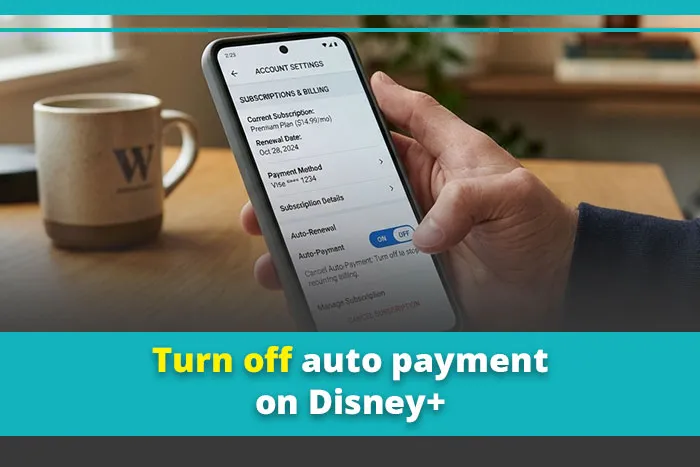
To turn off auto payment on Disney+, you cancel the subscription in the place that bills you. If Disney+ bills you directly, sign in at DisneyPlus.com in a web browser, go to Profile > Account > your Disney+ subscription > Cancel Subscription, and confirm. If Apple, Google Play, Roku, Amazon, Hulu, HBO Max, or a carrier like Verizon bills you, you have to turn off auto-renewal inside that company’s account instead.
Disney+ does not have a separate “auto-pay off” switch. Canceling is the switch. You keep watching until your paid period ends, and then the charges stop. The hard part is not the button. It is finding out who actually charges you, and avoiding a few mistakes that keep the payments going.
Quick Overview
| Who bills you | Where to turn off auto payment | Path |
| Disney+ directly | DisneyPlus.com in a browser | Profile > Account > Subscription > Cancel Subscription |
| Apple (iPhone, iPad, Apple TV) | Apple Account subscriptions | Settings > your name > Subscriptions > Disney+ > Cancel Subscription |
| Google Play (Android) | Google Play Store | Profile icon > Payments & subscriptions > Subscriptions > Disney+ > Cancel subscription |
| Roku | my.roku.com or your Roku device | Manage your subscriptions > Disney+ > Turn off auto-renew |
| Amazon | Amazon account | Memberships & Subscriptions > Disney+ > Cancel |
| Verizon or another carrier/TV provider | That provider’s account | My Verizon > Services & perks (or your provider’s add-ons page) |
| Hulu or HBO Max (bundle bought there) | Hulu or HBO Max account page | Cancel the bundle where you bought it |
- Deadline: Cancel before 11:59 p.m. Eastern Time on the day before your renewal date.
- Access: You keep streaming until the current billing period ends.
- Refunds: Disney+ does not give prorated refunds for unused days on direct plans.
Why Doesn’t Disney+ Have a Simple “Turn Off Auto-Pay” Button?
Because every Disney+ plan is a recurring subscription, and the only way to stop the recurring charge is to cancel the renewal. Disney+ plans bill monthly or yearly and renew automatically until you cancel.
That confuses a lot of people. They look for a toggle labeled “auto-renew” or “automatic payment” inside Disney+ and never find one. On a direct Disney+ plan, the option is called Cancel Subscription. It does not end your access right away. It just tells Disney+ not to charge you again.
Roku is the one place where the wording matches what you’re searching for. There, the button literally says Turn off auto-renew.
How Do You Find Out Who Bills Your Disney+ Subscription?
Open your Disney+ Account page in a browser and look at the Subscription section.
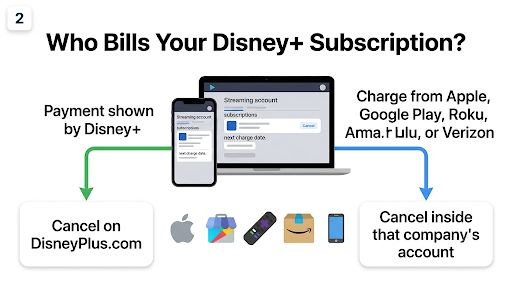
If it shows your plan with a payment card and a next charge date, Disney+ bills you directly. If it names a partner or tells you to contact one, that partner controls your auto payment.
Take 30 seconds to check this before anything else. Canceling in the wrong place changes nothing, and the charges keep coming.
If the Account page is unclear, use one of these checks:
- Your bank or card statement: A charge from “Disney Plus” usually means direct billing. “Apple.com/bill,” “Google,” “Roku for Disney+,” “Amazon,” or your phone carrier’s name means a partner bills you.
- Your welcome or receipt email: Search your inbox for “Disney+” and look at who sent the receipt.
- How you signed up: If you tapped “Subscribe” inside the Disney+ app on an iPhone, Android phone, or Roku, the app store or Roku probably bills you.
- Your phone or internet plan: Some Verizon Unlimited plans include the Disney bundle as a perk, so Disney+ may be “free” to you but still billed through Verizon.
How Do You Turn Off Auto Payment If Disney+ Bills You Directly?
Use a web browser, not the TV app.
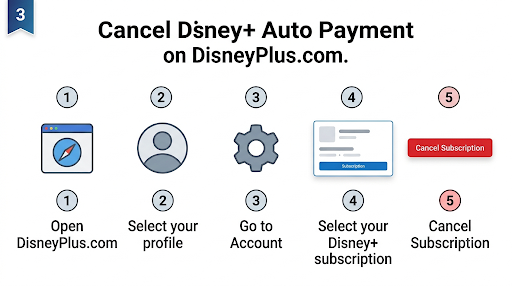
Many people get stuck here because the Disney+ app on TVs and consoles does not show a cancel option.
- Go to DisneyPlus.com on a computer or a phone’s mobile browser (Chrome, Safari, or similar).
- Log in with the email address that’s linked to your paid plan.
- Select your Profile icon, then choose Account.
- Under Subscription, select your Disney+ plan (or bundle).
- Select Cancel Subscription.
- You’ll likely see a “stay with us” discount offer. If you still want to stop paying, choose Continue to Cancel, not Keep Subscription.
- Finish the prompts. You can skip the feedback survey if you want.
- Look for the confirmation screen with the date your access ends, and check your email for the cancellation notice.
Disney’s official Disney+ cancellation help article confirms this path and notes that your plan stays active until the end of the current term.
Tip: Some accounts also show a Pause Subscription option next to Cancel. Pausing stops charges for a while, but billing comes back on its own when the pause ends. If your goal is to stop auto payment for good, cancel instead.
Want screenshots and every device covered in one place? Our step-by-step guide to canceling a Disney Plus subscription walks through the full process if you decide you’re done with the service entirely.
How Do You Stop Disney+ Auto-Renewal Through Apple, Google, Roku, or Amazon?
You cancel inside the store or platform that charges you. Disney+ support can’t turn off renewals that Apple, Google, Roku, or Amazon manage.
iPhone, iPad, or Apple Account
- Open the Settings app.
- Tap your name at the top.
- Tap Subscriptions.
- Choose Disney+.
- Tap Cancel Subscription and confirm.
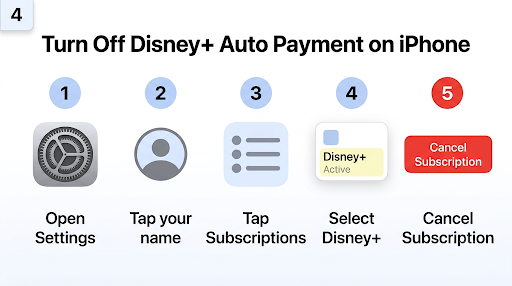
If you don’t see Disney+ in the list, you’re probably signed in with a different Apple Account, or Apple isn’t the one billing you. Apple’s guide to canceling a subscription from Apple covers Mac, Apple TV, and Windows too.
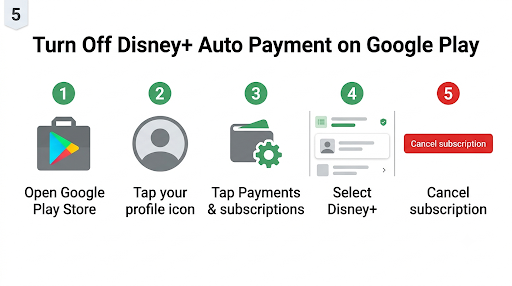
Android and Google Play
- Open the Google Play Store.
- Tap your profile icon in the top right.
- Tap Payments & subscriptions, then Subscriptions.
- Choose Disney+.
- Tap Cancel subscription and follow the prompts.
Make sure you’re in the same Google account you used to subscribe. Phones with two Google accounts trip people up all the time.
Roku
- Go to my.roku.com on any browser and sign in.
- Select Manage your subscriptions.
- Find Disney+ under Active subscriptions.
- Select Turn off auto-renew and confirm.
You can also do this on the TV. Highlight the Disney+ app, press the Star (*) button on your remote, and choose Manage subscription. According to Roku’s subscription help page, your plan stays active until the end of the billing cycle. If Disney+ doesn’t appear on my.roku.com, Roku is not billing you.
Amazon (Fire TV or Prime Video Channels)
- Sign in to your Amazon account on a browser.
- Go to Memberships & Subscriptions.
- Find Disney+ and select the cancel option.
- Confirm the cancellation.
What If Your Disney+ Comes in a Bundle or Through Verizon?
Bundles are where most “I canceled but I’m still being charged” stories start. The rule is simple: you cancel with whoever sold you the bundle, not whichever app you watch in.
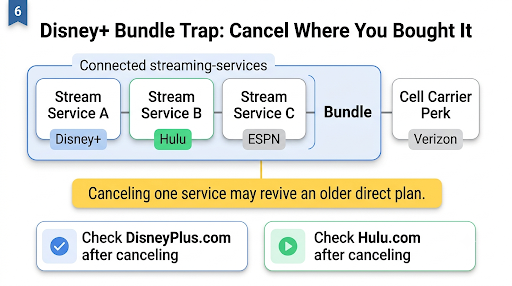
- Disney+ and Hulu bundle bought on Disney+: Cancel from your Disney+ Account page. You can often cancel just Hulu or ESPN and keep Disney+ by switching plans.
- Bundle bought on Hulu: Cancel from your Hulu Account page.
- Disney+, Hulu, HBO Max bundle bought through HBO Max: Cancel through your HBO Max subscription page.
- Verizon perk or Verizon-billed bundle: Use My Verizon. Verizon’s help page on how to remove the Disney bundle from your account shows the steps.
The Bundle Trap: Your Old Plan Can Start Billing Again
This is the gap almost every top-ranking guide skips. If you had a Disney+ plan billed by Disney before you added a Verizon perk, canceling the Verizon perk can bring your old direct subscription back. Verizon’s own fan bundle terms say that if you cancel the perk, previous subscriptions billed directly by Disney will resume.
The same thing happens with Hulu. If you had an older Hulu or ESPN plan before you switched to a bundle, canceling the bundle can leave that original plan running at its current price.
What to do: After you cancel a bundle or perk, sign in at DisneyPlus.com and Hulu.com a day later. Make sure neither shows an active plan with an upcoming charge date.
When Is the Last Day to Turn Off Auto Payment Without Getting Charged?
For a direct Disney+ plan, cancel before 11:59 p.m. Eastern Time on the day before your subscription term ends. That timing comes from the Disney+ Terms of Use.
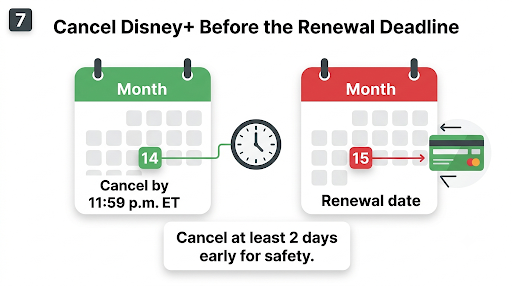
Here’s what that means in real life. Say your plan renews on the 15th. You need to cancel by 11:59 p.m. ET on the 14th. If you’re on the West Coast, that’s 8:59 p.m. Pacific on the 14th. Waiting until the morning of the 15th is too late.
Apple, Google, Roku, and Amazon each have their own cutoff, and they often process the renewal up to a day early. The safe move is to cancel at least two days before your renewal date no matter who bills you.
What Happens After You Turn Off Auto Payment?
Your subscription is set to expire, but nothing disappears right away. Here’s what to expect:
- You keep full access until the end of the month or year you already paid for.
- No partial refund on direct Disney+ plans. Cancel halfway through an annual plan, and you keep watching until the year ends, but you don’t get money back for the unused months.
- Your Disney account stays. Canceling stops payments. It does not delete your MyDisney account, profiles, or watch history.
- The cancel button goes away. Once canceled, your Account page usually shows a message like “Your subscription will end on…” and a Restart Subscription option instead.
- You can undo it. If you change your mind before the end date, select Restart Subscription and your plan continues without a gap.
Common Mistakes That Keep Disney+ Charging You
- Deleting the app. Removing Disney+ from your phone or TV does not cancel anything. The charges keep going.
- Removing or changing your card. Swapping or removing a payment method is not the same as turning off auto payment. Your plan is still set to renew, and a failed charge can cause billing problems rather than a clean cancel.
- Canceling in the wrong account. Families often have two or three Disney accounts. Cancel in the one whose email gets the receipts.
- Clicking “Keep Subscription” on the offer screen. The retention discount screen has two buttons. Only Continue to Cancel finishes the process.
- Trusting the TV app. If you don’t see a cancel option on your TV, that’s normal. Use a browser.
- Forgetting the bundle’s other services. Canceling Disney+ does not always cancel Hulu or ESPN, and canceling a bundle can revive an older plan.
Watch Out for Fake Disney+ Support Phone Numbers
If you search this topic, you’ll see forum threads, PDF files on random college and nonprofit websites, and even GitHub pages that repeat the same “Disney+ support” phone number over and over inside the steps. These are not official Disney+ pages. They’re spam posted to rank in search, and calling those numbers can expose you to scammers who ask for card details or remote access to your device.
Keep these rules in mind:
- You never need to call anyone to cancel Disney+. Direct plans cancel online in a few clicks.
- For real help, start from help.disneyplus.com and use the Contact Us page there for chat or a callback.
- Disney+ will not ask for your full card number, a gift card, or remote access to your computer to cancel your plan.
- If someone on the phone pushes you to pay a “cancellation fee,” hang up. There isn’t one.
What Should You Do If Disney+ Charged You After You Canceled?
First, figure out whether it’s really a Disney+ renewal or a different plan still running. Then contact whoever billed that charge.
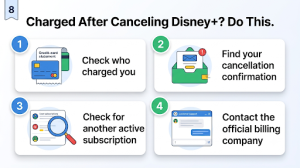
- Check the charge name. Is it Disney Plus, Apple, Google, Roku, Amazon, Hulu, or your carrier? That company handles the refund request.
- Find your proof. Pull up the cancellation confirmation email or a screenshot showing the end date.
- Check for a second subscription. Look at DisneyPlus.com, Hulu.com, your app store subscriptions, and your carrier account. A revived old plan is a common cause.
- Contact official support. For direct billing, use the Disney+ Help Center chat. For partner billing, use Apple’s “Report a Problem,” Google Play’s refund request, or your provider’s support.
- Escalate only if needed. If you canceled on time, have proof, and still can’t get it fixed, you can ask your bank or card issuer about disputing the charge.
FAQs
Can I turn off Disney+ auto-renewal in the Disney+ app?
Usually not on TVs, game consoles, or streaming sticks. For direct plans, open DisneyPlus.com in your phone’s mobile browser instead of the app. If you subscribed through the app store, the cancel option lives in your iPhone Settings or the Google Play Store, not inside Disney+.
Will I lose my profiles and watch history if I stop auto payment?
No. Your MyDisney account, profiles, and watch history stay in place after the plan ends. If you resubscribe later with the same email, you can pick up where you left off. Deleting your account is a separate step that you’d have to request on purpose.
How do I stop auto payment on a Disney+ annual plan?
The steps are the same as a monthly plan. The difference is timing and money. Your access runs to the end of the paid year, and there’s no prorated refund for the remaining months, so you can cancel any time during the year and still watch until it ends. Setting a calendar reminder a week before renewal is a smart backup.
Can I remove my credit card from Disney+ instead of canceling?
That doesn’t reliably stop the plan from renewing. Disney+ is built around keeping a valid payment method on an active subscription, so you can update a card, but taking it away isn’t a cancel. Cancel first. After the plan ends, you can manage or remove saved cards wherever your account allows it.
Why can’t I find the cancel button on my Disney+ account page?
There are three usual reasons. A partner like Apple, Roku, Verizon, or Hulu bills you, so the button lives with them. You’re signed in to a different Disney account than the one that pays. Or the plan is already canceled, in which case you’ll see an end date and a Restart Subscription option.
Does turning off auto payment cancel Hulu and ESPN too?
Only if you cancel the whole bundle. On a Disney+-billed bundle, you can often drop one service by switching to a smaller plan. If Hulu or ESPN were billed separately before you bundled, double-check those accounts after you cancel so an older plan doesn’t keep charging you.
Final Recommendation
Start by checking who bills you on your Disney+ Account page or your card statement. If it’s Disney, cancel at DisneyPlus.com in a browser and click past the discount offer. If it’s Apple, Google, Roku, Amazon, Hulu, HBO Max, or Verizon, cancel there instead.
Do it at least two days before your renewal date, save the confirmation email, and check back a day later to make sure no other plan in a bundle is still active. And skip any “support” number you find on a random forum or PDF. You don’t need to call anyone to turn off Disney+ auto payment.