
If Netflix shows error -121 on your Android phone or tablet even though your Wi-Fi works and the clock looks right, the problem is usually stale Netflix app data or something filtering your connection, such as a VPN, Private DNS, or ad blocker. Clearing the Netflix app storage, turning automatic date and time off and back on, and disabling any VPN or custom DNS fixes it for most people.
The error message is misleading. It tells you to check your network and clock, so you check both, find nothing wrong, and get stuck. This guide skips the obvious advice and walks you through what actually causes -121 when everything “looks fine,” in the order most likely to work.
Quick Overview
- Restart the phone fully, not just lock and unlock it.
- Clear Netflix storage: long-press the Netflix icon, tap App info, then Storage & cache, then Clear storage.
- Reset date and time sync: turn “Set time automatically” and “Set time zone automatically” off, then back on.
- Turn off VPN, Private DNS, and ad blockers, including “always-on” VPN apps.
- Update or reinstall Netflix from the Google Play Store.
- Test another network, like mobile data or a hotspot, to rule out router filtering.
- Check Play Protect certification if nothing works. Uncertified or modified devices may not be supported.
What Does Netflix Error -121 Mean on Android?
Netflix error -121 means the Netflix app on your Android device could not complete its secure connection to Netflix’s servers. The full message reads: “Please make sure that your device has network connectivity and the Date and Time settings are accurate. (-121).”
According to Netflix’s official help article on error -121, the code points to either an issue with data stored on your device or a network problem. It can appear on Android phones, tablets, and Android-based TVs or streaming boxes.
Here’s why the date and time warning shows up at all. Netflix uses encrypted connections, and those security certificates are time-sensitive. If the app thinks your clock is off, or if something interrupts that secure handshake, Netflix can’t tell the difference. So it shows the same generic message.
Important Point to be Considered! Error -121 is not the same as error E121. Netflix’s E121 error says “You seem to be using a VPN or proxy” and appears on ad-supported plans when you connect through a VPN or proxy. If your screen shows “E121” with that VPN message, the fix is to turn off the VPN or change your plan, not to clear app data.
Why Does Netflix Show Error -121 When Your Internet and Date and Time Are Correct?
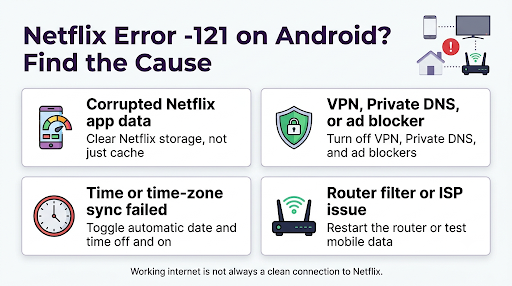
Netflix shows -121 on a working connection because “working internet” and “a clean connection to Netflix” are two different things. Your browser and YouTube can load fine while Netflix’s encrypted streaming requests get blocked, filtered, or rejected.
These are the most common hidden causes:
- Corrupted Netflix app data. A failed update, a partial download, or a sign-in token that expired can leave the app stuck. This is the cause Netflix lists first.
- A VPN or proxy. Even a VPN you forgot about, such as a work profile VPN or a security app with a built-in VPN, can trigger it.
- Private DNS or DNS filtering. Ad-blocking DNS services and Android’s Private DNS setting can block domains Netflix needs.
- Router-level filtering. Parental controls, ad blocking, “security” features, or a custom DNS on your router can affect Netflix while leaving other apps alone.
- Time sync that looks right but isn’t. A manually set clock, a wrong time zone, or a sync that silently failed can be a few minutes off.
- An outdated Netflix app or Android system software.
- A device that isn’t Play Protect certified, or one that is rooted or modified. Netflix relies on Google’s Widevine DRM to protect video, and modified devices may fail its checks.
How Do You Fix Netflix Error -121 on Android?
Work through these fixes in order and test Netflix after each one. Most people are back to streaming by Fix 3 or Fix 4.
Fix 1: Turn Your Android Device Completely Off, Then Back On
A full restart clears temporary network and memory data that Netflix may be holding onto. Netflix specifically says to make sure the device is turned off, not just locked.
- Press and hold the power button (on some phones, power and volume up together).
- Tap Power off.
- Wait about 30 seconds.
- Turn the phone back on and open Netflix.
Fix 2: Clear the Netflix App Data (Storage)
Clearing Netflix storage resets the app to a fresh state, which fixes most “data stored on your device” problems behind error -121. Clearing only the cache often isn’t enough.
- Find the Netflix app on your home screen or app list.
- Tap and hold the icon, then tap App info.
- Tap Storage & cache (or Storage on some Samsung phones).
- Tap Clear storage (sometimes labeled Clear data), then OK.
- Open Netflix and sign in again.
Important Point to be Considered! Clearing Netflix storage deletes any downloaded shows and movies on that device and signs you out. Have your email and password ready before you start.
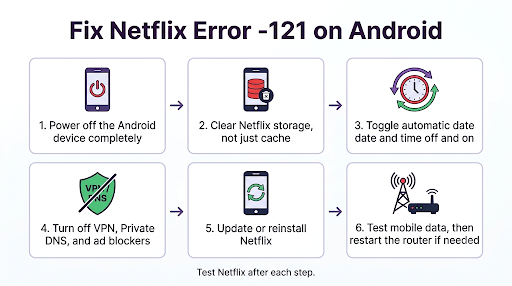
Fix 3: Force a Fresh Date and Time Sync
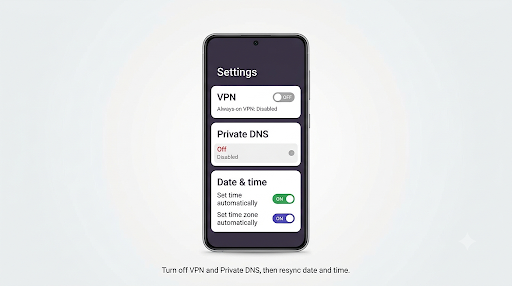
Even if the time on your screen looks correct, toggling automatic time off and on forces Android to resync with your network. This catches small clock drifts and wrong time zones that you’d never notice by looking.
On most Android phones (Pixel, Motorola, OnePlus):
- Open Settings, then System, then Date & time.
- Turn off Set time automatically and Set time zone automatically.
- Wait a few seconds, then turn both back on.
On Samsung Galaxy phones:
- Open Settings, then General management, then Date and time.
- Turn Automatic date and time off, then back on.
Menu names vary by brand and Android version. If you can’t find these options, search “date” in the Settings search bar.
Pro Tip! Check the time zone, not just the time. A phone set to the wrong time zone can show a time that looks right if you set it manually, but its underlying clock is still off by hours. If you travel or recently swapped SIM cards, this is a common trigger.
Fix 4: Turn Off VPN, Private DNS, and Ad Blockers
If Netflix error -121 appears only on your phone while Netflix works on other devices on the same Wi-Fi, a VPN or DNS filter on the phone is the most likely culprit.
Turn off any VPN:
- Open your VPN app and disconnect.
- Then go to Settings, then Network & internet (or Connections on Samsung), then VPN.
- Make sure no VPN is connected and that Always-on VPN is off for every app listed.
Turn off Private DNS:
- Go to Settings, then Network & internet, then Private DNS. On Samsung, go to Settings, then Connections, then More connection settings, then Private DNS.
- Select Off (or Automatic) and tap Save.
If you use an ad blocker that works as a local VPN, a security app with “web protection,” or a DNS service like an ad-blocking DNS, pause it and test Netflix. Some of these apps block domains Netflix needs to start a session.
This is the same type of problem that breaks Netflix on Apple devices, where a privacy relay sits between the app and Netflix. If you also use an iPhone, our guide on Netflix downloads getting stuck because of iCloud Private Relay explains how that works.
Fix 5: Update the Netflix App and Android System Software
An outdated Netflix app can fail Netflix’s newer security checks and show -121. Updating takes less than a minute.
- Open the Google Play Store.
- Search for Netflix and open its page.
- Tap Update. If you only see Open, the app is already current.
Then check for Android updates under Settings, then System, then Software update (or Settings, then Software update on Samsung). Install any pending Google Play system update too, since it updates core security components the Netflix app depends on.
Fix 6: Uninstall and Reinstall Netflix
If clearing storage didn’t help, a full reinstall replaces any damaged app files.
- Open the Netflix page in the Google Play Store.
- Tap Uninstall, confirm, then tap Install.
- Restart the phone before opening Netflix again.
Restarting between uninstall and reinstall matters more than people think. It clears leftover temporary data the old install may have left behind.
Fix 7: Test a Different Network and Restart Your Router
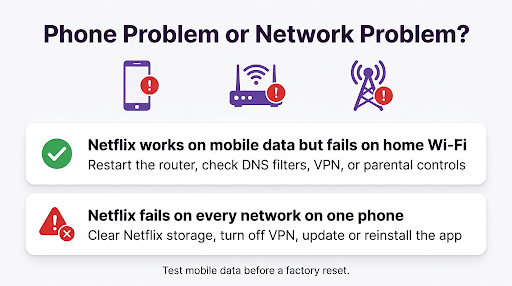
Switching networks tells you whether the problem is your phone or your Wi-Fi. Turn off Wi-Fi and try Netflix on mobile data, or connect to a friend’s hotspot.
- Works on mobile data but not Wi-Fi? The issue is your router or internet provider. Unplug the router and modem for 60 seconds, plug them back in, and wait for them to fully reconnect.
- Still failing on Wi-Fi after a restart? Log in to your router app and check for parental controls, ad blocking, security filters, or a custom DNS server. Temporarily disable them and test again.
- Fails on every network? The problem is on the phone itself. Move on to Fix 8.
You can also forget and rejoin your Wi-Fi network. Go to Settings, then Network & internet, then Internet (or Wi-Fi), tap your network, tap Forget, then reconnect with your password.
Pro Tip! Run a speed test at fast.com, which is Netflix’s own test. If it loads and shows a normal speed, your connection can reach Netflix’s servers, and the problem is almost certainly the app, a filter, or the device.
Fix 8: Check If Your Device Is Play Protect Certified
If error -121 survives every fix above, check whether your device is Play Protect certified. Netflix requires Google certification for full support on Android.
- Open the Google Play Store.
- Tap your profile icon in the upper right.
- Tap Settings, then About.
- Look for Play Protect certification.
Netflix’s help article on device compatibility says that if your device is not certified, you’ll need a supported device to watch Netflix. This often affects rooted phones, phones with an unlocked bootloader, custom ROMs, and some low-cost tablets and Android TV boxes.
What If Netflix Error -121 Still Won’t Go Away?
If none of the fixes work, the last steps are a device software update or reset from the manufacturer, or contacting Netflix directly. Netflix recommends asking your device maker to update the firmware and, if needed, restore the device to its original settings.
Before you factory reset, back up your photos, contacts, and app data. A reset erases everything on the phone. Also keep your Wi-Fi password and Netflix sign-in handy.
If you’d rather get help before trying a reset, you can reach Netflix support from inside the app. Here’s how to contact Netflix customer service from the Netflix app with live chat or a call.
Can Error -121 Appear on Android TV, Google TV, or Fire TV?
Yes. Netflix error -121 can show up on any Android-based device, including Android TV, Google TV, Sony, TCL, Sharp, Fire TV Stick, and Fire tablets. The causes are the same: stale app data, a network filter, or a time sync issue.
On a TV or streaming stick, the steps look a little different:
- Power cycle the device. Unplug the TV or stick from power for at least one minute, not just turn it off with the remote.
- Clear Netflix data. On Android TV or Google TV, go to Settings, then Apps, then Netflix, then Clear data. On Fire TV, go to Settings, then Applications, then Manage Installed Applications, then Netflix, then Clear data.
- Check the TV’s date, time, and time zone in its system settings, and make sure network time is turned on.
- Restart the router for 60 seconds while the TV is unplugged.
If your Fire TV Stick connects to Netflix but keeps loading slowly even though other apps stream fine, that’s a different issue. See our guide on why Netflix buffers on Fire Stick when other apps work.
Common Mistakes That Keep Error -121 Coming Back
- Clearing cache instead of storage. Cache alone rarely fixes -121. You need to clear storage or data.
- Locking the phone instead of powering it off. A locked screen doesn’t reset anything.
- Forgetting about a background VPN. Security apps, work profiles, and ad blockers often run a VPN without showing an obvious icon.
- Setting the clock manually. A manual clock drifts over time. Keep automatic date, time, and time zone turned on.
- Sideloading an old Netflix APK. Older versions downloaded outside the Play Store can fail Netflix’s security checks.
- Restarting the router for only a few seconds. Wait a full 60 seconds so it truly resets its connection.
FAQs
Is Netflix down, or is error -121 just on my phone?
Error -121 is almost always a device or network issue, not an outage. To be sure, check Netflix’s official “Is Netflix Down?” page at help.netflix.com, or try Netflix on another device. If it works elsewhere, the problem is your Android device.
Why does Netflix work on my TV but show error -121 on my phone?
When Netflix works on one device but not another on the same Wi-Fi, the problem lives on the failing device. On phones, that’s usually a VPN, Private DNS, an ad-blocking app, or corrupted Netflix data. Your TV doesn’t run those phone-only filters.
Will clearing Netflix app data delete my account or watch history?
No. Your profiles, watch history, and My List are stored on your Netflix account, not on the phone. Clearing data only removes downloads saved to that device and signs you out.
Does error -121 mean my phone is no longer supported?
Not usually. Most -121 errors are fixed with the steps above. It only points to a support problem if your device isn’t Play Protect certified, is rooted, or runs an Android version Netflix no longer supports.
Can mobile data fix Netflix error -121?
Switching to mobile data won’t fix the root cause, but it’s a fast test. If Netflix works on mobile data, your home router or internet provider is blocking something. If it still fails, the issue is on the phone.
Is Netflix error -121 the same as error 121 on a Fire tablet?
They are closely related. On a Fire tablet, the same message usually points to a network issue, a VPN or proxy, or stale app data. Use the same fixes: restart, clear Netflix data, disable any VPN, and restart your network.
Final Recommendation
If you’re seeing Netflix error -121 on Android and your internet and clock both look fine, start with the two fixes that solve it most often: clear the Netflix app storage and toggle automatic date and time off and back on. If that doesn’t work, turn off every VPN, Private DNS setting, and ad blocker, then test on mobile data to find out whether the problem is the phone or the Wi-Fi.
Only move to a factory reset after checking your Play Protect certification and trying a full reinstall. And if you get stuck at any point, Netflix support can check your account and device from their end.