
If Netflix keeps crashing back to the home screen on your LG Smart TV, the most common cause is Quick Start+ keeping the TV in standby, so its memory never fully clears. Turn Quick Start+ off, unplug the TV for 10 minutes, and then open Netflix again. That one-two fix solves the problem for most people.
Below, you will find the exact Quick Start+ menu path for your webOS version, why this happens, and what to try next if Netflix still closes, freezes, or shows the “This app will now restart to free up more memory” message.
Quick Overview
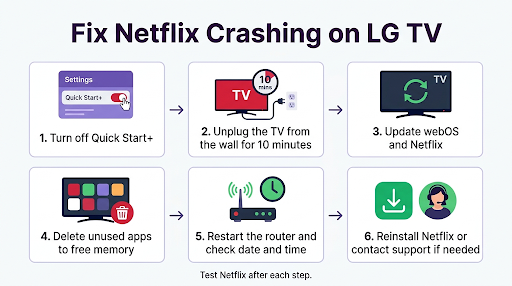
- Turn off Quick Start+ in your TV settings (the path depends on your webOS version, see the table below).
- Unplug the TV from the wall for 10 minutes, then plug it back in. LG recommends this for its memory error.
- Update webOS from Settings > All Settings > Support > Software Update.
- Delete apps you do not use to free up storage and memory.
- Reinstall or update Netflix if your model allows it.
- Restart your router and check the date and time on the TV.
- Contact Netflix or LG if the crashing continues after all of the above.
Why Does Netflix Keep Crashing Back to the Home Screen on an LG TV?
Netflix usually crashes to the home screen on an LG TV because the TV is running low on available memory. When webOS can no longer keep the app running, it closes Netflix and sends you back to the home screen, sometimes with a message and sometimes without any warning.
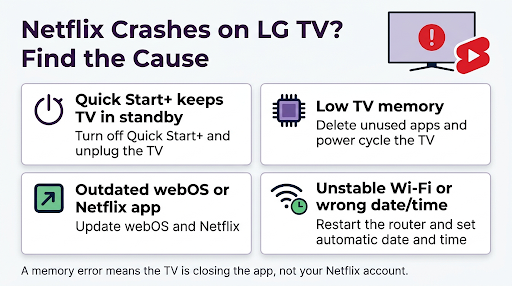
Here is how Quick Start+ plays into it. LG explains that Quick Start+ keeps your TV in standby mode instead of turning it off completely. That makes the TV turn on faster. The downside is that the TV may go days or weeks without a real restart. Temporary data, background processes, and small memory leaks keep piling up. Eventually, a heavy app like Netflix does not have enough room to run, so it crashes.
Other common causes include:
- Too many installed apps taking up limited storage and memory
- Outdated webOS firmware or an outdated Netflix app
- Corrupted Netflix app data after an update
- An unstable Wi-Fi connection that causes the app to stall and close
- Wrong date, time, or region settings on the TV
Important Point to be Considered! LG has not officially labeled this a “Quick Start+ bug.” However, LG’s own support pages list turning off Quick Start+ and doing a power cycle as the first fix for its memory shortage error, which is why so many LG owners call it a bug.
What Does “This App Will Now Restart to Free Up More Memory” Mean?
This message means your LG TV ran out of memory for the app you are using, so webOS is forcing it to close and reload. It is the clearest sign that the problem is memory related and not a Netflix account problem.
Netflix has a help article specifically for this LG Smart TV message, and LG’s support pages cover the same error. If you see this message, the Quick Start+ and power cycle steps below are your best starting point. If Netflix closes silently with no message, the cause is usually the same, so the same fixes apply.
How Do You Turn Off Quick Start+ on an LG TV?
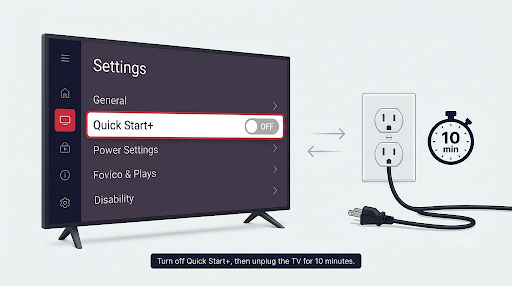
To turn off Quick Start+, press the Settings (gear) button on your remote, select All Settings, and follow the path for your TV’s model year below. Then set Quick Start+ to Off.
| TV Model Year / webOS Version | Quick Start+ Menu Path |
| 2026 and later (webOS 26) | All Settings > System > Additional Settings > Quick Start+ |
| 2023 to 2025 (webOS 23, 24, 25) | All Settings > General > System > Additional Settings > Quick Start+ |
| 2021 to 2022 (webOS 6.0, webOS 22) | All Settings > General > Devices > TV Management > Quick Start+ |
| 2020 (webOS 5.0) | All Settings > General > Additional Settings > Quick Start+ |
| 2019 (webOS 4.5) | All Settings > General > Additional Settings > Q Start+ |
| 2018 and older (webOS 4.0 or earlier) | All Settings > General > Quick Start+ (or Q Start+) |
Pro Tip! Not sure which webOS version you have? Press the Mute button or the Settings button on your remote three times in a row. LG says this opens a screen with your TV’s system information, including the webOS version.
If your remote has no Settings button, press Home and pick the Settings (gear) icon on the screen instead. Menu names can vary slightly by model and region, and Quick Start+ is not available on every LG model.
Should You Keep Quick Start+ On or Off?
If Netflix or other apps keep crashing, keep Quick Start+ off. The only real tradeoff is that your TV will take a few extra seconds to turn on, because it now boots fresh each time. In return, the memory clears every time you switch the TV off, which is exactly what stops repeat crashes.
If your apps run fine and you like the faster startup, you can leave it on. Some LG owners turn it back on after the crashing stops. Just know the problem may come back, and turning it off again is the first thing to try.
How Do You Power Cycle an LG TV the Right Way?
A proper power cycle means unplugging the TV from the wall, not just turning it off with the remote. Turning it off with the remote only puts the TV in standby, which does not clear memory, especially with Quick Start+ on.
- Turn off Quick Start+ first (see the table above).
- Turn off the TV and unplug the power cord from the wall outlet.
- Wait 10 minutes. This is LG’s recommended wait time for the memory error.
- Plug the TV back in, turn it on, and open Netflix.
Netflix’s own help page gives a shorter version: unplug the TV, press the power button on the TV once and wait 1 minute, or leave it unplugged for 3 minutes. Either method works, but the longer 10-minute wait gives the TV the best chance to fully reset.
Pro Tip! If your TV is plugged into a surge protector or a smart plug, unplug it from the wall directly while testing. A faulty power strip can cause random restarts that look like app crashes.
Is There a Quick Restart Without Unplugging?
Yes. Some LG remotes support a soft reset. Lifewire notes you can hold Volume Down and Power on the remote for about 12 seconds to restart the TV. This is handy when the outlet is hard to reach, but a full unplug is more reliable for memory problems.
What If Netflix Still Crashes After Turning Off Quick Start+?
If Netflix still crashes after you turn off Quick Start+ and power cycle the TV, work through the fixes below in order. Each one targets a different cause, from storage to app data to your network.
1. Update Your LG TV Software (webOS)
Updating webOS can fix crash bugs and improve app stability. LG says software updates can address problems opening apps and help your TV run more reliably.
- 2020 and newer TVs (webOS 5.0 and later): Settings > All Settings > Support > Software Update > Check for Updates
- 2019 TVs (webOS 4.5): Settings > All Settings > General > Support > Software Update
Turn on Auto Update (or “Allow Automatic Updates”) while you are there so future fixes install on their own. After an update finishes, turn the TV off for about 10 seconds and back on.
2. Delete Apps You Do Not Use
Deleting unused apps frees up storage and memory, and LG lists it as a fix for its memory shortage error. Many LG TVs have limited built-in memory, so a home screen full of apps you never open can push Netflix over the edge.
- Press Home on your remote.
- Highlight an app you do not use, then press and hold the OK (wheel) button for about 3 seconds to enter edit mode. You can also select Edit App List at the end of the app row.
- Select the trash bin or X icon above the app and confirm.
3. Reinstall or Update the Netflix App
Reinstalling Netflix clears corrupted app data. LG TVs do not have a per-app “clear cache” button, so a reinstall is the closest option.
- Delete Netflix using the same edit steps above.
- Press Home, open Apps (or LG Content Store on older models), and select the search icon.
- Search for Netflix, select Install, and sign back in.
Important Point to be Considered! On many LG models, Netflix comes preinstalled and cannot be deleted. If you do not see a delete option for Netflix, skip this step. Instead, check the Apps store for a Netflix update, and sign out of Netflix and back in. To sign out, open Netflix, move to the left menu, select Get Help, and choose Sign Out.
4. Restart Your Router and Check Your Connection
A weak or unstable connection can make Netflix stall, freeze, and kick you back to the home screen. LG’s app troubleshooting starts with checking your network for this reason.
- Unplug your modem and router for 30 seconds. Plug in the modem first, then the router, then turn on the TV.
- Check the network status in your TV’s settings.
- If you can, use an Ethernet cable instead of Wi-Fi for a more stable connection.
If Netflix struggles while other apps stream fine on a different device, the cause is often app specific. This guide on why Netflix buffers when other apps work fine walks through that exact situation.
5. Check the Date, Time, and Region Settings
A wrong date, time, or region setting can break secure connections that streaming apps rely on. Set the date and time to automatic in your TV’s General or System settings. Also make sure your LG Services Country matches where you actually live, since apps may not work correctly with the wrong region.
Date and time problems cause Netflix errors on other devices too. For example, Netflix error 121 is often tied to wrong date and time settings, and the same logic applies to your TV.
6. Reset Your LG TV to Factory Settings (Last Resort)
A factory reset wipes all apps, accounts, and settings, so use it only after everything else fails. On most newer LG TVs, you will find it under Settings > All Settings > General (or System) > Reset to Initial Settings. You will need to set up the TV, Wi-Fi, and every app again.
Is the Problem Netflix, Your LG TV, or Something Else?
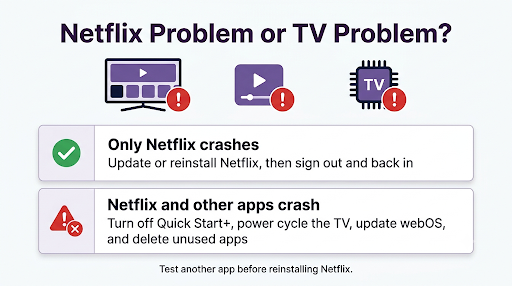
The quickest way to find out is to check which apps are crashing. Use this table to narrow it down.
| What You Notice | Likely Cause | Best Fix |
| Netflix and other apps (YouTube, Prime Video) crash | Low TV memory, Quick Start+, old firmware | Turn off Quick Start+, power cycle, update webOS, delete unused apps |
| Only Netflix crashes | Corrupted or outdated Netflix app | Update or reinstall Netflix, sign out and back in |
| Netflix crashes after a few minutes of playback | Memory filling up during streaming | Power cycle for 10 minutes, delete unused apps |
| Netflix freezes or buffers, then closes | Unstable network | Restart router, switch to Ethernet |
| Netflix works on your phone but not the TV | TV or app issue, not your account | All TV fixes above |
What If You Use a Fire Stick or Roku on Your LG TV?
If you watch Netflix through a Fire TV Stick or Roku plugged into your LG TV, Quick Start+ is not the cause, because the streaming device runs the app, not webOS. In that case, troubleshoot the device itself. If your stick restarts mid-show, see this guide on why a Fire Stick reboots while watching Netflix.
Pro Tip! Using a streaming stick is also a smart workaround. If your LG TV is older and keeps running out of memory no matter what you try, an external streaming device gives Netflix its own processor and memory.
Common Mistakes That Make the Crashing Come Back
- Turning the TV off with the remote and calling it a restart. That is only standby. Unplug it.
- Unplugging for just a few seconds. Give it at least a few minutes, ideally the 10 minutes LG recommends.
- Turning Quick Start+ back on right away. Wait a week or two to confirm the crashing has stopped.
- Ignoring software updates. Leave Auto Update on so you get stability fixes.
- Keeping every app you ever installed. Every extra app eats into limited storage.
Frequently Asked Questions
Why does Netflix keep closing on my TV but other apps work?
When only Netflix closes, the Netflix app itself is usually the problem, not the TV’s memory. Check the Apps store for a Netflix update, sign out and back in through Get Help, or reinstall the app if your model lets you. If it still happens, the Netflix servers or your account could be involved, so try Netflix on another device to compare.
Does turning off Quick Start+ damage my LG TV?
No. Turning off Quick Start+ does not harm the TV. It simply makes the TV shut down fully instead of sitting in standby. LG also notes that Quick Start+ uses a small amount of standby power, so turning it off can slightly reduce power use.
Why does Netflix keep kicking me out on my smart TV?
Being kicked out can mean two different things. If the app crashes to the home screen, it is usually a memory or app problem covered above. If Netflix signs you out or blocks you with a household message, that is an account rule, not a crash. This guide on the Netflix household error even on home Wi-Fi explains how to fix that version.
Can I clear the Netflix cache on an LG TV?
LG TVs do not offer a dedicated cache button for each app. The closest options are a full power cycle, which clears temporary memory, and reinstalling Netflix, which clears its stored data. Signing out and back in can also refresh the app.
Why do LG TV apps stop working after an update?
Sometimes an app or webOS update leaves behind old data that conflicts with the new version. A 10-minute unplug usually clears it. If not, reinstall the affected app or check for a follow-up update, since fixes for update-related bugs often arrive within a few weeks.
Is my LG TV too old to run Netflix?
Very old LG models may lose Netflix support, and lower-memory models struggle more with today’s apps. If Netflix will not install, will not open at all, or keeps crashing after every fix, check whether your model is still supported, or use a streaming stick instead.
Final Recommendation
Start with the two fixes that work most often: turn off Quick Start+ and unplug your LG TV for 10 minutes. Then update webOS and delete apps you do not use. If Netflix is the only app still crashing, update or reinstall it and sign back in.
If none of that works, it is time to get help. You can reach out through the Netflix app itself, and this guide shows how to contact Netflix customer service from the Netflix app. If several apps keep crashing, contact LG support with your TV model number and webOS version, since the issue may need a firmware fix or repair.