
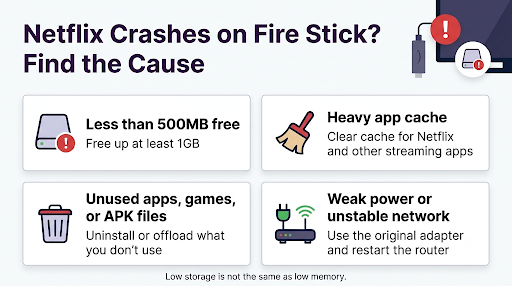
If Netflix crashes, freezes, or kicks you back to the home screen on your Fire Stick, and you’re also seeing a “low storage” or “critically low on storage” warning, the two problems are almost always connected. Free up at least 500MB to 1GB of internal storage, clear the Netflix cache, and restart the Fire Stick. That fixes most low-storage Netflix crashes in under ten minutes.
This guide shows you exactly where the space went, how to get it back without deleting apps you use, and what to do if Netflix still crashes after storage is fixed.
Quick Overview
- Check free space: Settings > My Fire TV > About > Storage.
- Clear cache first: Settings > Applications > Manage Installed Applications > Netflix > Clear Cache. Repeat for other big streaming apps.
- Remove what you don’t use: uninstall or offload unused apps, games, and old APK files.
- Turn on Auto Offload: Settings > Applications > Auto Offload (supported models only).
- Restart properly: unplug the Fire Stick for 60 seconds, then plug it back in.
- Still crashing? Clear Netflix data, reinstall the app, and update Fire OS.
Aim for at least 1GB free. 500MB is the bare minimum, not a comfortable buffer.
Why Does Netflix Crash on Fire Stick When Storage Is Low?
Netflix crashes on a low-storage Fire Stick because the app has no room left to write temporary files. While you stream, Netflix and Fire OS constantly write cache data, logs, thumbnails, and app updates to internal storage. When that space runs out, the app can’t save what it needs, so it freezes, closes, or shows an error.
Here’s what usually eats up the space:
- App cache: streaming apps like Netflix, Prime Video, YouTube, and Disney+ build up cache over weeks of use.
- Large app sizes: streaming apps keep getting bigger with every update. AFTVnews reported that Netflix is among the larger streaming apps on Fire TV, much bigger than lightweight apps that do the same job.
- Pre-installed Amazon apps: some built-in apps can’t be removed and take space you can’t reclaim.
- Fire OS updates: system updates need space to download and install.
- Sideloaded APK files: if you’ve used the Downloader app, old installer files often sit there forgotten.
- Games: even one or two games can use more space than several streaming apps combined.
Most Fire TV Sticks ship with 8GB of storage, and a good chunk of that is used by the system before you install anything. That’s why you can hit the limit with only a handful of apps.
Is 500MB an Official Netflix Crash Limit?
No. Neither Netflix nor Amazon publishes an exact number where Netflix starts crashing. The 500MB figure comes from Amazon’s own guidance: the Fire TV device needs at least 500MB of available storage to download a software update, and Amazon support often tells users to free up 500MB when the low storage error keeps appearing.
In practice, once free space falls below roughly 500MB, the “low storage” pop-ups start, updates fail, and heavy apps like Netflix become unstable. That’s why 500MB works as a useful warning line.
Important Point to be Considered! If you free up exactly 500MB, you’ll likely be back in trouble in a week as cache rebuilds. Aim for 1GB or more of free space to give Netflix and Fire OS breathing room.
How Do You Check How Much Storage Is Left on Your Fire Stick?
Go to Settings > My Fire TV > About > Storage. You’ll see total storage, how much is used, and how much is available.
You can also check per-app usage:
- Press the Home button on your remote.
- Open Settings (the gear icon).
- Select Applications, then Manage Installed Applications.
- The bar at the top shows internal storage used and available.
- Select any app to see its app size, data, and cache.
Menu names can differ slightly by model and Fire OS version. On some devices, “My Fire TV” appears as “Device & Software.”
Pro Tip! Write down the “Available” number before you start. It makes it easy to see which fix actually gave you the most space back.
How to Fix Netflix Crashing on Fire Stick Due to Low Storage
Work through these steps in order. Most people only need the first three or four.
1. Clear the Netflix Cache
Clearing cache removes temporary files without signing you out. It’s the safest first move.
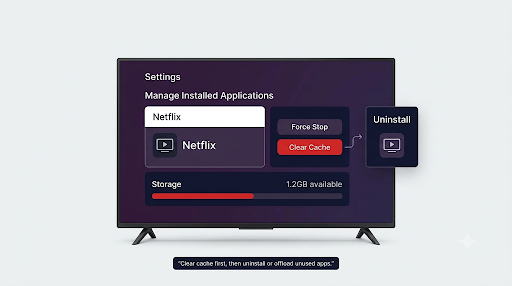
- Go to Settings > Applications > Manage Installed Applications.
- Select Netflix.
- Select Force Stop.
- Select Clear Cache.
Then repeat this for your other heavy apps: Prime Video, YouTube, Disney+, Max, Hulu, and any IPTV or media player apps. Amazon recommends this in its guide to clearing app data and cache on Fire TV to fix both app issues and low storage messages.
2. Know the Difference Between Clear Cache and Clear Data
| Option | What It Removes | Signs You Out? | When to Use It |
| Clear Cache | Temporary files, thumbnails, buffered data | No | First step for crashes and low storage |
| Clear Data | Cache plus settings, login, and saved app data | Yes | When Netflix still crashes after clearing cache |
| Uninstall | The whole app and everything in it | Yes | Corrupted app or app you no longer use |
| Offload | The app itself, but keeps your user data | Usually no | Apps you use rarely but want to keep |
Important Point to be Considered! Keep your Netflix email and password handy before you select Clear Data. You’ll need to sign back in and pick your profile again.
3. Uninstall Apps and Games You Don’t Use
This usually frees the most space in one go.
- Go to Settings > Applications > Manage Installed Applications.
- Scroll through the list and look at each app’s size.
- Select an app you don’t use, then select Uninstall and confirm.
Start with games and apps you haven’t opened in months. You can always reinstall them later from the Amazon Appstore.
4. Turn On Auto Offload or Offload Apps Manually
Offloading removes an app but keeps its user data, so you don’t have to set it up again when you reinstall. According to Amazon, Auto Offload is on by default and you can turn it on or off from Settings > Applications > Auto Offload.
A few things to know:
- Auto Offload removes apps you haven’t used in a while. AFTVnews reports it targets apps unused for more than 60 days when usable storage gets low.
- Offloaded apps stay on your home screen with a small cloud icon. Selecting one reinstalls it.
- You can offload a single app by highlighting it and pressing the Menu button (three lines) on your remote.
- It needs an internet connection to work.
- It isn’t available on older devices like the Fire TV Stick (1st and 2nd Gen), Fire TV Stick Basic Edition, or on devices with Kids profiles set up.
5. Delete Old APK Files and Downloads
If you’ve ever sideloaded an app, the installer file often stays behind and wastes space.
- Open the Downloader app (or whichever file manager you used).
- Go to the Files section.
- Delete any .apk files you’ve already installed.
Also delete any downloaded offline videos inside other apps that support downloads. They can take up hundreds of megabytes each.
6. Sync Amazon Content and Restart the Fire Stick
This step helps when you’ve cleared almost everything and storage still looks full. Hidden system files and stuck temporary files often clear after a sync and full power cycle.
- Go to Settings > Account & Profile Settings (or My Account on some models).
- Select Sync Amazon Content.
- Unplug the Fire Stick from the power outlet, not just the TV.
- Wait 60 seconds, then plug it back in.
- Check Settings > My Fire TV > About > Storage again.
Pro Tip! A restart from the menu (Settings > My Fire TV > Restart) is fine for quick glitches. For storage and memory issues, unplugging the power is more effective because it fully clears the device’s memory.
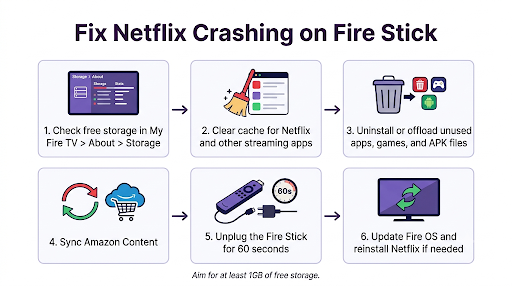
7. Update Fire OS and the Netflix App
Once you have at least 500MB free, install any pending updates. Outdated software is a common cause of app crashes.
- Fire OS: Settings > My Fire TV > About > Check for Updates, then Install Update if one is available.
- Netflix: Settings > Applications > Appstore > Automatic Updates should be on. You can also search for Netflix in the Appstore and select Update if the option shows.
8. Reinstall Netflix if It Still Crashes
If Netflix keeps crashing after you’ve freed space, its local files may be corrupted. A clean reinstall fixes that.
- Go to Settings > Applications > Manage Installed Applications > Netflix.
- Select Force Stop, then Clear Data, then Clear Cache.
- Select Uninstall.
- Unplug the Fire Stick for 30 to 60 seconds.
- Search for Netflix from the home screen, reinstall it from the Amazon Appstore, and sign back in.
Why Does My Fire Stick Say Low Storage When I Have Almost No Apps?
Because a big part of the storage is used by Fire OS and Amazon’s own apps before you install anything. Your “8GB” Fire Stick doesn’t give you 8GB of usable space. After the system and built-in apps, the usable portion is much smaller, and some of those built-in apps can’t be uninstalled.
On top of that, cache and app data keep growing even for apps you already have. Two or three streaming apps used every day can quietly fill several hundred megabytes over a few months.
If you’ve removed nearly everything and still have less than 500MB free, try these in order:
- Clear cache for every app in the list, including the Amazon Appstore and Prime Video.
- Sync Amazon Content and unplug the device for 60 seconds.
- Check for and install a Fire OS update, which can clean up old system files.
- As a last resort, factory reset the device (see below).
Is It Really Low Storage, or Something Else?
Not every Netflix crash on Fire Stick is caused by storage. If you have plenty of free space and Netflix still crashes, look at these other causes.
| What You See | Likely Cause | What to Try |
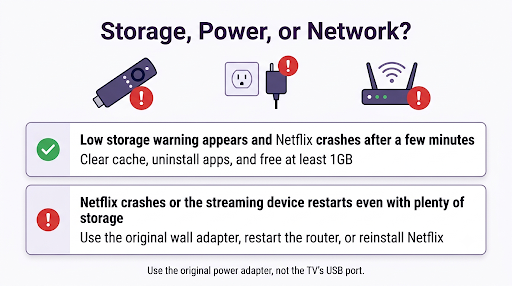
| “Low storage” pop-ups plus crashes | Not enough internal storage | Clear cache, uninstall or offload apps |
| “This app will now restart to free up more memory” | RAM (memory) is full, not just storage | Force stop background apps, unplug the Fire Stick |
| Crashes or restarts, especially with 4K streams | Weak power supply | Use the original Amazon adapter plugged into a wall outlet |
| Constant buffering, then the app closes | Slow or unstable Wi-Fi | Restart your router, move closer, or use an Ethernet adapter |
| Netflix down on every device at once | Netflix service outage | Wait it out and check the Netflix status page |
| Crashes only after a recent update | App or Fire OS bug | Clear data and reinstall Netflix, check for another update |
Storage vs. Memory: What’s the Difference?
Storage is where apps and files are saved. Memory (RAM) is the short-term workspace apps use while running. A Fire Stick can have enough storage but still run out of memory if too many apps are open in the background. Unplugging the device for a minute clears memory. Clearing cache and removing apps clears storage.
Check Your Power Supply
Netflix’s own help center notes that the Amazon Fire TV and Fire TV Stick need a power supply of at least 2.1 amps. Powering the stick from your TV’s USB port often doesn’t deliver enough power, which can cause random crashes and restarts. Use the adapter that came in the box and plug it into a wall outlet.
What Should You Do If Nothing Works?
If Netflix still crashes after freeing space, reinstalling, and updating, a factory reset is the last step. It wipes the Fire Stick back to how it was out of the box.
- Go to Settings > My Fire TV.
- Select Reset to Factory Defaults.
- Confirm and let the device restart. This can take several minutes.
- Set it up again, but only reinstall the apps you actually use.
Important Point to be Considered! A factory reset removes all apps, sign-ins, and settings. Make sure you know your Amazon account and streaming app passwords before you start.
If Netflix is the only app that keeps failing even after a reset, the problem may be with your Netflix account or the app itself. In that case, it’s worth reaching out to Netflix directly. Here’s a simple guide on how to contact Netflix customer service from the Netflix app so you can get help without searching for a phone number.
Watch: Fixing Fire Stick Low Storage Step by Step
Prefer to follow along on screen? This video walks through clearing cache, removing apps, and fixing the low storage warning on a Fire Stick.
Video credit: JustBOZ on YouTube.
How Can You Stop Netflix From Crashing Again?
Keep at least 1GB free and clear cache once a month. That simple habit prevents most repeat crashes.
- Monthly cache clean: clear cache for Netflix and your other daily streaming apps.
- Leave Auto Offload on: let the Fire Stick handle rarely used apps automatically.
- Avoid installing games on an 8GB Fire Stick unless you play them often.
- Delete APK files right after you install a sideloaded app.
- Check storage before big updates so Fire OS doesn’t fail mid-install.
- Restart weekly by unplugging the power for a minute.
- Consider a model with more storage if you use many apps. The Fire TV Stick 4K Max (2nd Gen) has 16GB, double the storage of most other Fire TV Stick models.
Frequently Asked Questions
Will clearing the Netflix cache delete my downloads or profiles?
No. Clearing cache only removes temporary files. Your Netflix account, profiles, and viewing history stay safe because they’re saved to your account, not the Fire Stick. Only Clear Data and Uninstall sign you out.
How often should I clear cache on my Fire Stick?
Once a month is a good routine for most people. If you stream several hours a day or see the low storage warning often, clearing cache every two weeks helps.
Why does Netflix keep closing back to the home screen on my Fire TV?
It usually means the app ran out of storage or memory, or its local data got corrupted. Force stop Netflix, clear its cache, and unplug the Fire Stick for 60 seconds. If it keeps happening, clear data and reinstall the app.
Can I add external storage to a Fire Stick for more space?
Some Fire TV models support USB storage through a USB OTG adapter, but support varies by model, and not every app can be moved. Check Amazon’s support pages for your exact device before buying an adapter. For most people, clearing cache and removing unused apps is enough.
Does a factory reset fix “critically low on storage” permanently?
It clears the problem for now, but it isn’t permanent. If you reinstall the same apps and never clear cache, storage will fill up again over time. Pair the reset with the prevention habits above.
Is Netflix crashing on Fire Stick the same issue as on Roku or Samsung TV?
The causes overlap, like low memory, outdated software, and corrupted app data, but the fixes differ by platform. The storage steps in this guide are specific to Fire TV devices and their Fire OS settings menus.
Final Recommendation
If Netflix crashes and you see a low storage warning, start with the quick wins: clear Netflix cache, clear cache on your other streaming apps, and uninstall anything you haven’t used in months. Then unplug the Fire Stick for 60 seconds and check that you have at least 1GB free.
If storage looks fine and Netflix still crashes, clear its data and reinstall it, update Fire OS, and confirm you’re using the original power adapter in a wall outlet. Save the factory reset for last. Most people never need it.