
If Netflix shows error NW-2-5 on your Fire Stick only when IPv6 is turned on in your router, the Fire Stick is reaching your network but the IPv6 path to Netflix is stalling. The app waits, times out, and shows the error. The quickest test is to turn off IPv6 on the router, restart both the router and the Fire Stick, and open Netflix again.
If that works, you have found the cause. You can then decide whether to leave IPv6 off or fix the router setting that broke it, so the rest of your home keeps the benefits of IPv6.
Quick Overview
- What NW-2-5 means: Your Fire Stick took too long to connect to Netflix. It is a network timeout, not an account or payment problem.
- Why IPv6 triggers it: Many devices try IPv6 first. If your router hands out IPv6 addresses but cannot route IPv6 traffic properly, Netflix hangs until it times out.
- Fastest test: Disable IPv6 on the router, reboot the router and Fire Stick, then retry Netflix.
- Common root causes: A mesh system or second router breaking IPv6, a DNS filter or Pi-hole blocking IPv6 lookups, an IPv6 tunnel broker, MTU problems, or buggy router firmware.
- Long-term fix: Update router firmware, set the correct IPv6 connection type, and avoid a double router setup. Leave IPv6 off only if those don’t work.
What Does Netflix Error NW-2-5 Mean on a Fire Stick?
Error NW-2-5 means your Fire Stick could not reach Netflix fast enough. Netflix describes it as a sign that your device took too long to connect to Netflix, which usually points to a problem on the device or home network.
On a Fire TV Stick, the message usually looks like one of these:
- “Netflix has encountered an error. Retrying in [X] seconds. Code: NW-2-5”
- “Couldn’t connect to Netflix. Please try again or restart your home network and streaming device. Code: NW-2-5”
The confusing part is that your Fire Stick often says it is connected to Wi-Fi, the home screen loads, and other apps may even work. That is why so many people search for “Netflix error NW-2-5 but internet is fine.” The Fire Stick has a connection. It just can’t finish the conversation with Netflix’s servers.
Why Does IPv6 Cause NW-2-5 on Fire Stick?
IPv6 causes NW-2-5 when your router gives the Fire Stick an IPv6 address, but IPv6 traffic doesn’t actually make it to the internet and back. The Fire Stick sees a working IPv6 setup, tries to reach Netflix over it, and waits instead of falling back to IPv4 quickly.
Netflix supports IPv6, so IPv6 itself is not the enemy. The problem is a half-working IPv6 setup. Here are the situations that cause it most often.
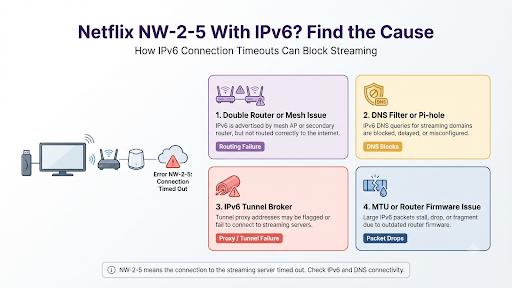
1. A Mesh System or Second Router Breaks IPv6
This is the most common cause in U.S. homes. You have an ISP gateway (from Xfinity, AT&T, Spectrum, Verizon, or T-Mobile Home Internet) plus your own router or mesh system plugged into it. Now you have two routers, also called double NAT.
IPv4 still works through two routers. IPv6 often doesn’t. The second router may advertise IPv6 to your devices without getting a proper IPv6 prefix from the ISP gateway. Some mesh units in access point mode still advertise IPv6 even when there is no IPv6 setting in their app or web page.
2. DNS Filtering, Pi-hole, or an Ad Blocker
DNS-level ad blockers and filters are a known trigger for NW-2-5. With IPv6 on, your Fire Stick may also get an IPv6 DNS server from the router. If that DNS server blocks, filters, or fails to answer lookups for Netflix domains, the app stalls. A common sign is that Netflix works once you point the Fire Stick to a different DNS server.
3. An IPv6 Tunnel Broker
Some advanced users get IPv6 through a tunnel service instead of from their ISP. Netflix treats many tunnel broker addresses like a proxy or VPN. That can block playback or stop the app from loading. Native IPv6 from your ISP doesn’t have this problem.
4. MTU and Blocked ICMPv6
This one is more technical but often missed. Unlike IPv4, IPv6 routers do not break large packets into smaller pieces along the way. Devices rely on small ICMPv6 “packet too big” messages to figure out the right packet size. If your router or firewall blocks ICMPv6, or the MTU is set wrong, small requests go through but larger ones silently disappear. The Netflix app then hangs on loading and times out.
5. Router Firmware Bugs
Many NW-2-5 reports start right after a router firmware update. A new firmware version can change IPv6 behavior, reset settings, or introduce bugs. If Netflix stopped working on your Fire Stick the same week your router updated, treat the firmware as a suspect.
How Do You Confirm IPv6 Is the Real Cause?
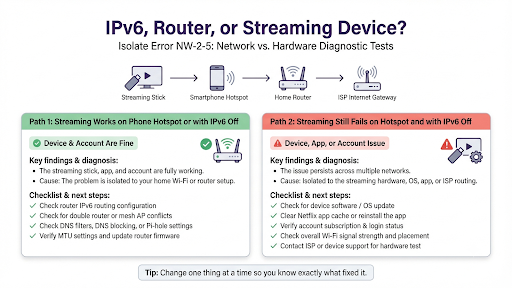
Confirm it by changing one thing at a time and checking whether NW-2-5 disappears. Run these quick tests before you change any router settings.
| Test | What to Do | What the Result Tells You |
| Phone hotspot test | Connect the Fire Stick to your phone’s hotspot and open Netflix | If Netflix works, the Fire Stick and your account are fine. The problem is your home network. |
| IPv6 off test | Disable IPv6 on the router, restart the router and Fire Stick | If Netflix works now, IPv6 routing or IPv6 DNS is the cause. |
| Other device test | Open Netflix on a phone, laptop, or smart TV on the same Wi-Fi | If every device fails, check your ISP or router. If only the Fire Stick fails, focus on the Fire Stick and its DNS. |
| Other app test | Open Prime Video, YouTube, or another streaming app on the Fire Stick | If Prime Video also shows a connection error, your router is likely blocking or breaking traffic for the whole device. |
| Bypass the second router | Connect the Fire Stick directly to the ISP gateway’s Wi-Fi or Ethernet | If Netflix works there, your mesh system or second router is breaking IPv6. |
Pro Tip! Also test Netflix on your phone using cellular data and then on your home Wi-Fi. If Netflix on your iPhone loads on cellular but freezes on the profile screen on home Wi-Fi, the problem is almost certainly your network and not the Fire Stick.
How Do You Check Your Fire Stick’s Network Status?
Fire TV has a built-in Network Status tool that checks both the connection to your router and the connection from your router to the internet.
- Go to Settings on your Fire TV home screen.
- Select Network.
- Highlight your Wi-Fi network name.
- Press the Play/Pause button on your remote.
- Review the connection status and any recommendations. On compatible models you can also run a speed test or open Advanced for details.
If the tool says everything is connected but Netflix still fails, that is a strong hint the issue is DNS or IPv6 routing, not your Wi-Fi signal.
How Do You Fix Netflix NW-2-5 on Fire Stick With IPv6 Enabled?
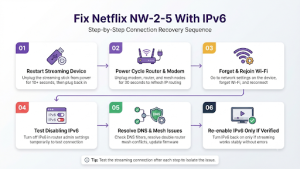
Start with the simple resets, then move to the router. Try Netflix after each step so you know which one fixed it.
Step 1: Restart the Fire Stick the Right Way
Unplug the Fire Stick from its power adapter, not just the TV, for at least 10 seconds. Then plug it back in. You can also hold Select and Play/Pause together for about five seconds, or go to Settings > My Fire TV > Restart.
Step 2: Power Cycle the Modem and Router
Unplug your modem, router, and any mesh units for at least 30 seconds. Plug the modem in first and wait until it fully comes online. Then plug in the router and mesh units. Restart the Fire Stick last so it picks up fresh IPv4 and IPv6 settings.
Step 3: Forget and Rejoin Your Wi-Fi Network
- Go to Settings > Network.
- Highlight your network name.
- Press the Menu button (three lines), then press Select to forget the network.
- Select the network again and enter your Wi-Fi password.
This clears any old DNS or static IP settings that may still be saved on the Fire Stick.
Step 4: Force Stop Netflix and Clear Its Cache
- Go to Settings > Applications > Manage Installed Applications.
- Select Netflix.
- Choose Force stop, then Clear cache.
- Open Netflix again.
Menu names can differ slightly by Fire TV model and software version. Use Clear data only if clearing the cache doesn’t help, because it signs you out of Netflix.
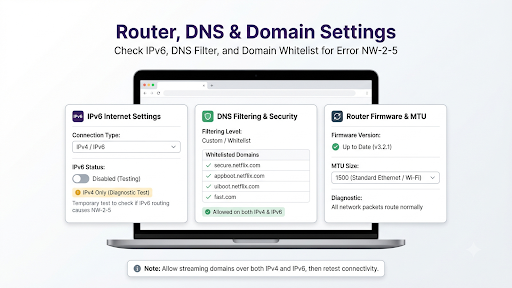
Step 5: Turn Off IPv6 on Your Router
Fire TV doesn’t give you a switch to turn off IPv6 on the Stick itself, so this change happens in your router. Log in to your router app or admin page and look for an IPv6 section. Common locations include:
- NETGEAR: Advanced > Advanced Setup > IPv6, then set the connection type to Disabled
- TP-Link: Advanced > IPv6, then turn IPv6 off
- ASUS: Advanced Settings > IPv6, then set the connection type to Disable
- ISP gateways and mesh apps: Look under advanced, network, or connection settings. Some ISP gateways don’t let you turn IPv6 off at all.
Save the change, restart the router, then restart the Fire Stick. Exact menu names change by model and firmware version, so check your router’s support page if you don’t see these options.
Important Point to be Considered! Turning off IPv6 affects every device on your network, not just the Fire Stick. Most homes won’t notice a difference, but some gaming consoles, work VPNs, and ISP features may prefer IPv6. Treat this as a test first, then decide whether to keep it off.
Step 6: Fix the Double Router Setup
If you have an ISP gateway and your own router or mesh system, pick one device to be the main router.
- Option A: Put your ISP gateway in bridge or passthrough mode and let your own router handle IPv6.
- Option B: Put your mesh system in access point (AP) mode and let the ISP gateway handle routing and IPv6.
If your mesh system is in AP mode and still advertises IPv6 that doesn’t work, update its firmware or contact the manufacturer. Some users only fixed NW-2-5 after the vendor patched this behavior.
Step 7: Check DNS Settings and DNS Filters
Remove custom DNS, parental controls, or ad-blocking DNS from the router for a quick test, including any IPv6 DNS servers. If you run Pi-hole, AdGuard Home, or a similar filter, check its query log while you open Netflix on the Fire Stick and look for blocked Netflix domains.
Netflix says your device must be able to reach these addresses:
- secure.netflix.com
- appboot.netflix.com
- uiboot.netflix.com
- fast.com
If any of them are blocked over IPv4 or IPv6, whitelist them and test again.
Pro Tip! To test DNS on the Fire Stick only, forget the network, rejoin it, and choose Advanced before connecting. You can enter an IP address, gateway, and DNS servers manually there. Use this as a short-term test, because a manual IP setting can conflict with your router later.
Step 8: Turn Off VPN, Proxy, and Tunnel Settings
Disable any VPN app on the Fire Stick and any VPN running on the router. If you get IPv6 from a tunnel broker instead of your ISP, turn the tunnel off and test Netflix. If that fixes it, the tunnel’s IPv6 addresses are the reason Netflix won’t load.
Step 9: Update Router Firmware and Check MTU
Install the latest router firmware first. If Netflix still fails only with IPv6 on, check these advanced settings:
- ICMPv6: Make sure your firewall doesn’t block ICMPv6. IPv6 needs it to work properly.
- MTU: If you changed the MTU before, set it back to automatic or your ISP’s recommended value. Users of PPPoE connections often need a slightly lower MTU than the default.
- IPv6 connection type: Match what your ISP uses. Many U.S. ISPs use native IPv6 with DHCPv6 prefix delegation. Ask your ISP if you’re not sure.
Step 10: Try Ethernet
An Amazon Ethernet Adapter for Fire TV gives you a more stable connection and removes Wi-Fi interference from the picture. It won’t fix a broken IPv6 setup by itself, but it helps you rule out Wi-Fi as a factor.
Should You Leave IPv6 Turned Off for Netflix?
You can leave IPv6 off if it’s the only fix that works and you don’t need IPv6 for anything else. Most streaming, browsing, and smart home use will work fine on IPv4 alone.
Still, it’s better to fix the cause if you can. Here’s a simple way to decide:
| Your Situation | Best Choice |
| You have a mesh system or second router behind an ISP gateway | Fix the double router setup, then turn IPv6 back on |
| You use Pi-hole or a DNS filter | Whitelist Netflix domains and fix IPv6 DNS, then turn IPv6 back on |
| You use an IPv6 tunnel broker | Turn the tunnel off or block Netflix over IPv6 only |
| Router firmware is outdated or the issue began after an update | Update or report it to the router maker, keep IPv6 off until it’s fixed |
| Nothing else works and you don’t need IPv6 | Leave IPv6 off |
What Should You Do If NW-2-5 Still Appears With IPv6 Off?
If NW-2-5 keeps coming back even with IPv6 disabled, IPv6 wasn’t the real cause. Look at these instead:
- Weak Wi-Fi: Move the router closer to the TV, or use the HDMI extender that came with your Fire Stick to get it away from the back of the TV.
- Public or shared networks: Hotel, dorm, school, and office networks often block streaming services.
- Fire TV software: Go to Settings > My Fire TV > About > Check for Updates and install any update.
- Netflix app: Uninstall and reinstall Netflix from the Appstore.
- ISP problems: Contact your ISP and ask them to confirm your connection can reach the Netflix addresses listed above.
If you have a smart TV on the same network showing a similar connection error, such as Netflix error UI-113 on Vizio SmartCast, that points even more strongly to your home network rather than the Fire Stick.
Is NW-2-5 the Same as Other Netflix Problems on Fire Stick?
No. NW-2-5 is a connection timeout. If Netflix opens and plays but you see other problems, you’re dealing with something else:
- Black screen with audio: Fire OS is based on Android, so playback and DRM issues can look similar to a Netflix black screen caused by Android Media DRM.
- Black screen only in 4K or HDR: This is usually an HDMI, cable, or HDR setting issue. The fixes are similar to a Netflix 4K HDR black screen on Roku.
- Buffering but no error code: This is usually slow speed or Wi-Fi congestion, not IPv6.
Frequently Asked Questions
Why does Netflix show NW-2-5 on my Fire Stick but work on my phone?
Your phone may be using cellular data, a different DNS server, or falling back to IPv4 faster than the Fire Stick. Put your phone on Wi-Fi only and try again. If the phone works and the Fire Stick doesn’t, check the Fire Stick’s saved network settings and your router’s IPv6 DNS.
Can I turn off IPv6 on the Fire Stick only?
Not from the Fire TV menus. Some advanced routers let you block IPv6 for one device or one network, or create a separate guest network with IPv6 disabled for streaming devices. If your router doesn’t offer that, you have to change IPv6 for the whole network.
Will turning off IPv6 slow down my internet?
Usually not in any way you’d notice. Speed tests and streaming quality typically stay the same. The main things that might care are some online games, certain work VPNs, and ISP features that are built around IPv6.
Why did NW-2-5 start after my ISP enabled IPv6 or my router updated?
Either change can leave your network with IPv6 addresses that don’t route properly, especially if you have a second router. Restart everything in order, check the router’s IPv6 connection type, and look for a newer firmware release that fixes IPv6 bugs.
Does a Fire Stick ad blocker app cause NW-2-5?
It can. Ad blocker apps and DNS changer apps on the Fire Stick can block Netflix domains the same way a Pi-hole does. Disable or uninstall the app, restart the Fire Stick, and test Netflix again.
Is Netflix error NW-2-5 caused by my Netflix account?
No. NW-2-5 is a network error, not an account, password, or billing error. Signing out and back in rarely helps unless the app data is corrupted.
Final Recommendation
Start with the phone hotspot test and the IPv6 off test. Together they tell you in a few minutes whether IPv6 on your router is causing NW-2-5. If turning off IPv6 fixes it, check for a double router setup, DNS filtering, or outdated firmware, then turn IPv6 back on once the real cause is fixed. If nothing works, leaving IPv6 off is a safe choice for most homes.
If Netflix still won’t load after all these steps, collect your router brand and model, your ISP, and the results of your tests, then contact Netflix customer service from the Netflix app or call your ISP. Having those details ready saves a lot of back and forth.