
If the Netflix app freezes on the profile selection screen on your iPhone, force close the app, restart your iPhone, and then update or reinstall Netflix. In most cases, the freeze happens because data stored on your device needs to be refreshed, and one of these steps clears it.
Still stuck on the “Who’s Watching?” screen with a spinning circle, or tapping your profile does nothing at all? The fixes below go from quickest to most thorough, so you can stop as soon as Netflix starts working again.
Quick Overview
- Force close Netflix from the App Switcher and reopen it.
- Restart your iPhone (or force restart it if the screen is completely stuck).
- Switch networks between Wi-Fi and cellular, and turn off any VPN or custom DNS.
- Update the Netflix app and iOS from the App Store and Settings.
- Sign out of Netflix and sign back in to refresh your profile data.
- Reset or reinstall Netflix, since iOS has no manual “clear cache” button.
- Watch on netflix.com in Safari as a temporary workaround while you troubleshoot.
Why Does Netflix Freeze on the Profile Selection Screen on iPhone?
Netflix usually freezes on the profile screen because the app’s stored data is outdated or corrupted, or because the app can’t load your profile from Netflix’s servers. The profile screen is the first point where the app has to pull account information, so any hiccup shows up right there.
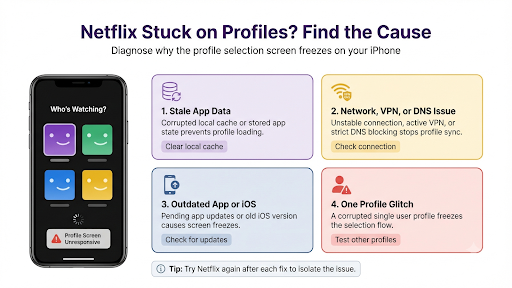
Here are the most common causes:
- Corrupted or stale app data: Netflix’s own Help Center says many iPhone errors happen because information stored on the device needs to be refreshed.
- Weak or filtered internet connection: A slow Wi-Fi network, a VPN, a private DNS, or a public network that blocks streaming can stop profiles from loading.
- Outdated Netflix app or iOS version: The latest Netflix app needs a recent iOS version. Older versions can run into bugs after Netflix updates its servers.
- A problem with one specific profile: Sometimes only one profile freezes while the others open fine. That points to a profile-level sync glitch rather than your iPhone.
- Low storage or too many background apps: When your iPhone is almost full, apps can hang while loading.
- A Netflix service outage: Rare, but if Netflix is down, no fix on your phone will help.
How Do You Fix Netflix Stuck on the Profile Screen on iPhone?
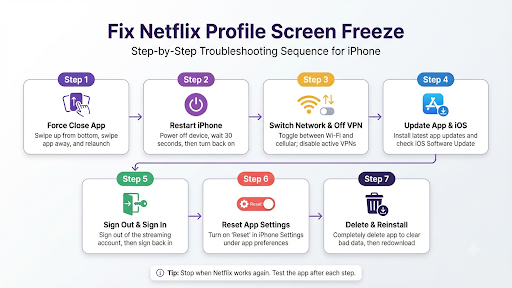
Start with a force close and an iPhone restart, then move through network checks, updates, sign out, and reinstall. Try Netflix again after each step.
1. Force Close and Reopen the Netflix App
Force closing clears the app from memory and gives it a clean start. This alone fixes a lot of temporary freezes.
- Swipe up from the bottom of the screen and pause in the middle to open the App Switcher. On iPhones with a Home button, double-click the Home button.
- Find the Netflix app card.
- Swipe it up and off the screen.
- Wait a few seconds, then open Netflix again.
Pro Tip! While you’re in the App Switcher, close other heavy apps too, like games or video editors. They can hog memory and slow down how fast Netflix loads your profiles.
2. Restart Your iPhone
A restart refreshes iOS and clears temporary glitches that a force close can’t touch.
- Press and hold the side button and either volume button until the power-off slider appears. On iPhones with a Home button, hold the side button.
- Drag the slider to turn off your iPhone.
- Wait about 30 seconds.
- Press and hold the side button until you see the Apple logo.
What If the Whole iPhone Is Frozen?
If Netflix and your iPhone both freeze and you can’t reach the power-off slider, do a force restart. On iPhone 8 and later, press and release volume up, press and release volume down, then press and hold the side button until the Apple logo appears. A force restart doesn’t delete your data.
3. Check Your Internet Connection, VPN, and DNS
If your connection is unstable or filtered, Netflix may keep spinning on the profile screen because it can’t fetch your profile data.
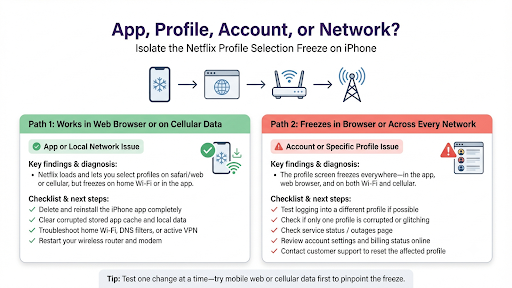
- Switch networks: Turn off Wi-Fi and try cellular data, or the other way around. If Netflix works on cellular but freezes on Wi-Fi, the issue is your router or network, not the app.
- Toggle Airplane Mode: Turn it on for 10 seconds, then turn it off to reset your connections.
- Turn off your VPN: Netflix may not load properly through some VPN or proxy services.
- Remove private DNS or content filters: Ad blockers and DNS apps can block Netflix servers that the app needs during login.
- Restart your modem and router: Unplug them for 30 seconds, then plug them back in.
- Avoid restricted networks: Hotel, school, and office Wi-Fi sometimes block streaming services.
Network problems behave similarly across devices. If you’ve ever dealt with a connection error on a streaming stick, our guide on fixing Netflix error NW-2-5 on Fire Stick caused by IPv6 explains how router settings can quietly break Netflix.
Important Point to be Considered! If nothing else works on your Wi-Fi, you can reset your iPhone’s network settings from Settings > General > Transfer or Reset iPhone > Reset > Reset Network Settings. This removes saved Wi-Fi passwords and VPN settings, so keep your Wi-Fi password handy before you do it.
4. Update the Netflix App and iOS
An outdated app is one of the most common reasons Netflix freezes on the profile screen, especially right after Netflix pushes a server-side change.
To update Netflix:
- Open the App Store.
- Tap Search and type “Netflix.”
- Tap Netflix, then tap Update if it appears.
To update iOS:
- Open Settings.
- Tap General, then Software Update.
- Download and install any available update.
According to the Netflix Help Center page for iPhone and iPad, the most up-to-date Netflix app is available for iPhones running iOS 18 or later. Older iPhones may still be able to download a previous compatible version, but that version may not get new fixes.
5. Sign Out of Netflix and Sign Back In
Signing out forces Netflix to reload your account and all profiles from scratch. It’s often the fix when the error says there was a problem switching or selecting a profile.
- Open the Netflix app. If you can’t get past the profile screen, skip to the reinstall step below.
- Tap My Netflix in the lower-right corner.
- Tap your profile name at the top.
- Tap Sign Out, then confirm.
- Sign back in with your email or phone number and password.
Pro Tip! Make sure you know your Netflix password before you sign out. If you don’t remember it, reset it first on netflix.com so you don’t get locked out.
6. Reset the Netflix App in iPhone Settings
Netflix includes a Reset switch in iPhone Settings that wipes the app’s stored data without deleting the app. It’s the closest thing iOS has to clearing the Netflix cache.
- Force close Netflix.
- Open Settings. On iOS 18 and later, tap Apps. On older versions, scroll down.
- Tap Netflix.
- Turn on the Reset toggle, if you see it.
- Open Netflix and sign in again.
Important Point to be Considered! Resetting Netflix signs you out and deletes any downloaded movies and shows on that iPhone. Not every app version shows the Reset toggle. If you don’t see it, use the reinstall method below.
7. Delete and Reinstall the Netflix App
Reinstalling is the most reliable fix when Netflix stays stuck on “Choose a profile,” because it removes every bit of old app data.
- Press and hold the Netflix icon on your Home Screen.
- Tap Remove App, then Delete App, and confirm.
- Restart your iPhone.
- Open the App Store, search for Netflix, and tap the download icon.
- Open Netflix and sign in.
Offload vs. Delete: Which One Should You Use?
| Option | What It Does | Best For |
| Offload App (Settings > General > iPhone Storage > Netflix) | Removes the app but keeps its documents and data | Freeing storage space. It may not fix a freeze, because the old data stays behind. |
| Delete App | Removes the app and all of its data, including downloads | Fixing a frozen profile screen or repeated crashes |
For a profile screen freeze, delete is the better choice since the goal is to get rid of the stored data causing the problem.
What If Only One Netflix Profile Freezes on iPhone?
If the kids’ profile or another family member’s profile opens fine but yours freezes, the problem is usually with that profile’s settings, not your iPhone. Try these profile-specific fixes:
- Switch profiles and switch back: Netflix says your device may need a refresh to pick up updated profile settings. Open another profile, then go back to yours.
- Edit the profile: Tap Edit (the pencil) on the “Who’s Watching?” screen, select the frozen profile, change the name slightly, and save. Then change it back. This forces the profile to sync again.
- Check the profile from a browser: Go to netflix.com in Safari and try opening the same profile. If it freezes there too, the problem is on the account side.
- Review Profile Lock: If your profile has a PIN, the PIN prompt should appear after you tap it. If you forgot the PIN, tap Forgot PIN? or update it from your Account page on netflix.com.
If you see “There was a problem selecting this profile. Please try again later,” sign out and back in first. If that message keeps coming back on only one profile, contact Netflix, because they can check the profile from their side.
Can You Still Watch Netflix While the App Is Frozen?
Yes. You can watch Netflix in Safari or another mobile browser by going to netflix.com and signing in. It’s a handy workaround while you fix the app, and it also helps you test whether the problem is the app or your account.
- If profiles load fine in Safari, the issue is the iPhone app. Reinstall it.
- If profiles also freeze in Safari, the issue is likely your network or your Netflix account.
More Fixes for Netflix Profile Not Loading on iPhone
If the basic steps didn’t work, these less obvious settings can still stop Netflix from loading profiles.
Free Up iPhone Storage
Go to Settings > General > iPhone Storage. If your iPhone is almost full, delete unused apps, old videos, or large downloads. Apps can hang during loading when there’s very little free space.
Set Date and Time Automatically
Go to Settings > General > Date & Time and turn on Set Automatically. A wrong date or time can cause secure connections to fail, which can stop Netflix from loading your account.
Check Screen Time Restrictions
Go to Settings > Screen Time > Content & Privacy Restrictions. If restrictions are on, make sure they don’t limit Netflix or app content. Try turning them off temporarily to test.
Turn Off Low Power Mode and Low Data Mode
Low Power Mode and Low Data Mode limit background activity and network usage. Turn them off in Settings > Battery and in your Wi-Fi or cellular settings, then reopen Netflix.
Check Whether Netflix Is Down
Visit the Netflix service status page. If Netflix reports an outage, wait it out. Your iPhone isn’t the problem.
Did Netflix Start Freezing After an iOS Update?
If Netflix started freezing on the profile screen right after an iOS update, the app version on your iPhone may not fully match the new iOS yet. Check the App Store for a Netflix update first, since Netflix often releases fixes soon after big iOS releases. If there’s no update, delete and reinstall the app, then restart your iPhone.
Pro Tip! Avoid going back to an older iOS version to fix one app. Apple usually stops allowing downgrades shortly after a release, and the attempt can risk your data.
Common Mistakes to Avoid
- Only pressing the Home button or swiping up: That just sends Netflix to the background. You need to swipe it away in the App Switcher to actually close it.
- Offloading instead of deleting: Offloading keeps the old data that’s often causing the freeze.
- Resetting before checking downloads: Reset and reinstall both delete downloaded titles. Rewatch or note them first if you’re about to travel.
- Leaving a VPN on while testing: A VPN can make every other fix look like it failed.
- Erasing your whole iPhone: A factory reset is almost never needed for a Netflix profile freeze. Exhaust the app-level fixes first.
Does Netflix Freeze on the Profile Screen on Other Devices Too?
Yes, the same “stuck on profile screen” problem happens on smart TVs, streaming sticks, and Android phones. The fixes are similar: restart, sign out, and refresh stored app data. On TVs, you can usually clear the Netflix app cache from the TV’s app settings, which isn’t possible on an iPhone.
- If your Vizio TV gets stuck while loading, our guide to fixing Netflix error UI-113 on Vizio SmartCast walks through refreshing stored data on the TV.
- On Android phones, a screen that loads but shows nothing can be a DRM issue. See how to fix the Netflix black screen on Android caused by Media DRM.
When Should You Contact Netflix Support?
Contact Netflix if the app still freezes on the profile screen after you’ve reinstalled it, tested another network, and checked netflix.com in a browser. At that point, the problem may be with your account or a specific profile, and Netflix can check it from their side.
Before you reach out, note your iPhone model, iOS version, Netflix app version, any error code you see, and whether the freeze happens on both Wi-Fi and cellular. That saves time on the call or chat. If you’re not sure how to reach them, here’s how to contact Netflix customer service from the Netflix app.
Frequently Asked Questions
Why is my Netflix frozen on “Choose a Profile” on iPhone?
Netflix usually freezes on “Choose a Profile” because the app can’t load your profile data, either due to stale stored data or a connection issue. Reinstalling the app and switching networks fixes most cases.
How do I clear the Netflix cache on iPhone?
iPhone doesn’t have a manual cache clear button for Netflix. Instead, turn on the Reset toggle in Settings > Apps > Netflix if it’s available, or delete and reinstall the app. Both remove the stored data.
Why does Netflix work on cellular but freeze on my Wi-Fi?
That points to your Wi-Fi network, not the app. Restart your router, turn off any VPN or DNS filter on the network, and check whether your router or network blocks streaming services.
Will reinstalling Netflix delete my profiles or watch history?
No. Profiles, watch history, My List, and ratings are saved to your Netflix account, not your iPhone. Reinstalling only removes downloaded titles and signs you out of the app.
Is there a glitch in Netflix right now?
You can check the Netflix service status page to see if there’s an outage. If Netflix shows no problems and other people in your home can use it, the issue is likely on your iPhone or network.
Why does Netflix keep loading on my phone but never opens a profile?
An endless loading circle usually means the app is waiting for a response it never gets. This happens with slow connections, VPNs, outdated app versions, or corrupted app data. Force close the app, check your connection, and update or reinstall Netflix.
Final Recommendation
If Netflix is frozen on the profile selection screen on your iPhone right now, do this in order: force close the app, restart your iPhone, try a different network without a VPN, update Netflix and iOS, then delete and reinstall the app. That sequence fixes the problem for most people. If you need to watch something immediately, use netflix.com in Safari while you troubleshoot. And if the freeze survives a reinstall on more than one network, contact Netflix so they can check your account and profile directly.