
If Netflix shows error UI-113 on your Vizio SmartCast TV while your phone, laptop, and other streaming devices play Netflix fine on the same Wi-Fi, the problem is almost always on the TV itself, not your internet. Stale Netflix data, a TV that never fully powers off, or a network setting that treats the TV differently from your other devices is usually the cause.
The good news is that most people fix it in under 10 minutes. Start by signing out of Netflix with the remote code and fully unplugging the TV, then work down the steps below until Netflix loads again.
Quick Overview
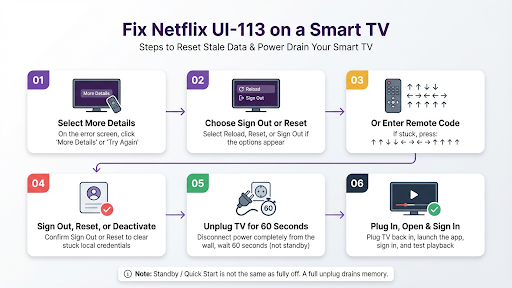
- On the error screen, select More Details, then Reload Netflix or Sign out / Reset.
- Use the remote code: Up, Up, Down, Down, Left, Right, Left, Right, Up, Up, Up, Up, then choose Sign out, Reset, or Deactivate.
- Unplug the Vizio from the wall (not just the remote power button) for at least 60 seconds.
- Restart your modem and router, then forget and rejoin Wi-Fi on the TV.
- Check DNS filters, VPNs, parental controls, or mesh settings that might affect only the TV.
- Update the TV software from Admin & Privacy > Check for Updates.
- Reset Apps or factory reset only if nothing else works.
What Does Netflix Error UI-113 Mean on a Vizio TV?
Netflix error UI-113 means the Netflix app on your Vizio TV couldn’t connect to Netflix’s servers. The message usually reads: “Couldn’t connect to Netflix. Please try again or restart your home network and streaming device.”
According to the Netflix Help Center page for error ui-113, it happens for one of three reasons:
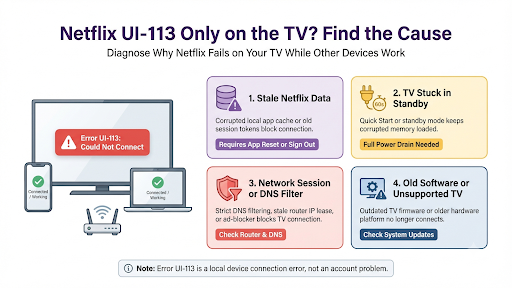
- Data stored on the device needs a refresh. Old sign-in or session data gets stuck in the app.
- A network issue is stopping the TV from reaching Netflix.
- The device or app version is no longer supported. This mostly affects older TV models.
Here’s the key detail: UI-113 is a connection error, not an account error. Your Netflix account, password, and plan are almost always fine. That’s why Netflix keeps working on your phone while the TV refuses to connect.
Why Does Netflix Show UI-113 on Vizio but Work on Other Devices?
When Netflix works on every other device on the same Wi-Fi, your internet connection is not down. Something about the Vizio’s app data, its network session, or how your router treats the TV is different. These are the most common causes:
| Likely Cause | What It Looks Like | Best Fix |
| Stale Netflix app data | Only Netflix fails. YouTube, Prime Video, and other apps on the TV work. | Sign out with the remote code, then power drain the TV |
| TV stuck in standby | Turning the TV off and on with the remote changes nothing | Unplug the TV from the wall for 60 seconds |
| Stuck network session or IP address | Several apps on the TV are slow or fail | Restart the router, forget and rejoin Wi-Fi |
| DNS filtering, ad blocking, or VPN | Started after you set up Pi-hole, router ad blocking, a VPN, or new parental controls | Pause the filter or exclude the TV |
| Mesh router or new router quirk | Started right after a new router, mesh system, or ISP gateway | Test Ethernet or a phone hotspot, then adjust router settings |
| Wrong date and time on the TV | Secure apps fail after a power outage | Turn on automatic time |
| Outdated TV software or unsupported model | Older Vizio TV, error keeps coming back after every fix | Check for updates, then use a streaming stick |
Important Point to be Considered! Notice whether other apps work on the Vizio. If YouTube and Prime Video load but Netflix shows “couldn’t connect,” focus on the Netflix app and DNS steps. If every app on the TV struggles, focus on the TV’s Wi-Fi connection and router.
How Do You Fix Netflix Error UI-113 on a Vizio SmartCast TV?
Work through these fixes in order. The first three solve most cases, so test Netflix after each one before moving on.
1. Reload or Reset Netflix From the Error Screen
The fastest fix is built into the error screen itself. Netflix refreshes its session without you digging through menus.
- On the UI-113 error screen, select More Details.
- Choose Reload Netflix if you see it.
- If the error comes back, return to More Details and select Sign out or Reset.
- Sign back in with your Netflix email and password.
2. Sign Out of Netflix With the Vizio Remote Code
If you can’t reach a Sign out option, the Netflix remote sequence clears the app’s stored data on the TV. This is the step that fixes UI-113 for a lot of Vizio owners.
- Open Netflix on your Vizio TV.
- Using the remote, press: Up, Up, Down, Down, Left, Right, Left, Right, Up, Up, Up, Up.
- On the menu that appears, select Sign out, Reset, or Deactivate.
- Close Netflix, reopen it, and sign back in.
Pro Tip! Press the buttons at a steady pace. If you go too fast, the TV may miss a press and the menu won’t appear. If nothing happens, wait a few seconds and try again from the first Up.
3. Power Drain the Vizio TV (Unplug, Don’t Just Turn It Off)
Pressing the power button on the remote usually puts a Vizio into standby, not a full shutdown. That means the stuck Netflix session can survive. Netflix specifically says to make sure the device is completely off, not just in sleep or standby mode.
- Unplug the Vizio’s power cord from the wall outlet or surge protector.
- Wait at least 60 seconds. Netflix’s minimum is 15 seconds, but a longer wait gives the TV time to fully drain.
- Plug the TV back in, turn it on, and open Netflix.
If your TV’s Power Mode is set to Quick Start, this unplug step matters even more, because Quick Start keeps parts of the TV awake so it boots faster.
4. Restart the TV From the Settings Menu
A settings restart reboots SmartCast’s smart features. It’s useful if you can’t easily reach the outlet behind the TV. The menu name depends on your model year:
- Newer SmartCast TVs: Menu > Admin & Privacy > Restart TV (or Menu > All Settings > Admin & Privacy > Restart TV)
- Older SmartCast TVs: Menu > System > Reset & Admin > Soft Power Cycle
5. Test and Refresh the TV’s Wi-Fi Connection
Even when other devices are online, the Vizio itself can hold a bad connection. Running the built-in test tells you whether the TV is truly connected.
- Press Menu on the remote and go to All Settings > Network > Test Connection. Older models use Menu > Network > Network Test.
- If the test fails or shows no download speed, go to Network > Wireless Access Points, pick your Wi-Fi again, and re-enter the password.
- If the TV says connected but apps still can’t reach the internet, open Network > Manual Setup and make sure DHCP is turned on.
- If your router shows separate 2.4 GHz and 5 GHz networks, try the other band. 5 GHz is faster up close. 2.4 GHz reaches farther through walls.
Pro Tip! If the router is close to the TV, plug in an Ethernet cable. A wired connection skips Wi-Fi interference completely and is one of the most reliable fixes for “Netflix not connecting on Vizio TV” problems.
6. Check the TV’s Date and Time
Netflix uses secure connections, and those depend on the correct date and time. After a power outage or a long unplug, some TVs come back with the wrong clock. Open the TV’s system or time settings (often under System > Time & Local Settings, depending on your model) and confirm the time zone is correct and automatic time is on.
7. Restart Your Modem and Router, Then Clear Netflix Cookies
It sounds odd to restart the router when other devices are working, but routers can hold a bad session for one specific device. A restart gives the TV a fresh connection and, often, a fresh IP address.
- Turn off the Vizio TV.
- Unplug your modem and router (or your ISP gateway) for at least 30 seconds.
- Plug the modem in first and wait for its lights to settle, then plug in the router.
- Turn the TV back on and test Netflix.
Netflix also recommends one extra step from another device on the same Wi-Fi: open a web browser, go to netflix.com/clearcookies, and sign back in. This clears the browser’s stored Netflix data on that network before you try the TV again.
8. Look for Router Settings That Only Affect the TV
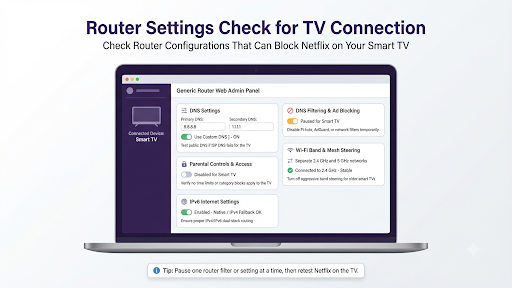
This is the step most guides skip, and it explains a lot of “only my Vizio gets UI-113” cases. Smart TV apps, including Netflix, can be pickier about DNS and network filtering than phones or laptops. Check for these:
- Ad blocking or DNS filtering: Pi-hole, NextDNS, router-level ad blockers, or “security” features can block a domain the TV app needs. Users on Pi-hole and pfSense forums have reported Netflix failing only on the TV while every other device worked. Pause the filter or whitelist the TV, then test.
- VPN on the router: If your router runs a VPN, Netflix may refuse to connect. Exclude the TV from the VPN or turn it off briefly to test.
- Parental controls or device blocking: Make sure the TV isn’t paused, scheduled offline, or blocked in your router or ISP app.
- Mesh systems and band steering: After a new mesh install, some Vizio owners see Netflix fail while every other app works. Try connecting the TV directly to the main router node, or turn off band steering for the TV if your router allows it.
- Guest network: Some guest networks restrict device traffic. Move the TV to your main network.
- IPv6: If your router recently enabled IPv6 or you changed DNS settings, try toggling IPv6 to see if it changes the result. The same idea helps with Netflix error NW-2-5 on Fire Stick caused by IPv6, which is a close cousin of this connection error.
Important Point to be Considered! Changing the TV’s DNS to a public server like 8.8.8.8 or 1.1.1.1 helps some people and does nothing for others. It’s worth a quick try, but if it doesn’t work, undo it so you don’t create a new problem later.
9. Update the Vizio TV Software
Vizio SmartCast TVs don’t have a separate Netflix update button. The Netflix app updates through the TV’s system software, so an outdated TV means an outdated Netflix app.
- Press Menu on the remote.
- Go to Admin & Privacy > Check for Updates (on some models, System > Check for Updates).
- If an update is available, let it install. Don’t unplug the TV during the update.
- Restart the TV and open Netflix.
10. Reset Apps on the Vizio TV
You can’t uninstall or reinstall Netflix on a Vizio SmartCast TV, and Vizio doesn’t offer a per-app cache clear. So ignore older guides telling you to delete the Netflix app. If your model has a Reset Apps option under Admin & Privacy, it’s the closest thing to reinstalling.
Resetting apps signs you out of every streaming app on the TV, but it keeps your picture settings and Wi-Fi. Have your app passwords ready before you start.
11. Factory Reset the TV as a Last Resort
A factory reset wipes the TV back to out-of-the-box settings. Use it only after every step above has failed.
- Newer models: Menu > Admin & Privacy > Reset to Factory Settings
- Older models: Menu > System > Reset & Admin > Reset TV to Factory Defaults
If you set a parental PIN, the TV will ask for it. After the reset, you’ll set up Wi-Fi again and sign back into every app.
Is It Your Wi-Fi or Your Vizio TV? Try the Hotspot Test
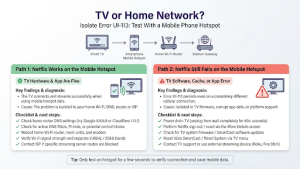
The quickest way to know where the problem lives is to connect the Vizio to your phone’s mobile hotspot for five minutes.
| Result | What It Means | What to Do Next |
| Netflix works on the hotspot | Your home network is treating the TV differently | Focus on step 8: DNS filters, VPN, mesh, parental controls, or your ISP |
| Netflix still shows UI-113 on the hotspot | The problem is on the TV | Update software, Reset Apps, factory reset, or check model support |
Pro Tip! Hotspot streaming uses mobile data fast. Just open Netflix and start a title for a few seconds to confirm it connects, then switch the TV back to your home Wi-Fi.
How Can You Tell If Your Vizio TV No Longer Supports Netflix?
If UI-113 comes back after every fix and your Vizio is several years old, the TV may no longer meet Netflix’s technical requirements. Netflix lists “device is no longer supported” as one of the official causes of this error.
To check, open the error screen, select More Details > Device, and look at the SDK or platform version. Netflix’s help page explains which versions no longer support its current app. You can also check the official Netflix guide for using Netflix on Vizio TVs for model-specific notes.
If your TV is no longer supported, a TV software update won’t bring Netflix back. The simplest workaround is a streaming stick or box, such as a Roku, Fire TV, Chromecast with Google TV, or Apple TV, plugged into an HDMI port. If you go the Roku route and run into display problems with high-end content, this guide on fixing Netflix black screen on Roku with 4K HDR will help.
Important Point to be Considered! Netflix says it is not compatible with casting through the Vizio SmartCast mobile app. On Vizio TVs that support Google Cast, use the Cast button inside the Netflix mobile app instead.
What Mistakes Make Netflix Error UI-113 Keep Coming Back?
- Turning the TV off with the remote and calling it a restart. That’s standby. Unplug it.
- Skipping the sign-out step. A restart alone doesn’t always clear bad Netflix data on the TV.
- Factory resetting first. It erases everything and often isn’t needed. Save it for last.
- Forgetting about network filters. An ad blocker or VPN you set up months ago can suddenly break Netflix after an app update.
- Following uninstall or cache-clear guides written for other TVs. Those options don’t exist on Vizio SmartCast.
- Leaving a weak Wi-Fi signal unaddressed. If the TV sits far from the router behind walls, the error can return every few days.
Video Walkthrough: Fixing Netflix UI-113 on a Smart TV
If you prefer to follow along visually, these YouTube videos walk through the same core fixes. Search their titles on YouTube to watch:
- “Netflix Not Working on VIZIO Smart TV? –Fixed” by Fix369 (covers network checks, date and time, cold boot, and resetting Netflix)
- “How to Fix Netflix Error Code UI-113 on Playstation & Smart TV” by Startup Explains (explains refreshing stored device data)
- “How to Fix Netflix Error UI-113 (2026)” by Miss Config (covers restarting, signing out, VPN, and updates)
Video credit belongs to the channels listed above.
When Should You Contact Netflix, Vizio, or Your Internet Provider?
Contact the right support team based on what your testing showed:
- Contact your internet provider if Netflix works on a phone hotspot but not your home Wi-Fi, and you’ve ruled out filters and VPNs. Tell them the issue happens only on the TV and whether it’s on Wi-Fi or Ethernet.
- Contact Vizio support if Netflix fails even on a hotspot after a software update and factory reset, or if multiple apps on the TV can’t connect.
- Contact Netflix if you see an extra code, such as NSEZ-403, or you’re not sure whether your model is still supported. Here’s how to contact Netflix customer service from the Netflix app.
Frequently Asked Questions
What is the difference between Netflix error 113 and UI-113?
Netflix error 113 usually points to a sign-in problem, while UI-113 is a connection problem. If you see plain “113” with a login message, double-check your email and password first. If you see “UI-113” with “Couldn’t connect to Netflix,” follow the connection fixes in this guide.
Why does Netflix say “couldn’t connect” on my Vizio TV but YouTube works?
Each app connects to its own servers and stores its own data, so one app can fail while others work fine. When only Netflix fails, the Netflix sign-out code and a full unplug fix it most of the time. If it persists, check whether a DNS filter or ad blocker is blocking a Netflix-specific domain.
Can you clear the Netflix cache on a Vizio SmartCast TV?
No, Vizio SmartCast TVs don’t have a per-app clear cache button. Signing out with the remote code and unplugging the TV does the same job for Netflix. Reset Apps clears data for all apps at once.
Is Netflix error UI-113 caused by Netflix being down?
Rarely. If Netflix were down, your phone and laptop would fail too. Since your other devices work on the same Wi-Fi, the issue is local to the TV or how your network treats it.
Does a Vizio factory reset fix Netflix UI-113 for good?
It often clears the error, but it won’t help if the cause is your router, a DNS filter, or an unsupported TV model. That’s why the hotspot test is worth doing before a reset. If Netflix fails on the hotspot too, a reset is a reasonable next step.
Does the same fix work for UI-113 on Samsung, LG, or Hisense TVs?
Yes, the core fixes are the same: sign out, fully power off, restart the router, and update the TV. Only the menu names change. The remote sign-out code also works on many other smart TVs running the Netflix app.
Final Recommendation
If Netflix shows UI-113 only on your Vizio SmartCast TV, start with the two fixes that solve most cases: sign out using the remote code, then unplug the TV for 60 seconds. If that doesn’t work, restart your router and rejoin Wi-Fi, then run the hotspot test. A pass on the hotspot points to your home network settings. A fail points to the TV, where a software update, Reset Apps, or a factory reset comes next. And if your Vizio is older and nothing helps, a low-cost streaming stick is the fastest way to get back to watching.