
If Netflix plays audio but shows only a black screen on your Android phone or tablet, the quickest fix is to reset the DRM pipeline. Open Developer options > Media DRM settings, turn Force software secure crypto ON, force stop Netflix, then turn the toggle back OFF and force stop Netflix again. This clears a stuck Widevine hardware decryption session that blocks the video layer while the sound keeps playing.
Below, you will find the exact steps for Samsung, Pixel, OnePlus, Motorola, and Lenovo devices, what to do if the Media DRM option is missing, and the other fixes to try if the toggle does not bring the picture back.
Quick Overview
- Enable Developer options by tapping Build number seven times.
- Go to Developer options > Media DRM settings.
- Turn Force software secure crypto ON.
- Force stop Netflix (Settings > Apps > Netflix > Force stop), twice.
- Return to Media DRM settings and turn the toggle back OFF.
- Force stop Netflix twice again, restart the device, and play a title.
Important Point to be Considered! Do not leave the toggle ON. It forces Widevine L3 software decryption, which limits Netflix to standard definition on that device.
Why Does Netflix Play Audio but Show a Black Screen on Android?
Netflix shows a black screen with sound when the protected video path fails but the audio path keeps working. Netflix video is encrypted with Google’s Widevine DRM. On most phones, that video is decrypted and drawn inside secure hardware (Widevine L1). Audio travels a simpler route. So when the secure video session gets stuck, you hear the show but see nothing.
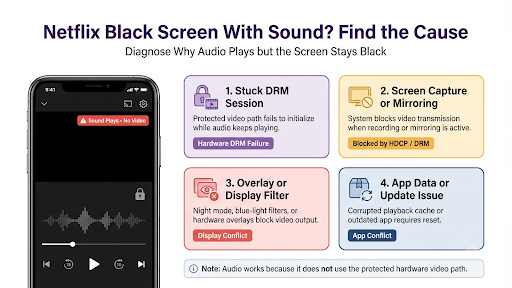
Netflix’s own help page says a black screen with sound usually points to an issue with your device or a video connection, not your account. On Android phones and tablets, the most common triggers are:
- A stuck Widevine DRM session after an app update, Android system update, or a playback crash
- Screen recording, screenshots, or screen mirroring, which Netflix blocks on purpose
- Overlay and display features such as color inversion, color correction, night mode filters, or blue light apps drawing over the player
- The “Disable HW overlays” developer option, which can interfere with how protected video is drawn
- Corrupted Netflix app data or an outdated app version
- A VPN, battery saver, or aggressive battery optimization on some skins
How Do You Know It Is a DRM Problem and Not Your Internet?
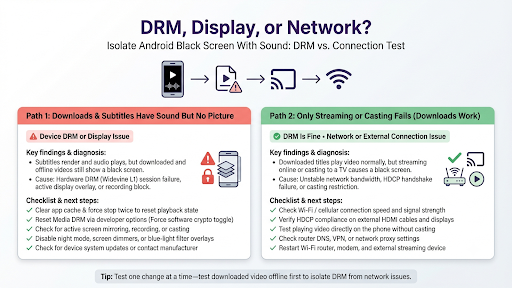
If downloaded episodes also play with sound and no picture, the problem is on the device, not your connection. Downloads do not need to stream video, so a black picture on offline titles points straight at DRM, overlays, or the app itself. Subtitles showing over a black screen is another strong clue. Subtitles are drawn as normal text, while the protected video layer is the part that fails.
How Do You Fix Netflix Black Screen With Sound Using the Media DRM Toggle?
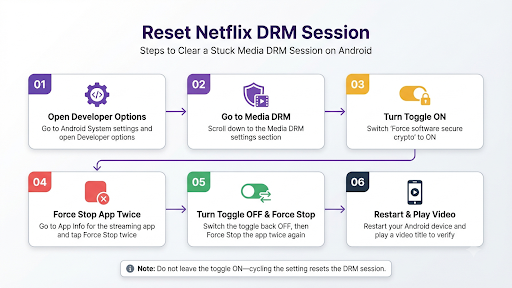
You fix it by cycling the Force software secure crypto setting ON and OFF, with force stops in between. This makes Android drop the stuck hardware DRM session and build a fresh one the next time Netflix plays. The workaround was shared by Lenovo tablet owners on Reddit and similar results have been reported on OnePlus phones in XDA forum threads, so it is a community fix rather than an official Netflix step. Menu names can differ a little by brand.
Step 1: Turn On Developer Options
Developer options are hidden by default. Here is where to tap on popular brands:
| Device | Where to Tap Build Number 7 Times |
| Google Pixel, Motorola, Lenovo tablets | Settings > About phone (or About tablet) > Build number |
| Samsung Galaxy | Settings > About phone > Software information > Build number |
| OnePlus, OPPO, Realme | Settings > About device > Version > Build number (or Version number) |
| Xiaomi, Redmi, POCO | Settings > About phone > OS version (tap 7 times) |
Enter your PIN if asked. You will see a message saying you are now a developer.
Step 2: Open Media DRM Settings
- Go to Settings > System > Developer options. On Samsung, Developer options sit at the bottom of the main Settings list.
- Scroll to the Media section.
- Tap Media DRM settings.
Pro Tip! Developer options is a long list. Use the search bar at the top of the Settings app and type DRM to jump straight to it.
Step 3: Turn Force Software Secure Crypto ON and Force Stop Netflix
- Switch Force software secure crypto ON.
- Open Settings > Apps > Netflix and tap Force stop.
- Tap Force stop a second time to make sure no background playback process survives.
Step 4: Turn the Toggle OFF and Force Stop Again
- Go back to Developer options > Media DRM settings.
- Switch Force software secure crypto OFF.
- Force stop Netflix twice again.
- Restart your phone or tablet. Some users only saw the fix stick after a reboot.
- Open Netflix and play any title.
If the picture comes back, you are done. You can turn Developer options off again from the same menu if you do not use them.
Should You Leave Force Software Secure Crypto Turned On?
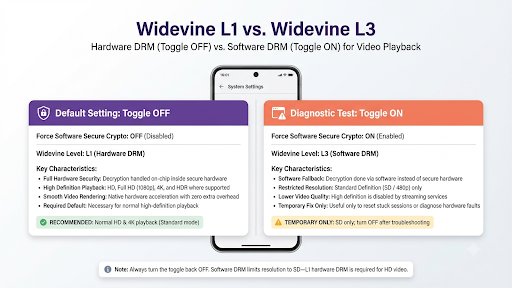
No. Leaving it ON forces Widevine L3, the software-only security level. Netflix still plays on L3, but only in SD quality, even on a premium plan. That is why the toggle should always go back to OFF.
There is one exception. If your device only plays video while the toggle is ON, your hardware DRM may be damaged or lost. That can happen after unlocking the bootloader, rooting, or flashing a different region ROM. Leaving it ON can be a temporary way to keep watching in SD, but the real fix is a firmware repair from the manufacturer.
What If Media DRM Settings Is Not Showing in Developer Options?
If you cannot find Media DRM settings, your Android version or phone brand simply does not include it. The option appears on many recent Android builds, but some manufacturers hide or rename it, and older Android versions do not have it at all.
In that case, you can get a similar reset this way:
- Force stop Netflix.
- Go to Settings > Apps > Netflix > Storage & cache and tap Clear cache.
- Restart the device fully (not just lock and unlock).
- If the screen is still black, tap Clear storage and sign back in.
Important Point to be Considered! Clearing storage removes every downloaded episode on that device and signs you out of Netflix. Keep your password handy before you do it.
What Else Fixes Netflix Black Screen With Sound on an Android Phone?
If the Media DRM toggle does not help, work through these fixes in order. Each one targets a different cause, so test a title after each step.
1. Stop Screen Recording, Screenshots, and Screen Mirroring
Netflix blocks screen capture on purpose. If a screen recorder is running, or you are mirroring with Smart View, Quick Share to TV, or a third-party mirroring app, the video turns black while audio continues. Netflix says that mirroring apps on Android might not be supported, and that you should use a supported connection instead. Stop the recorder or mirroring session and play the title again.
2. Turn Off Color Inversion, Color Correction, and Screen Filters
Accessibility display features change how the screen is drawn and can break the protected video layer. Check these:
- Settings > Accessibility > Color inversion: turn OFF
- Settings > Accessibility > Color correction: turn OFF
- Extra dim, Night mode, or Eye comfort filters: turn OFF while testing
- Blue light or screen dimmer apps that use “Display over other apps”: pause or uninstall
A OnePlus community member reported the black screen disappeared right after turning off Night Mode, so do not skip this step.
3. Turn Off “Disable HW Overlays”
While you are in Developer options, scroll to the Hardware accelerated rendering section and make sure Disable HW overlays is OFF. When it is ON, Android composites everything with the GPU, which can stop protected Netflix video from showing.
4. Update Netflix and Android
Open the Play Store, search for Netflix, and tap Update if it appears. Then check Settings > System > Software update (or Software update on Samsung). DRM bugs are often fixed in system patches, so a pending update matters here.
5. Disable VPN and Battery Optimization for Netflix
Turn off any VPN or proxy. Then go to Settings > Apps > Netflix > Battery and set it to Unrestricted. Aggressive battery managers on some Android skins can kill parts of the playback process in the background.
6. Reinstall Netflix From the Play Store
Open the Netflix page in the Play Store, tap Uninstall, then Install. This is the same step Netflix recommends on its Android troubleshooting page. Reinstalling also forces Netflix to request fresh DRM licenses.
How Do You Check Your Widevine Security Level on Android?
You can check it with the free DRM Info app from the Google Play Store. Open it and look under the Widevine section for Security Level.
- L1: hardware DRM is working. Netflix can play in HD on supported devices.
- L3: software DRM only. Netflix plays in SD. If you see L3 with the toggle OFF on a phone that used to be L1, your device keys may be missing or damaged.
Run this check before and after the Media DRM toggle fix. If the level stays at L1 with the toggle OFF and the picture is back, everything is healthy.
Why Is Netflix Black When Casting From Android to a TV?
A black screen with sound while casting usually means the TV, adapter, or cable failed the HDCP copy-protection check. No developer toggle on your phone can fix that, because the block happens on the display side.
- Use the Cast icon inside the Netflix app instead of screen mirroring.
- If you use a USB-C to HDMI adapter, make sure it supports HDCP 2.2.
- Try another HDMI port or swap the cable.
If the black screen shows up on a TV app itself and not just when casting, check our guides on the Netflix black screen with Dolby Vision on LG OLED TVs and the Netflix black screen on Roku with 4K HDR content. Those issues have TV-side causes and different fixes.
Common Mistakes That Keep the Black Screen Coming Back
- Leaving Force software secure crypto ON and then wondering why Netflix looks blurry
- Swiping Netflix away instead of using Force stop, which can leave the DRM session alive
- Skipping the restart after toggling the setting
- Testing with screen recording still running in the notification panel
- Clearing storage before trying cache, and losing all downloads without needing to
When Should You Contact Netflix or Your Device Maker?
Contact Netflix if the black screen happens on only one title, or if you see an error code. Netflix can confirm whether a title has a known issue. You can reach them straight from the app; see our guide on how to contact Netflix customer service from the Netflix app.
Contact your device maker if every DRM app shows black video (Netflix, Disney+, Prime Video), or if DRM Info shows L3 when the toggle is OFF. Netflix notes that its support team cannot walk you through device-specific video settings, so a hardware DRM fault belongs with Samsung, Google, OnePlus, Lenovo, or your phone’s brand.
Frequently Asked Questions
Why is Netflix just a black screen on my phone but other videos play fine?
Netflix uses stricter hardware DRM than YouTube or your gallery app. Regular videos do not go through the secure Widevine path, so they keep working even when the protected path is stuck. That is exactly the case the Media DRM toggle reset is built for.
Does the Force software secure crypto toggle delete anything?
No. It does not delete downloads, sign you out, or change your account. It only changes how Android handles DRM decryption while it is ON. Turning it back OFF restores normal hardware playback.
Why did Netflix start showing a black screen after an Android update?
A system update can leave an old DRM session or cached license out of sync with the new software. Cycling the Media DRM toggle, clearing the Netflix cache, and restarting usually fixes it. If it does not, check for a follow-up patch, since brands often fix DRM bugs quickly.
Can I get around the Netflix black screen when screen recording?
No. The black output during recording, screenshots, and mirroring is Netflix’s copy protection working as intended, and no setting turns it off. Stop the recorder and the picture returns to normal on your own screen.
Why does Netflix show subtitles but a black screen on Android?
Subtitles are drawn as regular text on top of the player, while the video itself is protected. When only the protected layer fails, you see subtitles over black. Treat it the same way as a black screen with sound and start with the Media DRM fix.
Does this fix work on Android tablets like Lenovo and Samsung Galaxy Tab?
Yes, if the tablet has Media DRM settings in Developer options. The fix was first widely shared by Lenovo tablet owners. Galaxy Tab models follow the Samsung menu path in the table above.
Final Recommendation
Start with the Media DRM toggle: ON, force stop twice, OFF, force stop twice, restart. It fixes the stuck DRM session behind most cases of Netflix black screen with sound on Android, and it takes about two minutes. If it does not work, turn off screen recorders, mirroring, and display filters, then clear the cache and reinstall Netflix. If DRM Info still shows L3 or every streaming app goes black, the problem is your device’s hardware DRM, and your phone or tablet maker is the right place to get it repaired.