
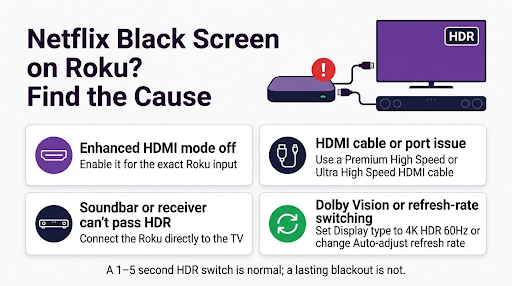
If Netflix goes black the moment a title starts playing on your Roku, the problem is almost always the HDMI handshake that happens when the signal switches from the SDR menu to 4K HDR video. The usual culprits are an HDMI port or cable that can’t carry 4K HDR at 60fps, an HDCP 2.2 mismatch, a soundbar or receiver in the middle, or a Dolby Vision and frame rate conflict.
The good news is that you rarely need new hardware. Most people fix this with one TV setting, one Roku setting, or a better cable. This guide walks you through the fixes in the order that solves the problem fastest.
Quick Overview
- Wait 5 seconds first. A brief black flash when HDR kicks in is normal. A black screen that stays is not.
- Power cycle everything. Unplug the Roku, TV, and any soundbar or receiver for 60 seconds.
- Turn on your TV’s enhanced HDMI mode (HDMI Ultra HD Deep Color, Enhanced format, Input Signal Plus, or Full UHD Color) for the Roku’s input.
- Connect the Roku directly to the TV and skip the soundbar or AVR while testing.
- Use a Premium High Speed or Ultra High Speed HDMI cable.
- Change Auto-adjust display refresh rate under Settings > System > Advanced system settings > Advanced display settings.
- Set Display type manually to 4K HDR 60Hz (to avoid Dolby Vision) or 4K 60Hz (to stop HDR completely).
Why Does Netflix Go Black When Roku Switches From SDR to 4K HDR?
Netflix goes black because your TV has to renegotiate the HDMI signal when the Roku jumps from the SDR home screen to a 4K HDR stream, and something in the chain fails that renegotiation. The Roku home screen and the Netflix browse rows are usually sent in SDR. When you press Play on an HDR or Dolby Vision title, the Roku changes the output format. Your TV, cable, and any device in between have to accept the new signal. If one of them can’t, you get a black screen.
Here are the most common reasons the handoff breaks:
- The HDMI port is in a limited mode. Many 4K TVs ship with their HDMI inputs set to an older, lower bandwidth mode for compatibility. That mode can’t carry 4K HDR at 60fps.
- The cable isn’t fast enough. Older or unlabeled “High Speed” cables often work fine for the SDR menu and then fail when the bandwidth jumps for 4K HDR.
- HDCP 2.2 isn’t supported on every link. Netflix 4K content is copy protected. Every device in the path, including a soundbar or receiver, has to support HDCP 2.2.
- A soundbar, AVR, or HDMI switch can’t pass HDR. The Roku menu passes through fine, but the HDR signal does not.
- Dolby Vision fails to lock. Some TVs and Roku models show the Dolby Vision logo and then stay black while audio keeps playing.
- Frame rate switching. If your Roku changes the refresh rate at the same time it switches to HDR, some TVs take a long time to resync or never do.
- The TV only supports 4K at 30fps on that input. Roku notes that Netflix will not play 4K HDR content unless 60fps is supported, which can cause black screens or failed playback on older sets.
Is a Short Black Screen When HDR Starts Normal?
Yes. A black screen that lasts one to five seconds when an HDR title starts is normal on most TVs. Your TV is switching picture modes, and many sets also briefly show an HDR or Dolby Vision badge in the corner. Roku itself warns that the screen may go black for a few seconds when the display format changes.
It becomes a real problem when:
- The screen stays black for 10 seconds or more
- You hear audio but never see a picture
- The picture flickers on and off repeatedly
- The TV shows “No signal” or an HDCP message
- Only 4K HDR or Dolby Vision titles go black, while HD titles play fine
Pro Tip! Play one HD-only title and one 4K HDR title back to back. If only the HDR title goes black, you’ve confirmed this is an HDR handshake issue and not a Netflix account, internet, or app problem.
How Do You Tell What’s Causing Your Black Screen?
The fastest way is to match what you see to the most likely cause. This saves you from changing settings that have nothing to do with your problem.
| What You See | Most Likely Cause | Fix to Try First |
| Black screen with sound, only on 4K HDR titles | HDMI port mode or cable bandwidth | Enable enhanced HDMI mode on the TV input |
| Dolby Vision logo appears, then black with sound | Dolby Vision lock failure | Set Roku Display type to 4K HDR 60Hz |
| Works when plugged into TV, fails through soundbar or AVR | Soundbar or receiver can’t pass HDR or HDCP 2.2 | Use a 4K HDR passthrough port or connect Roku to the TV |
| Long blackout every time playback starts or stops | Refresh rate switching | Change Auto-adjust display refresh rate |
| Picture flickers or drops out during HDR scenes | Weak or old HDMI cable | Swap to a Premium High Speed HDMI cable |
| Black screen with no sound in Netflix only | App glitch | Restart Roku, then reinstall Netflix |
| Everything on the TV is black, even menus | Wrong input, loose cable, or TV issue | Check input and reseat the cable |
How Do You Fix Netflix Black Screen on Roku When 4K HDR Starts?
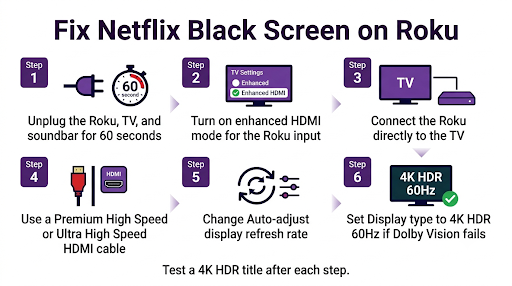
Work through these fixes in order. Test a 4K HDR title on Netflix after each step so you know which one solved it.
1. Power Cycle Your Roku, TV, and Audio Gear
A full power cycle clears a stuck HDMI handshake. A simple standby restart often isn’t enough.
- Unplug the Roku, the TV, and any soundbar or receiver from the wall.
- Wait at least 60 seconds.
- Plug in the TV first, then the soundbar or AVR, then the Roku.
- Open Netflix and play a 4K HDR title.
You can also restart a Roku player from Settings > System > Power > System restart. On some Roku players, it’s under Settings > System > System restart.
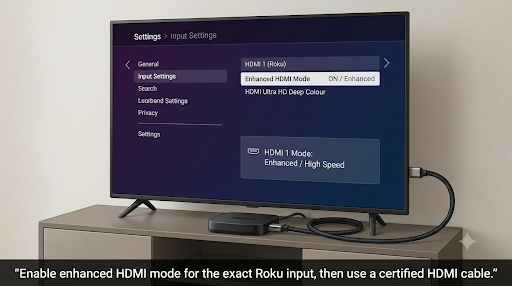
2. Turn On Your TV’s Enhanced HDMI Mode for the Roku Input
This is the single most common fix. Your TV has to be told that a specific HDMI port should accept full 4K HDR bandwidth. The setting is usually per input, so turning it on for HDMI 1 does nothing for HDMI 2.
| TV Brand | Where to Find the Setting |
| LG | All Settings > Picture > Additional Settings > HDMI Ultra HD Deep Color > select the Roku input > On |
| Samsung | Settings > General (or Connection) > External Device Manager > Input Signal Plus > select the Roku input |
| Sony | Settings > Apps & Inputs (or Watching TV) > External inputs > HDMI signal format > select the Roku input > Enhanced format |
| Vizio | Menu > Input Settings > select the Roku input > Full UHD Color > On |
| Roku TV | Settings > TV Inputs > select the input > HDMI mode > Standard or Auto |
| Philips | Preferences > HDMI mode > select the Roku input > 4K mode |
Menu names change between model years, so if you don’t see the exact path, look for words like “Deep Color,” “Enhanced,” “Signal Plus,” “UHD Color,” or “HDMI 2.0 mode.” Roku keeps a brand-by-brand list in its guide on TV settings for 4K and HDR at 60fps.
Important Point to be Considered! Many TVs only support full 4K HDR at 60fps on one or two HDMI ports. They’re often labeled “4K 60Hz,” “HDCP 2.2,” “eARC,” or “UHD.” If your TV’s enhanced setting is grayed out on one port, move the Roku to a different port.
3. Connect the Roku Directly to the TV
If your Roku runs through a soundbar, AV receiver, or HDMI switch, take that device out of the chain while testing. Netflix’s own black screen with sound guidance recommends bypassing receivers and sound systems for exactly this reason.
If Netflix HDR works with a direct connection, the soundbar or AVR is the weak link. You have three options:
- Plug the Roku into a soundbar or AVR input that supports 4K HDR passthrough and HDCP 2.2, and turn on that device’s 4K or enhanced passthrough setting.
- Keep the Roku plugged into the TV and send audio to the soundbar through HDMI ARC or eARC.
- Update the soundbar or receiver firmware, since some models added HDR passthrough support in updates.
Moving audio to ARC or eARC can sometimes introduce lip sync drift. If that happens, our guide to fixing Netflix audio sync over eARC on Sony Bravia TVs walks through the delay settings that usually sort it out.
4. Replace the HDMI Cable
A cable that works perfectly on the Roku menu can still fail at 4K HDR. The menu needs far less bandwidth than a 60fps HDR stream. Roku says cables that are unlabeled or only labeled “High Speed” or “Standard Speed” may not be adequate for 4K HDR10, HDR10+, or Dolby Vision at 60fps.
- Use the HDMI cable that came with your Roku player if you still have it.
- If buying a new one, look for Premium High Speed HDMI or Ultra High Speed HDMI certification on the box.
- Avoid very long runs, cheap extenders, and HDMI adapters when testing.
- Try reversing the cable ends. Netflix suggests this, and it occasionally helps with a marginal cable.
Roku Streaming Stick models plug straight into the TV, so the cable isn’t a factor. If you use an HDMI extender with a stick, try the stick without it.
5. Change the Auto-Adjust Display Refresh Rate Setting
Switching the refresh rate at the same moment as switching to HDR can make some TVs black out longer or fail to resync. This setting is available on many 4K Roku players.
- Press Home on your Roku remote.
- Go to Settings > System > Advanced system settings > Advanced display settings.
- Select Auto-adjust display refresh rate.
- Choose Disabled to send everything at 60fps, or Enabled to match each title’s native frame rate.
For most people with long blackouts, Disabled is the better test because the TV no longer has to change frame rates on the fly. Roku notes this setting may not apply to every app. Still, owners in the Roku Community have reported the opposite result too, where enabling it fixed Dolby Vision black screens in Netflix. Try both positions and keep the one that works on your TV.
Pro Tip! Some 24fps movies may look slightly less smooth with the setting disabled. That’s a fair trade if it stops the black screen.
6. Set the Roku Display Type Manually
By default, your Roku detects what the TV supports. When that detection is wrong, or when Dolby Vision keeps failing, picking a display type yourself gives you control.
- Go to Settings > Display type.
- Pick one of these options based on your symptom:
- 4K HDR 60Hz: Keeps HDR10 but avoids Dolby Vision. Use this if the Dolby Vision logo shows and then the screen goes black.
- 4K 60Hz: Turns HDR off completely. Use this if every HDR format fails.
- Auto detect: Go back to this after fixing your HDMI port or cable.
- Confirm on screen that you can see the picture.
If your TV can’t show the new format, the screen stays black and your Roku goes back to the previous setting after about 20 seconds. Don’t press anything during that time.
If Dolby Vision is the main issue and you use an LG OLED, our dedicated guide on the Netflix Dolby Vision black screen on LG OLED TVs covers LG-specific picture and HDMI settings in more detail.
7. Turn Off Netflix Autoplay Previews
Netflix previews on the browse screen can trigger the same SDR to HDR switch over and over, which looks like flickering black screens before you even press Play. Turning off previews keeps the menu in a steady mode.
- Sign in to your Netflix account in a web browser.
- Open your profile and go to Playback settings.
- Uncheck Autoplay previews while browsing on all devices.
- Save and restart the Netflix app on your Roku.
8. Update Roku Software and Reinstall Netflix
Roku and Netflix updates sometimes change how HDR is handled. Check for updates first, then reinstall the app if the problem continues.
- Update Roku: Settings > System > System update > Check now.
- Reinstall Netflix: Highlight Netflix on the home screen, press the * (star) button, select Remove app, restart the Roku, and add Netflix again from the Streaming Store.
- Sign out and back in: In Netflix, open the left menu, go to Get Help > Sign out, then sign back in.
Reinstalling won’t fix a hardware handshake problem, but it does clear a corrupted app or cache that sometimes causes a black screen with no sound.
How Do You Check if Your Roku and TV Support 4K HDR at 60Hz?
Roku’s hidden HDMI menu shows exactly which formats your TV reports on that connection. It’s the quickest way to see whether 4K HDR at 60Hz is actually available.
- Go to the Roku home screen.
- Quickly press Home five times, Down, Left, Up, Up, Up.
- Review the list of supported resolutions, refresh rates, and HDR formats.
If the menu shows 4K only at 30Hz, or no HDR support at all, the problem is your TV’s port setting, the port itself, or the cable. You can also check Settings > Display type and select Auto detect to see what your Roku thinks the TV supports.
Important Point to be Considered! Netflix needs 4K above 30fps on the HDMI connection to offer 4K content. If your TV only supports 4K at 30fps on that input, Netflix may skip 4K, show a black screen, or play at lower quality.
How Do You Fix the Black Screen on a Roku TV?
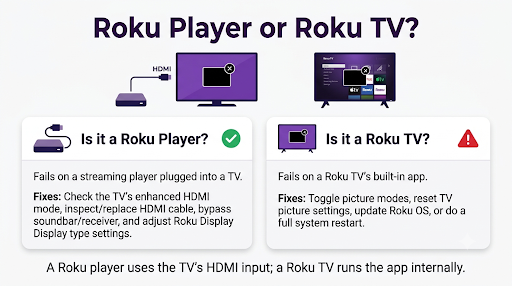
On a Roku TV, the Netflix app runs on the TV itself, so HDMI cables and ports don’t matter for Netflix. A black or very dark screen when HDR starts is usually a picture setting issue instead.
- Change the picture mode: While the title plays, press the * (star) button, open Picture settings, and switch the mode to Normal, Movie, or Low Power instead of Vivid or Brighter. Some Roku Community users fixed dark HDR playback this way.
- Reset picture settings: In the same * menu, look for an option to reset picture settings for the current input.
- Update the TV: Settings > System > System update > Check now.
- Restart the TV: Settings > System > Power > System restart.
Roku TVs don’t have a simple HDR off switch in the normal menu. Some TCL Roku TVs offer extra HDR controls through a hidden menu, but options vary by model and software version, and many users report the option doesn’t appear at all. If you change anything there, write down the original values first.
If you watch Netflix on a Roku player plugged into a Roku TV, the Roku TV input still needs HDMI mode set to Standard or Auto, as shown in the table above.
How Do You Turn Off HDR on Roku for Netflix?
On a Roku streaming player, the reliable way to turn off HDR is to change Settings > Display type to 4K 60Hz instead of 4K HDR. Netflix will then play in standard dynamic range, and the SDR to HDR switch that causes the black screen no longer happens.
Netflix doesn’t offer an HDR on or off toggle inside the Roku app. Lowering your Netflix data usage per screen in your account playback settings can also keep streams below 4K, but it reduces resolution too, so use it only as a temporary test.
Keep HDR off only as a workaround. Once you’ve fixed the HDMI port setting or cable, switch back to Auto detect to get the best picture.
What Else Should You Check if 4K HDR Never Works on Netflix?
If you’ve fixed the black screen but Netflix never shows 4K or HDR, check the basics on the account and content side.
- Your plan: 4K Ultra HD and HDR on Netflix require the Premium plan.
- The title: Not every show is in 4K. Look for the Ultra HD 4K, HDR, or Dolby Vision badge on the title page, or search “4K” in Netflix.
- Your internet: Netflix adapts quality to your connection, so slow or unstable Wi-Fi can drop you below 4K. Check its current internet speed recommendations.
- Playback settings: Set data usage per screen to Auto or High in your Netflix account.
- Every device in the chain: Netflix says your streaming player, receiver, and TV all have to support 4K or HDR for it to play.
Seeing an error code instead of a black screen points to a different problem. Network errors like Netflix error NW-2-5 are connection issues rather than HDR handshake failures, so the fixes are different. Vizio owners who see a code on the TV’s built-in app can check our guide to Netflix error UI-113 on Vizio SmartCast.
Common Mistakes That Keep the Black Screen Coming Back
- Turning on enhanced HDMI mode for the wrong input. The setting is per port. Check which HDMI number the Roku is plugged into.
- Testing with an HD title. HD titles may not trigger HDR, so they can’t prove the fix worked.
- Leaving the soundbar in the chain while testing. Always test direct to the TV first.
- Buying a cable labeled only “4K.” Look for the official Premium High Speed or Ultra High Speed certification instead.
- Factory resetting too early. A factory reset rarely fixes an HDMI handshake problem and wipes your apps and settings.
- Leaving HDR permanently off. It’s a good test, but you lose picture quality you’re paying for on the Premium plan.
When Should You Contact Roku, Netflix, or Your TV Maker?
Contact support after you’ve tested a direct connection, a certified cable, a different HDMI port, and a manual display type. At that point, the likely cause is hardware or firmware.
- Your TV manufacturer: If the Roku works in HDR on a different TV, the original TV’s HDMI port or firmware is the likely problem.
- Roku support: If the Roku fails on multiple TVs or the HDMI secret menu shows no 4K HDR even on a known-good setup.
- Netflix support: If HDR works in other apps on the same setup but every Netflix HDR title goes black.
Frequently Asked Questions
Why does Netflix go black only on 4K HDR titles but not HD shows?
HD titles usually don’t trigger the switch to HDR, so the HDMI connection stays in the same mode as the Roku menu. A 4K HDR title needs much more bandwidth and HDCP 2.2, so any weak link only shows up on those titles.
Why do I get a black screen with sound on Netflix on my Roku?
Sound with no picture means the Roku is still streaming, but the video signal isn’t reaching your screen. In HDR content, that’s almost always the HDMI path, a Dolby Vision lock failure, or a soundbar that can’t pass the video format.
Can a soundbar cause the Netflix black screen on Roku?
Yes. Many soundbars pass the Roku menu without trouble but can’t pass 4K HDR or Dolby Vision, or only support HDCP 2.2 on one input. Plugging the Roku into the TV and using ARC or eARC for audio usually fixes it.
Does the Roku Streaming Stick 4K have this problem too?
Yes. The stick removes the cable from the equation, but the TV port setting, HDCP 2.2 support, and Dolby Vision lock issues still apply. Some stick owners have reported Dolby Vision black screens that were solved by switching the display type to 4K HDR.
Will a factory reset fix the Netflix HDR black screen?
Probably not. A factory reset clears software settings, but the cause is usually a TV port setting, a cable, or a device in the HDMI chain. Try every fix in this guide first.
Why is Netflix black on my phone but fine on Roku?
Phone black screens have different causes, such as screen recording protection or a DRM issue in the app. If you see it on Android, our guide on the Netflix black screen caused by Android Media DRM explains how to fix it.
Final Recommendation
Start with the fix that solves this problem for most people: turn on your TV’s enhanced HDMI mode for the exact input the Roku uses, and connect the Roku directly to the TV. If the black screen continues, swap in a Premium High Speed HDMI cable, then try changing Auto-adjust display refresh rate. If the Dolby Vision logo appears before the screen goes black, set Display type to 4K HDR 60Hz.
Once Netflix plays in HDR reliably, switch Display type back to Auto detect so you keep the best picture your TV can show.