
If Netflix freezes at 25% or 99% on your Fire Stick while YouTube, Prime Video, and other apps play fine, your router’s MTU setting is a likely cause. Lowering the router’s MTU from 1500 to 1492, 1480, or 1460 often clears the stall, because it stops large data packets from being silently dropped somewhere between your home and Netflix.
This guide shows you how to confirm the problem is MTU, how to find the right value for your connection, and what to try if MTU turns out not to be the cause.
Quick Overview
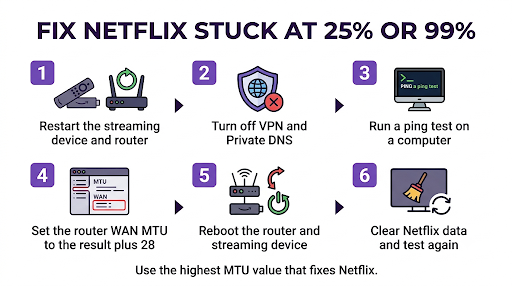
- Rule out the basics: restart the Fire Stick and router, then try another Netflix title.
- Run a ping test from a computer on the same network to find the largest packet that gets through without fragmenting.
- Add 28 to that number. The result is your best MTU value.
- Change the WAN or Internet MTU on your router (not on the Fire Stick), save, and reboot the router.
- Clear Netflix data on the Fire Stick, restart it, and test again.
No computer handy? Set the router MTU to 1492 for PPPoE connections or 1480 for everything else, then test. Drop to 1460 or 1450 if Netflix still stalls.
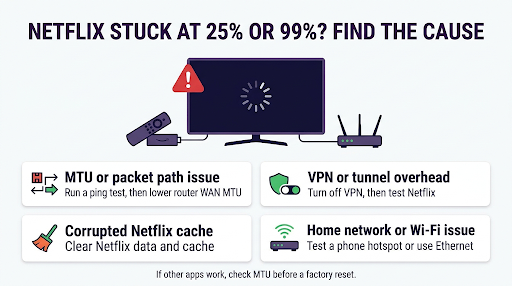
Why Does Netflix Get Stuck at 25% or 99% When Other Apps Work?
Netflix usually stalls at these points because a specific part of its loading process is failing, not because your internet is slow. The loading percentage is not a speed bar. It tracks setup steps such as connecting to Netflix servers, checking playback rights, and preparing the stream.
Some of those steps send larger encrypted packets than a normal web page or app menu. If a packet is larger than your connection can carry, it has to be split up or the sender has to be told to send smaller packets. When that warning gets blocked by a router, ISP gateway, or VPN, the oversized packets simply vanish. Netflix waits for data that never arrives, and the circle sits at 25% or 99%.
Other apps keep working because they use different servers, different packet sizes, or retry in ways that hide the problem. That is why “everything else works” is actually one of the strongest clues that MTU is involved.
TP-Link’s support team describes the same pattern in its guide to finding your optimal MTU size with a ping test: if you can connect but applications stall, time out, or fail to load, an incorrect MTU may be the reason.
What Is MTU, in Plain Terms?
MTU stands for Maximum Transmission Unit. It is the largest packet size your network can send in one piece. Standard Ethernet uses 1500 bytes. Some connection types add extra wrapping to every packet, which leaves less room for actual data:
- PPPoE (common with DSL and some fiber providers) needs 8 bytes, so the max is 1492.
- VPNs on the router can need 1400 or lower, depending on the protocol.
- Some ISP gateways, mesh systems, and double-NAT setups quietly lower the usable size without telling your router.
How Can You Tell If MTU Is the Real Problem?
MTU is the likely cause if most of these are true:
- Netflix stops at the same percentage, usually 25% or 99%, every time.
- It happens on every title, not just one show.
- Other streaming apps on the same Fire Stick play normally.
- Netflix works on your phone using mobile data, but not on home Wi-Fi.
- The problem started after you got a new router, switched ISPs, added a mesh system, or turned on a router VPN.
- Restarting and clearing the app only helps for a day or not at all.
If Netflix loads slowly but eventually plays, or buffers in the middle of an episode, the issue is more likely speed or Wi-Fi signal. MTU problems tend to be all or nothing.
Tip: Netflix has a built-in network check. Open Netflix, go to Get Help in the left menu, then select Check your Network. If it passes but playback still hangs, that points away from a basic connection failure and toward something like MTU.
How Do You Find the Right MTU Value?
The most reliable method is a ping test from a Windows PC or Mac connected to the same router as your Fire Stick. You send pings that are not allowed to fragment and lower the size until they go through.
On a Windows PC
- Open Command Prompt.
- Type ping netflix.com -f -l 1472 and press Enter. The “-l” is a lowercase L.
- If you see “Packet needs to be fragmented but DF set,” lower the number by 10 (1462, 1452, and so on).
- When you get normal replies, raise the number by 1 or 2 until it fails again. The highest number that works is your result.
- Add 28 to that result. This covers the IP and ICMP headers. For example, 1452 + 28 = 1480.
On a Mac
- Open Terminal.
- Type ping -D -s 1472 netflix.com and press Return.
- If you see “Message too long” or no replies, lower the number and repeat.
- Find the highest number that gets replies, then add 28.
If 1472 works right away, your path supports a full 1500 MTU and MTU is probably not your problem. Skip ahead to the backup fixes.
How Do You Change the MTU on Your Router?
You change MTU on the router, not on the Fire Stick. Fire TV’s network settings let you adjust things like IP address and DNS, but they do not offer an MTU field. Changing it on the router fixes the path for every device in the house.
- Open a browser on a computer or phone and go to your router’s admin page. Common addresses are 192.168.1.1, 192.168.0.1, or 10.0.0.1. Many newer routers use an app instead.
- Sign in with the admin password, often printed on a sticker on the router.
- Look under Internet, WAN, Advanced, or Network settings for a field called MTU or MTU Size.
- Enter the value from your ping test. If you skipped the test, start with 1492 for PPPoE or 1480 for cable and fiber.
- Save the change and reboot the router.
- Restart the Fire Stick: Settings > My Fire TV > Restart.
- Open Netflix and play a title.
If it still hangs, lower the MTU in steps of 10 or 20 (1460, 1450, 1440) and test after each change. Most homes will not need to go below 1400 unless a VPN is involved.
What If You Have an ISP Gateway Plus Your Own Router?
When your ISP’s modem-router feeds a second router or mesh system, check the MTU on both. The lower value along the path is the one that matters. Setting the ISP gateway to bridge mode, if your provider allows it, can also remove the mismatch entirely.
Common Mistakes That Make the MTU Fix Fail
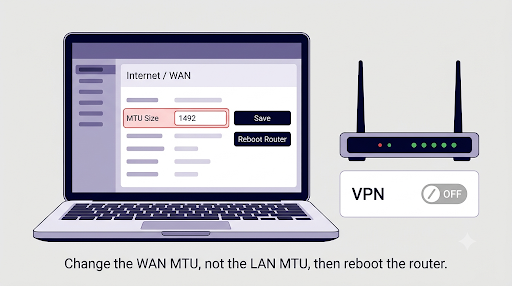
- Changing the LAN or Wi-Fi MTU instead of the WAN MTU. The Internet-facing setting is the one that usually needs to change.
- Forgetting to add 28 after the ping test. Entering the raw ping number sets MTU too low, which can slightly reduce speed.
- Not rebooting the router. Some routers only apply MTU after a restart.
- Testing on the same cached session. Clear Netflix data on the Fire Stick after the change so it builds a fresh connection.
- Going too low too fast. Dropping straight to 1200 may work, but it adds overhead to every packet in the house. Use the highest value that fixes Netflix.
Does a VPN or Private DNS Make This Worse?
Yes, often. VPN tunnels add their own headers to every packet, which shrinks the space left for data. A router-level VPN, a Fire Stick VPN app, or a “smart DNS” service can all push Netflix traffic over a path with a smaller MTU than your router expects.
Turn the VPN off completely and test Netflix. If it starts playing, either keep Netflix outside the VPN with a split-tunnel rule or lower the MTU inside the VPN app or router VPN settings. Apple users see a similar tunnel-related issue on phones, which we cover in our guide on Netflix downloads getting stuck because of iCloud Private Relay.
Netflix also pays attention to your home network for account sharing rules. If you switch networks, VPNs, or routers often, you may run into a separate verification screen. Our walkthrough on the Netflix Household error tied to home Wi-Fi explains how that check works.
What Should You Try If MTU Isn’t the Cause?
If the ping test showed 1472 works fine, or changing MTU did nothing, work through these fixes in order.
1. Clear Netflix Data and Cache
- Go to Settings > Applications > Manage Installed Applications.
- Select Netflix.
- Choose Clear data, confirm, then choose Clear cache.
- Unplug the Fire Stick for 30 seconds, plug it back in, and sign in again.
Low storage can cause stalls and crashes too. If your Fire Stick is nearly full, see our guide on fixing Netflix crashes on Fire Stick caused by low storage and cache.
2. Check Power and Hardware
Netflix’s own help article on Netflix crashing or closing notes that a Fire TV Stick needs a power supply of at least 2.1 amps. Running it from a TV’s USB port can cause odd loading and playback problems. Use the original Amazon power adapter plugged into a wall outlet.
If the whole device restarts during playback instead of just stalling, that is a different issue. Our article on Fire Stick rebooting while watching Netflix covers power, heat, and HDMI causes.
3. Switch the Connection Type
- Try the other Wi-Fi band (5 GHz vs. 2.4 GHz).
- Use an Amazon Ethernet adapter if your router is close.
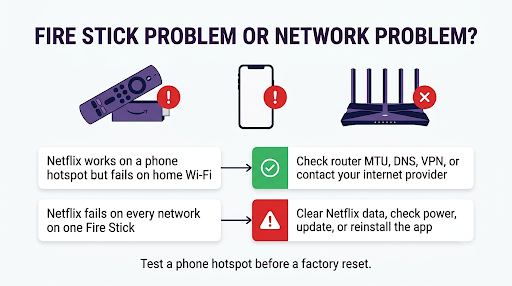
- Temporarily connect the Fire Stick to a phone hotspot. If Netflix plays instantly on the hotspot, the problem is your home network, not the Fire Stick or your account.
4. Reset Custom DNS
If you set a custom DNS on the Fire Stick or router, switch back to automatic DNS and test. Netflix’s help pages list custom DNS, custom modem settings, and VPN or proxy settings as things to reset when Netflix can’t connect.
5. Update and Reinstall
Check for updates under Settings > My Fire TV > About > Check for Updates. If that doesn’t help, uninstall Netflix, restart the Fire Stick, and reinstall it from the Appstore.
6. Call Your ISP
If Netflix fails on every device in your home but works elsewhere, ask your ISP whether they changed anything on your line, whether you’re on PPPoE, and what MTU they recommend. Some ISPs can also reset your gateway from their end.
Which Fix Matches Your Situation?
| What you see | Most likely cause | First fix to try |
| Stuck at 25% or 99% on every title, other apps fine | MTU or packet path issue | Ping test, then lower router WAN MTU |
| Started after new router, mesh, or ISP | MTU mismatch between devices | Check MTU on gateway and router |
| Only happens with VPN on | Tunnel overhead | Turn off VPN or lower its MTU |
| Works on phone hotspot, fails on home Wi-Fi | Home network setting | Router MTU and DNS reset |
| Stalls on one show only | Title or cached data | Try another title, clear Netflix data |
| Slow loading, then buffering mid-episode | Speed or Wi-Fi signal | Move router, switch band, use Ethernet |
FAQs
Can I change the MTU directly on my Fire Stick?
No. Fire OS doesn’t offer an MTU setting in its network menu. You need to change it on your router, which also helps other devices that may be quietly affected by the same problem.
Will lowering MTU slow down my internet?
Only very slightly. Going from 1500 to 1480 means each packet carries a little less data, but the difference is too small to notice for streaming or browsing. Setting it far lower than needed, like 1200, adds more overhead, so stick with the highest value that works.
Why does Netflix work on my phone but not my Fire Stick on the same Wi-Fi?
Phones often handle packet size problems better because their network software adjusts more aggressively, and the Netflix mobile app may use different connection behavior. A Fire Stick can be more sensitive to the same broken path, so it fails while the phone recovers.
Is 25% a different problem from 99%?
They are different stages of loading, but on a Fire Stick where other apps work, the fix list is the same. If you get an error code instead of a frozen percentage, search that exact code. For example, a date and time mismatch triggers its own error, as explained in our guide to Netflix error 121 and date and time settings.
Does this happen on smart TVs too?
Yes. MTU affects any device on the network, so a smart TV can stall the same way. Some TVs have their own quirks, though. On LG models, a fast-boot feature can cause Netflix to crash, which we cover in Netflix crashing on LG TV with Quick Start+.
My Fire Stick is very old. Could that be the problem?
It could be. Netflix has ended support for some early Fire TV models, including the first-generation Fire TV Stick from 2014. If your device is one of those, network fixes won’t help, and you’ll need a newer streaming device.
Final Recommendation
If Netflix is the only app stuck at 25% or 99% on your Fire Stick, don’t start with a factory reset. Run the ping test from a computer first. If it shows your connection can’t pass 1472-byte packets, set your router’s WAN MTU to the result plus 28, reboot, clear Netflix data, and test. That one change fixes the problem for many households on PPPoE, VPN, or mesh setups. If the ping test passes at 1472, skip MTU and move straight to clearing Netflix data, checking power, and testing on a phone hotspot to find out whether the issue is your home network or the device itself.