
If your Netflix downloads are stuck at 0% on iPhone, turn off Low Data Mode for the network you are on, then turn off iCloud Private Relay (or Limit IP Address Tracking) and tap Download again. Low Data Mode limits background network use, and Private Relay can slow or block the connection checks Netflix needs before a download starts. Most stuck downloads begin moving within seconds once both are off.
This guide shows you exactly where each setting lives in current iOS versions, why these two features cause the 0% freeze, and what to check next if the progress bar still will not move.
Quick Overview
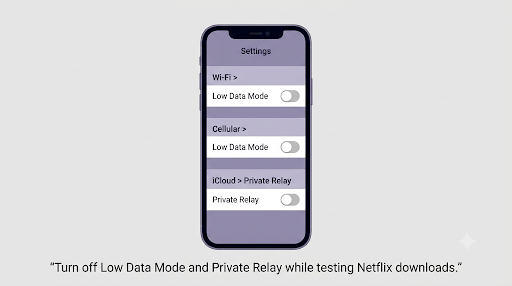
- Turn off Low Data Mode: Settings > Wi-Fi > tap the (i) next to your network > turn off Low Data Mode. On cellular, go to Settings > Cellular > tap your number (or Cellular Data Options on iOS 18 and earlier) > turn off Low Data Mode.
- Turn off Private Relay: Settings > [your name] > iCloud > Private Relay > turn it off, or tap Turn Off Until Tomorrow.
- Check Low Power Mode: Settings > Battery > turn off Low Power Mode if the battery icon is yellow.
- Restart the download: Delete the stuck title in Netflix > Downloads, force-close the app, reopen it, and download again.
- Still stuck? Check storage, the Wi-Fi Only setting in Netflix, your plan’s download limits, and update the Netflix app and iOS.
Why Do Netflix Downloads Get Stuck at 0% on iPhone?
A Netflix download sits at 0% when the app can queue the title but cannot finish the setup it needs before data starts flowing. Before the first byte arrives, Netflix has to confirm your account, check your plan’s download limits, and get a license for that title. If anything on your iPhone slows or interrupts that handshake, the progress bar never moves.
The most common reasons on iPhone are:
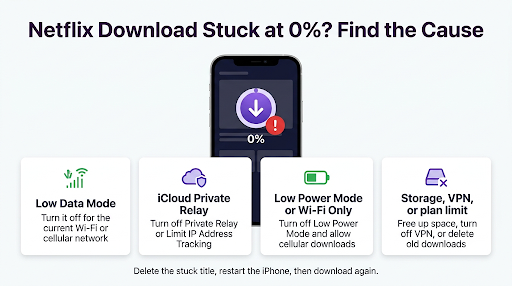
- Low Data Mode is on for your Wi-Fi network or cellular plan
- iCloud Private Relay is on and your network does not play well with it
- Low Power Mode is pausing background activity
- The Netflix Wi-Fi Only download setting is on while you are using cellular data
- Not enough free iPhone storage
- You have hit your plan’s download or device limit
- A VPN, proxy, or custom DNS is interfering with the connection
- An outdated Netflix app or iOS version
The first two are the ones most troubleshooting guides skip, and they are often the real reason your download is frozen while everything else on your phone seems to work fine.
How Does Low Data Mode Stop Netflix Downloads?
Low Data Mode tells iOS and your apps to cut back on network use, and that includes the kind of large, background transfer a movie download needs. According to Apple’s Low Data Mode support page, the feature stops apps from using network data when you are not actively using them, turns off Background App Refresh, reduces streaming quality, and turns off automatic downloads.
Apple also notes that each app decides how it reacts to Low Data Mode. That is why Netflix behavior can feel inconsistent. Some titles may start, others sit at 0%, and downloads often stall the moment you switch to another app or lock the screen.
Why Low Data Mode Can Be On Without You Knowing
Plenty of people swear they never turned it on. Here is how it sneaks in:
- It is set per network. Low Data Mode can be on for one Wi-Fi network and off for another. Your home Wi-Fi might be fine while a hotel or office network has it on.
- It syncs through iCloud. Apple keeps your Low Data Mode choice for each Wi-Fi network in sync across your devices. If you turned it on for a network on your iPad, your iPhone may follow.
- Personal Hotspot connections. When your iPhone joins a hotspot shared by another iPhone or iPad, iOS commonly marks that connection as Low Data Mode by default.
- Carrier settings. Apple says Low Data Mode options can vary by carrier, and some plans present it as a Data Mode choice instead of a simple switch.
How to Turn Off Low Data Mode on Wi-Fi
- Open Settings and tap Wi-Fi.
- Tap the (i) button next to the network you are connected to.
- Turn off Low Data Mode.
How to Turn Off Low Data Mode on Cellular or 5G
- Open Settings and tap Cellular.
- On iOS 26, tap your phone number under SIMs. On iOS 18 or earlier, tap Cellular Data Options.
- If you see Data Mode, tap it and choose Standard or Allow More Data on 5G. Otherwise, turn off Low Data Mode.
Pro Tip! If you use Dual SIM, check Low Data Mode on the line that is actually handling cellular data. Turning it off on the wrong line will not change anything.
Can iCloud Private Relay Cause Netflix Downloads to Get Stuck?
Yes, it can, though usually in a less direct way than Low Data Mode. Private Relay is an iCloud+ feature that routes Safari traffic, DNS lookups, and unencrypted app traffic through Apple’s relay servers. Apple’s own network guidance for Private Relay explains that it protects web browsing in Safari, DNS resolution queries, and insecure HTTP app traffic.
Netflix’s actual video traffic is encrypted, so Private Relay does not usually carry the movie itself. The trouble starts with the DNS side. Some home routers, office networks, school Wi-Fi, and filtering tools do not handle Private Relay well. Apple warns network operators that silently dropping or timing out Private Relay traffic can cause delays on devices. For Netflix, that delay can show up as a download that queues but never starts.
Apple also says that some networks and services need to see your real IP address. When a network is not compatible, your iPhone may show a message saying so, which is a strong hint that Private Relay is part of your problem.
How to Turn Off iCloud Private Relay on iPhone
- Open Settings and tap your name at the top.
- Tap iCloud, then Private Relay.
- Turn off Private Relay, or tap Turn Off Until Tomorrow if you only want to test it.
If you choose Turn Off Until Tomorrow, Private Relay comes back on by itself within 24 hours. That makes it a safe way to test without forgetting to switch your privacy setting back on.
How to Turn Off Private Relay for Just One Network
You do not have to give up Private Relay everywhere. Apple lets you turn it off for one network using the Limit IP Address Tracking setting:
- Wi-Fi: Settings > Wi-Fi > tap (i) next to the network > turn off Limit IP Address Tracking.
- Cellular: Settings > Cellular > tap your number (or Cellular Data Options on iOS 18 and earlier) > turn off Limit IP Address Tracking.
Important Point to be Considered! If you turn off Limit IP Address Tracking for a Wi-Fi network, Apple applies that choice to that network on all your devices signed in with the same Apple Account. Also, with Private Relay off, your network provider can see your Safari browsing again, so switch it back on once your downloads are done if privacy matters to you.
Private Relay is not the only thing that changes how Netflix sees your connection. VPNs and IP changes can also confuse Netflix’s location checks, which is the same kind of mix-up behind the Netflix household error on Roku when you are on home Wi-Fi.
Which Setting Is Causing Your Problem?
Use this quick table to match what you see with the most likely cause.
| What you notice | Most likely cause | What to do |
| Downloads stuck at 0% on one Wi-Fi network but fine on another | Low Data Mode or Limit IP Address Tracking on that network | Tap (i) next to that network and turn both off |
| Downloads stuck only on cellular data | Netflix Wi-Fi Only setting, cellular Low Data Mode, or Netflix blocked from cellular | Turn off Wi-Fi Only in Netflix and allow Netflix in Settings > Cellular |
| Download starts, then stops when you leave the app | Low Data Mode, Low Power Mode, or Background App Refresh off | Turn off both modes and keep Netflix open until progress appears |
| Stuck while connected to another iPhone’s hotspot | Hotspot connection marked as Low Data Mode | Turn off Low Data Mode on that hotspot network |
| Safari shows a Private Relay warning on the same network | Network not compatible with Private Relay | Turn off Limit IP Address Tracking for that network |
| Error 10013 or a VPN or proxy message | VPN, proxy, or custom DNS | Turn off the VPN or proxy and reset network settings |
| Error 10016-22005 or “downloads on too many devices” | Download or device limit reached | Delete old downloads or remove a download device |
What Should You Do After Turning Off Low Data Mode and Private Relay?
Clear out the frozen download and start fresh. A title that got stuck while those settings were on often stays stuck even after you fix them, because the app is still holding the old failed request.
- Open Netflix and go to My Netflix > Downloads.
- Tap the download status icon next to the stuck title and choose Delete Download or Cancel Download.
- Swipe up from the bottom of the screen (or double-press the Home button) and swipe Netflix away to force-close it.
- Restart your iPhone. Turn it off, wait about 10 seconds, then turn it back on.
- Open Netflix and download the title again. Keep the app open on screen until you see the progress bar move past 0%.
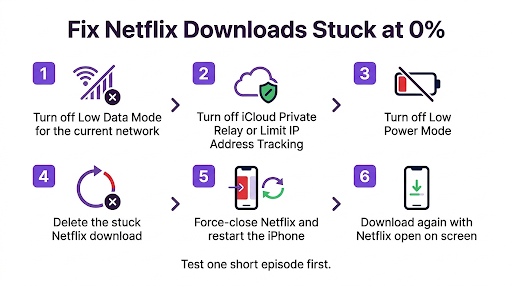
Pro Tip! Start with one short episode. If a 20-minute episode downloads fine but a long movie in high quality stalls, your problem is more likely storage or connection speed than a blocked setting.
How Do You Check Low Power Mode and Background App Refresh?
Low Power Mode pauses background activity like downloads, so turn it off whenever you want a download to finish. Apple says Low Power Mode turns off Background App Refresh, limits automatic downloads, and on many models reduces 5G use. You will know it is on when the battery icon is yellow.
- Turn off Low Power Mode: Settings > Battery, then turn off Low Power Mode. On iPhone 15 and later, it sits under Battery > Power Mode.
- Turn on Background App Refresh: Settings > General > Background App Refresh. Make sure the main option is set to Wi-Fi & Cellular Data (or at least Wi-Fi), then turn on the switch for Netflix.
iOS turns Low Power Mode off by itself once your battery charges to 80%. If you plan to download a whole season before a flight, plugging in is often the simplest fix.
Is Netflix Set to Download on Wi-Fi Only?
If your downloads freeze only on cellular data, the Wi-Fi Only setting inside Netflix is the first thing to check. Netflix keeps downloads on Wi-Fi by default on many devices to save your data, so a download started on cellular can wait at 0% until you join Wi-Fi.
- Open Netflix and tap My Netflix in the lower right.
- Tap your profile name or the menu icon at the top, then tap App Settings.
- Under Downloads, turn off Wi-Fi Only.
Next, confirm iOS lets Netflix use cellular data. Go to Settings > Cellular, scroll down to the app list, and make sure the Netflix switch is on.
While you are in App Settings, look at Download Video Quality. Higher quality files take longer and use more data and storage. Standard quality is a good choice when your connection is slow or your storage is tight.
Is Your iPhone Storage Full?
A full or nearly full iPhone can leave Netflix downloads sitting at 0% or failing partway through. Go to Settings > General > iPhone Storage to see how much free space you have.
To make room quickly:
- Delete Netflix titles you have already watched from My Netflix > Downloads
- Remove large videos you have backed up elsewhere
- Use the storage suggestions iOS shows, such as offloading unused apps
Low storage causes trouble for Netflix on other devices too. If you also stream on a Fire TV Stick, here is how to deal with Netflix crashing on Fire Stick because of low storage and cache.
Have You Reached Your Netflix Download Limit?
Your Netflix plan caps how many titles you can download and on how many devices. When you hit a cap, Netflix usually shows a message, but sometimes the download just refuses to start.
According to Netflix’s guide to downloading titles:
- Ad-free plans allow up to 100 active downloads at a time per device, on as many devices as your plan includes.
- Ad-supported plans allow 15 downloads per device per calendar month.
- Downloads expire after a period of time, and some titles can only be downloaded a limited number of times per year.
Two error codes point straight to limits:
- 10016-22005: You have reached a studio or distributor limit. Deleting downloads you have finished watching usually fixes it.
- 10016-23000 or NQL.23000: You have downloads on too many devices. In Netflix, go to My Netflix > profile name > Account > Mobile download devices and remove a device you no longer use.
What If Netflix Downloads Are Stuck but Your Internet Works Fine?
When Safari, YouTube, and other apps load normally but Netflix downloads freeze, the issue is usually something that affects Netflix specifically: a VPN, a proxy, custom DNS, or a network that blocks video services. Work through these in order.
- Turn off any VPN. Netflix error 10013 means your connection is going through a VPN or proxy. Check Settings > VPN, and close any VPN or ad-blocking app.
- Remove custom DNS or proxy settings. Settings > Wi-Fi > (i) > Configure DNS should be Automatic, and Configure Proxy should be Off.
- Toggle Airplane Mode on for 10 seconds, then off, to reset the connection.
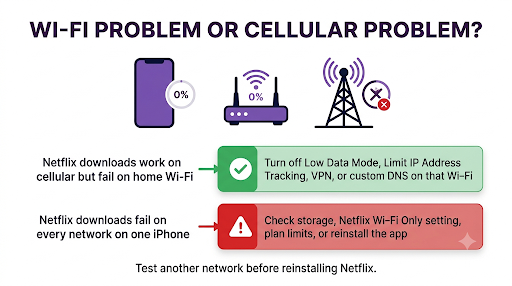
- Try a different network. If downloads work on cellular but not on Wi-Fi, the Wi-Fi network is the problem. Public Wi-Fi at cafes, hotels, and schools sometimes blocks video services.
- Check whether Netflix is down using the Is Netflix Down page in the Netflix Help Center.
- Reset Network Settings as a last network step: Settings > General > Transfer or Reset iPhone > Reset > Reset Network Settings. This erases saved Wi-Fi passwords, so have them ready.
The same “everything else works except Netflix” pattern shows up on TV devices too. If it happens on your streaming stick, see why Netflix buffers on Fire Stick while other apps work.
Should You Check the Date, Time, and App Updates?
Yes. Netflix downloads depend on licenses with expiry dates, so a wrong clock or an old app version can stop a download before it starts.
- Date and time: Settings > General > Date & Time, then turn on Set Automatically. Android users see a similar clock problem as Netflix error 121 caused by the wrong date and time.
- Update Netflix: Open the App Store, tap your profile picture, find Netflix in the list, and tap Update.
- Update iOS: Settings > General > Software Update. Netflix says older operating system versions may not support downloads.
When Should You Reinstall the Netflix App?
Reinstall Netflix only after you have tried the settings fixes above, because deleting the app removes every downloaded title and signs you out. It is worth doing when downloads stay frozen on every network, with Low Data Mode, Private Relay, and Low Power Mode all off.
- Press and hold the Netflix icon and tap Remove App > Delete App.
- Restart your iPhone.
- Reinstall Netflix from the App Store and sign in.
- Try one download on Wi-Fi with the app open.
Important Point to be Considered! Choose Delete App, not Offload App. Offloading keeps the app’s data, so it will not clear out a corrupted download queue.
Common Mistakes That Keep Netflix Downloads Stuck
- Fixing the wrong network. Low Data Mode and Limit IP Address Tracking are set per network. Turn them off for the network you are connected to right now.
- Retrying the same frozen download. Delete the stuck title first. Tapping it again rarely helps.
- Locking the phone right away. Keep Netflix open until progress starts, especially on the first try.
- Forgetting the hotspot. Connecting to a friend’s iPhone hotspot often brings Low Data Mode back on.
- Leaving Private Relay off for good. Use Turn Off Until Tomorrow or the per-network setting so you keep your Safari privacy elsewhere.
- Deleting the app first. Reinstalling wipes all your downloads. Save it for last.
Frequently Asked Questions
Why are my Netflix downloads stuck at 0 percent?
Your downloads are stuck at 0 percent because Netflix cannot finish the setup it needs before data starts flowing. On iPhone, that is most often Low Data Mode, Private Relay, Low Power Mode, the Wi-Fi Only setting, low storage, or a plan limit. If you see an error code, search that code in the Netflix Help Center for the exact fix.
Why does my Netflix download stop partway through?
A download that starts and then stops is usually being paused by iOS, not blocked by Netflix. This happens when you switch apps or lock the screen while Low Power Mode or Low Data Mode is on, or when your Wi-Fi drops. Netflix normally resumes the download once you reopen the app on a stable connection.
How do I clear the Netflix cache on iPhone?
iOS does not have a clear cache button for individual apps like Netflix. The only full reset is to delete the app and reinstall it from the App Store, which also removes your downloads. Offloading the app does not clear its data.
Does Low Data Mode affect Netflix streaming too?
Yes. Apple says Low Data Mode can reduce the quality of streaming content, so Netflix may play in lower resolution while it is on. You can also lower Netflix’s own data use in App Settings under the video playback or cellular data usage option if you want to save data without turning on Low Data Mode for your whole phone.
Do I need iCloud+ for Private Relay to be the problem?
Yes. Private Relay is part of an iCloud+ subscription, so if you do not pay for iCloud+ or Apple One, it is not running on your iPhone. In that case, focus on Low Data Mode, Low Power Mode, VPN apps, and your Netflix settings.
Why are Netflix downloads stuck at 0 on Android too?
Android has similar causes: data saver mode, battery saver, low storage, a VPN, or the Netflix Wi-Fi Only setting. Android also needs the Storage permission turned on for Netflix in Settings > Apps > Netflix > Permissions.
Final Recommendation
Start with the two settings most guides miss. Turn off Low Data Mode for the network you are on, then turn off Private Relay with Turn Off Until Tomorrow. Delete the stuck title, restart your iPhone, and download it again with Netflix open on screen. If it still sits at 0%, check Low Power Mode, the Wi-Fi Only setting, storage, and your plan limits, in that order.
If none of that works and you are not seeing a clear error code, it is time to let Netflix look at your account. Here is how to contact Netflix customer service from the Netflix app, which is the fastest way to reach a live agent with your account details ready.