
A Netflix black screen on a Samsung Smart TV is usually caused by a stuck app, corrupted cache data, an outdated TV or app version, or a bad HDMI connection. The fastest fix is a cold boot: hold the power button on your Samsung remote until the TV turns off and back on. If that doesn’t work, sign out of Netflix, clear the app’s cache, reinstall it, and reset Smart Hub if needed.
The right fix depends on what you see and hear. A black screen with sound points to a different cause than a black screen with no sound at all. This guide helps you figure out which problem you have, then walks you through every fix in the order that saves you the most time.
Quick Overview
- Cold boot the TV: Hold the remote’s power button for about 5 seconds until the TV restarts, or unplug it for at least 60 seconds.
- Sign out of Netflix: Open the menu, go to Get Help, then Sign out, and sign back in.
- Clear Netflix cache: Settings > Support > Device Care > Manage Storage > Netflix > View Details > Clear Cache.
- Update everything: Update the TV software and the Netflix app.
- Reinstall Netflix if the app still opens to a black screen.
- Check HDMI cables and ports if you watch Netflix through a Fire TV Stick, Roku, cable box, or game console.
- Reset Smart Hub as the last step before a factory reset.
Why Is Netflix Showing a Black Screen on My Samsung TV?
In most cases, Netflix goes black because the app or the TV’s temporary memory has gotten stuck, not because your TV is broken. Samsung TVs don’t fully shut down when you press the power button. They go into standby, so small glitches can pile up for days or weeks.
Here are the most common causes:
- Standby memory glitch: The TV has not truly restarted in a long time.
- Corrupted Netflix cache or data: Old saved app data stops Netflix from loading video.
- Outdated software: The Netflix app or Samsung’s Tizen firmware is behind on updates.
- HDMI or HDCP problems: A loose cable, bad port, or receiver in the middle blocks the protected video signal.
- Network issues: A weak connection, VPN, or custom DNS can stop the stream from starting.
- Smart Hub problems: Samsung’s app platform itself has a fault that affects Netflix.
- Netflix outage: Rare, but it happens.
Black Screen With Sound or No Sound: What’s the Difference?
The symptom tells you where to look first. Netflix’s help page on black screen with sound says that hearing audio without video usually means your device or a video cable stopped the picture from showing. A black screen with no sound often means the app or device never started playback at all.
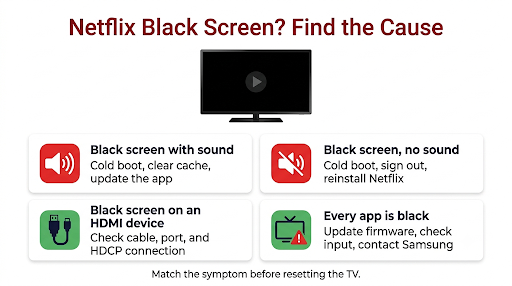
| What you see | Most likely cause | Try this first |
| Black screen with sound (built-in Netflix app) | App glitch, picture setting, or firmware bug | Cold boot, then clear cache |
| Black screen with sound (Fire Stick, Roku, cable box) | HDMI cable, port, or HDCP handshake failure | Connect directly to the TV, swap HDMI port or cable |
| Black screen with no sound | App frozen on launch or device not responding | Cold boot, sign out, reinstall |
| Netflix opens, then goes black during playback | Network drop or app data problem | Check internet, clear cache, update app |
| Every app shows a black screen, not just Netflix | TV software, input source, or hardware issue | Update firmware, check input, contact Samsung |
If you hear nothing at all, our guide on fixing Netflix audio problems on a Samsung TV covers sound output settings that can also play a part.
How Do You Fix Netflix Black Screen on a Samsung Smart TV?
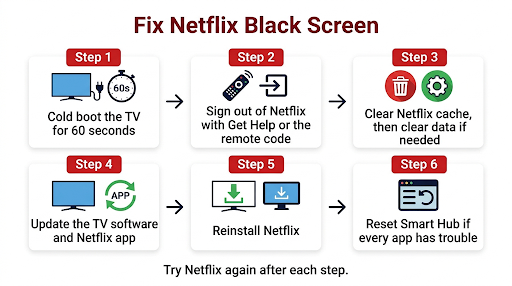
Start with the quick fixes and move down the list. Test Netflix after each step so you know what actually worked.
1. Cold Boot Your Samsung TV
A cold boot fully restarts the TV and clears its temporary memory. According to Samsung’s support guide for apps that won’t work, pressing power normally only puts the TV into standby, while a cold boot actually shuts it down and reboots it.
There are two ways to do it:
- With the remote: Press and hold the power button for about 5 seconds until the TV turns off and the Samsung logo appears again. Then let go.
- With the plug: Unplug the TV from the wall, wait at least 60 seconds, and plug it back in. Netflix itself suggests waiting 1 minute after pressing the TV’s power button, or leaving it unplugged for 3 minutes.
This one step fixes the problem for a lot of people, especially if the TV has been sitting in standby for a long time.
2. Sign Out of Netflix and Sign Back In
Signing out refreshes your account data on the TV. It’s quick and safe.
- Open Netflix and go to the home screen.
- Press left on the remote to open the menu. On newer app layouts, press back and go to your profile icon.
- Select Get Help, then Sign out, then Yes.
- Sign back in and play a title.
Can’t reach the menu because the screen is black? Use the Netflix hidden menu code. With Netflix open, press Up, Up, Down, Down, Left, Right, Left, Right, Up, Up, Up, Up on your remote. A menu should appear with options to Sign out, Reset, or Deactivate. Choose Sign out or Reset.
3. Clear the Netflix Cache and Data
Clearing the cache removes temporary files that may be stopping video from loading. On most 2020 and newer Samsung TVs:
- Go to Settings > Support > Device Care.
- Select Manage Storage.
- Choose Netflix, then View Details.
- Select Clear Cache first. Test Netflix.
- If it’s still black, go back and select Clear Data. You’ll need to sign in again.
Tip: If Device Care is grayed out, close all open apps or cold boot the TV, then try again. You can also run Start Device Care to clear cached memory for all apps at once.
Older Samsung models may not have Manage Storage. On those, skip to reinstalling the app.
4. Update the Netflix App and Samsung TV Software
An outdated app or firmware can cause playback to fail without any error message.
To update the TV software:
- Go to Settings > Support > Software Update.
- Select Update Now.
- Turn on Auto Update so this doesn’t happen again.
To update Netflix: Go to Apps, open Settings (the gear icon in the Apps screen), and turn on Auto Update. If Netflix shows an update, install it.
Don’t turn off the TV during a firmware update. That can cause bigger problems than the one you’re fixing.
5. Delete and Reinstall Netflix
Reinstalling gives you a fresh copy of the app. Netflix comes preinstalled on many Samsung TVs, so you may see Reinstall instead of Delete.
- Press Home and go to Apps.
- Open Settings in the top corner of the Apps screen.
- Highlight Netflix and choose Reinstall or Delete.
- If you deleted it, search for Netflix in Apps and download it again.
- Sign in and test.
On some models, you can also highlight Netflix on the home bar, press and hold the select button, and pick Reinstall from the menu.
6. Check Your Internet Connection
A connection that drops or slows during startup can leave Netflix stuck on a black screen. Here’s what to check:
- Go to Settings > General > Network > Network Status to confirm the TV is online.
- Restart your modem and router. Unplug both for 30 seconds.
- Turn off any VPN or proxy running on the router.
- Set DNS to automatic in Network Settings > IP Settings.
- Move the router closer or use an Ethernet cable if Wi-Fi is weak.
Netflix recommends at least 5 Mbps for HD and 15 Mbps for 4K streaming. If you see a network error code instead of a black screen, our guide to Netflix error NW-2-5 on Samsung TVs walks through deeper network fixes.
7. Set the Date and Time to Automatic
A wrong date or time can break secure connections that Netflix needs. Go to Settings > General > System Manager > Time > Clock and set Clock Mode to Auto. This matters most after a power outage.
8. Turn Off Samsung Instant On
Instant On keeps the TV in a low-power state so it starts faster. On older Samsung Smart TVs, many users on Tom’s Guide forums reported that turning it off fixed a Netflix black screen that kept coming back.
On older models, look under Menu > System > General > Samsung Instant On. Turn it off and restart the TV. Newer models may not show this option at all, or may place similar settings under General or Power and Energy Saving. If you don’t see it, skip this step.
9. Reset Smart Hub
Resetting Smart Hub restores Samsung’s app platform to factory settings. It signs you out of every app and your Samsung account, so have your passwords ready.
- 2020 and newer models: Settings > Support > Device Care > Self Diagnosis > Reset Smart Hub
- Older models: Settings > Support > Self Diagnosis > Reset Smart Hub
Enter your TV PIN when asked. The default PIN is 0000 unless you changed it. Samsung notes the TV should be on Live TV or an HDMI input, because you can’t reset Smart Hub while inside an app.
After the reset, reinstall Netflix if it’s missing and sign back in.
10. Factory Reset the TV (Last Resort)
A factory reset wipes all settings, apps, and accounts. Only use it after every other step fails. Go to Settings > General > Reset, enter your PIN, and confirm. Then set up the TV as new and install Netflix first so you can test it right away.
What If You Watch Netflix Through an HDMI Device?
If Netflix runs on a Fire TV Stick, Roku, Apple TV, cable box, or game console plugged into your Samsung TV, the problem is often the HDMI connection, not the Netflix app.
Netflix recommends these steps:
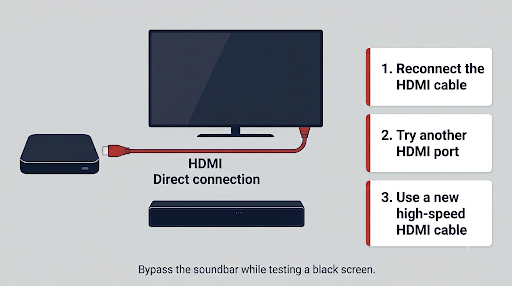
- Unplug the HDMI cable and plug it back in firmly. Try reversing the cable ends.
- Connect the streaming device directly to the TV. Bypass soundbars, AV receivers, and HDMI switches for testing.
- Try a different HDMI port on the TV.
- Try a new HDMI cable. For 4K HDR, use a cable rated as Premium High Speed or Ultra High Speed.
- If possible, test the device on another TV. If it works there, your Samsung TV’s HDMI port may be faulty.
Why HDMI matters so much: Netflix uses copy protection called HDCP. If the TV, cable, receiver, and streaming device can’t complete the HDCP “handshake,” you often get sound with no picture. A cheap cable or an older receiver in the chain is a common culprit.
Also check these Samsung settings:
- Input source: Press Source on the remote and make sure the correct HDMI input is selected.
- Input Signal Plus: On many newer Samsung TVs, go to Settings > General > External Device Manager > Input Signal Plus. If 4K HDR content goes black, try turning it off for that port to test, or on if your device sends 4K HDR.
- Anynet+ (HDMI-CEC): Turning it off and back on can clear communication glitches between the TV and connected devices.
What If Netflix Goes Black Only on Certain Shows?
If some titles play fine but others go black, the issue is usually with high-quality streams like 4K, HDR, or Dolby Vision. Try these:
- Lower the streaming quality in your Netflix account under Profile > Playback settings, then test the same title.
- Check your HDMI cable and port if you use an external device. Higher resolutions need more bandwidth.
- Update your TV firmware, since HDR playback bugs are often fixed in software updates.
If the video plays but keeps stopping instead of going fully black, see our guide on why Netflix keeps buffering on Samsung TVs.
What If Netflix Won’t Open at All?
A black screen right after you click the Netflix icon, with the app never reaching the profile screen, is closer to a loading failure than a playback problem. Cold boot, clear cache, and reinstall first. If the app shows a spinning wheel or freezes on the logo, our walkthrough on Netflix not loading on Samsung Smart TV covers more fixes for that exact situation.
If the black screen turns into an error message that says Netflix has encountered an error, you may be seeing a data refresh problem. Our guide to Netflix error UI-800-3 on Samsung TVs explains how to clear it.
Is Netflix Down, or Is It Your TV?
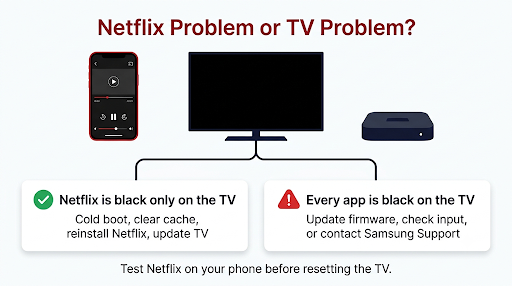
Before you reset anything big, rule out an outage. Open Netflix on your phone or laptop using the same Wi-Fi network. If it works there, the problem is your TV. If it fails everywhere, check Netflix’s official “Is Netflix Down?” page in the Help Center and wait it out.
Also test another app like YouTube or Prime Video on the Samsung TV. If every app goes black, the problem is your TV, input, or firmware, not Netflix.
Common Mistakes That Keep the Black Screen Coming Back
- Pressing power once and calling it a restart. That only puts the TV in standby. Hold the button or unplug it.
- Skipping the test after each fix. You won’t know which step worked, which makes the next fix harder.
- Resetting Smart Hub too early. It signs you out of everything. Try cache clearing and reinstalling first.
- Blaming Netflix when the HDMI chain is the problem. If you use a soundbar or receiver, test without it.
- Using screen mirroring from a phone. Netflix doesn’t support mirroring from Apple devices. Use the Cast button in the Netflix mobile app if your setup supports it, or use the TV’s built-in app.
- Leaving auto updates off. Many black screen bugs are fixed quietly in firmware updates.
When Should You Contact Netflix or Samsung Support?
Contact support if the black screen continues after a cold boot, cache clear, reinstall, firmware update, and Smart Hub reset.
- Contact Samsung if every app goes black, Device Care shows errors, or your HDMI port fails with multiple devices. Samsung support can sometimes check your TV remotely.
- Contact Netflix if only Netflix fails and the same account works fine on other devices. You can reach them right from the app. Here’s how to contact Netflix customer service from the Netflix app.
Have your TV model number ready. You’ll find it under Settings > Support > About This TV. Older Samsung TVs from around 2010 and 2011 may no longer support the Netflix app, so check your model’s support status if your TV is that old.
Frequently Asked Questions
Why does my Samsung TV play Netflix sound but no picture?
Sound with no picture usually means the video signal is blocked, often by an HDMI cable, port, receiver, or copy protection issue. If you use the built-in app, a cold boot and cache clear usually fix it. If you use an external device, connect it straight to the TV with a new HDMI cable.
Why is Netflix black on my Samsung TV but YouTube works?
When only Netflix fails, the problem is almost always the Netflix app data or your account session on the TV. Sign out using the hidden code (Up, Up, Down, Down, Left, Right, Left, Right, Up, Up, Up, Up), clear Netflix’s cache and data, and reinstall the app.
Does resetting Smart Hub delete my apps?
Resetting Smart Hub signs you out of all apps and your Samsung account and returns Smart Hub settings to default. Some downloaded apps may need to be installed again. Your picture and sound settings are not affected, unlike a full factory reset.
What is the default PIN for a Samsung TV reset?
The default PIN on Samsung TVs is 0000. If you or someone else changed it and you can’t remember it, Samsung support can help you reset it for your specific model.
Why does Netflix go black on my Samsung Frame or QLED TV after a few seconds?
On newer models like The Frame and QLED TVs, a black screen a few seconds into playback is often tied to 4K HDR streams, Input Signal Plus settings on an external device, or an outdated firmware build. Update the TV software, then test with a lower Netflix playback quality to see if HDR is the trigger.
Can a VPN cause a Netflix black screen on Samsung TV?
Yes. A VPN or proxy on your router can block or interrupt Netflix streams, which can show up as a black screen or a proxy error. Turn off the VPN, set your TV’s DNS to automatic, and restart the router before testing again.
Final Recommendation
If Netflix shows a black screen on your Samsung Smart TV, start with a true cold boot, then sign out, clear the Netflix cache, and update both the app and the TV. That sequence fixes most cases in under 10 minutes.
If you hear sound but see nothing and use a streaming stick or cable box, focus on the HDMI cable, port, and anything sitting between the device and the TV. Save the Smart Hub reset and factory reset for last. If nothing works, reach out to Samsung for TV-wide problems or Netflix for app-only problems, with your model number ready.