
When Netflix is not loading on your Samsung Smart TV, the fastest fix is usually a full power cycle: unplug the TV, press the power button on the TV once, wait one minute, and plug it back in. If that doesn’t work, sign out of Netflix, check your network and DNS, clear the Netflix cache, and reinstall the app. If Netflix still won’t open, a Smart Hub reset or a firmware update fixes most of the cases that are left.
This guide works through every fix in order, from the 60-second ones to the last resorts. It also covers specific symptoms like Netflix stuck at 25%, a spinning red circle, a frozen profile screen, and older Samsung TVs that no longer support Netflix.
Quick Overview
- Check if Netflix is down by trying it on your phone on the same Wi-Fi.
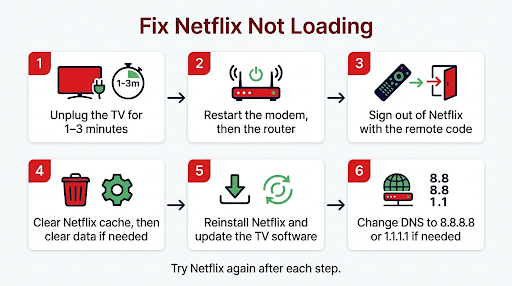
- Cold boot the TV: unplug it for 1 to 3 minutes. Turning it off with the remote isn’t enough.
- Restart your modem and router for 30 to 60 seconds.
- Sign out of Netflix using Get Help, or press Up, Up, Down, Down, Left, Right, Left, Right, Up, Up, Up, Up on the remote.
- Clear Netflix cache and data under Settings > Support > Device Care > Manage Storage.
- Reinstall Netflix from the Apps screen.
- Update the TV software and check that the date and time are correct.
- Change DNS to 8.8.8.8 or 1.1.1.1 if Netflix hangs at the same percentage every time.
- Reset Smart Hub (PIN 0000 on most models before 2025).
- Use a streaming stick if your TV is too old for Netflix.
| What you see | Most likely cause | Try this first |
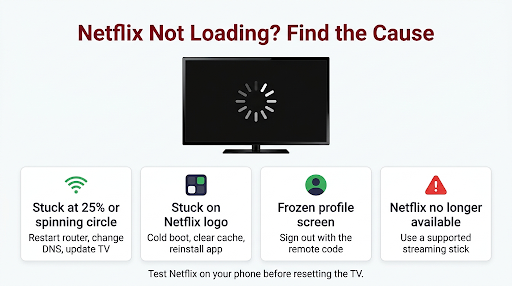
| Spinning red circle or stuck at 25% | Network or DNS problem, or outdated firmware | Router restart, then manual DNS, then software update |
| Stuck on the Netflix logo | Corrupted app data | Cold boot, then clear cache and data |
| Freezes on the profile screen | Sign-in or account data stuck | Sign out with the remote code |
| Netflix icon does nothing or closes | App or Smart Hub glitch | Reinstall Netflix, then reset Smart Hub |
| “Netflix is no longer available” message | TV model no longer supported | Use a Roku, Fire TV, Chromecast, or game console |
| Error code on screen | Specific network or data issue | Look up the exact code |
Why Is Netflix Not Loading on My Samsung Smart TV?
Netflix usually won’t load on a Samsung TV because of stored app data that needs to be refreshed, or because a network problem is stopping Netflix from reaching its servers. The TV itself is rarely broken.
Here are the common causes, from most to least likely:
- The TV was never fully restarted. Samsung TVs go into standby when you press power, so the same glitchy app session can come back for days.
- Slow, unstable, or blocked internet. This includes DNS problems, VPNs, Smart DNS services, and crowded Wi-Fi.
- Corrupted Netflix cache or app data.
- Outdated TV firmware that no longer works well with the current Netflix app.
- Wrong date and time on the TV, which can break the secure connection streaming apps need.
- Account or sign-in issues, such as an expired payment or a stuck profile.
- A Netflix outage (rare, but worth checking first).
- Your TV model lost Netflix support. This affects some Samsung TVs that are roughly 10 or more years old.
Is Netflix Down, or Is It Just Your Samsung TV?
Spend 30 seconds on this first. Open Netflix on your phone or laptop while it’s connected to the same Wi-Fi network as the TV. You can also check Netflix’s official Is Netflix Down status page.
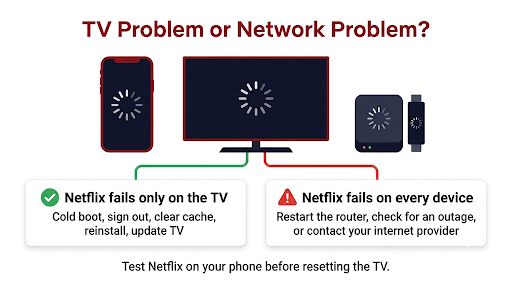
- Netflix fails everywhere: it’s a Netflix outage or a problem with your internet. Wait, or restart your router.
- Netflix works on your phone but not the TV: the problem is the TV, the Netflix app on the TV, or the TV’s network settings. Keep reading.
- Other apps like YouTube work on the TV but Netflix doesn’t: it’s most likely Netflix app data, sign-in, or DNS. Skip to the sign-out and cache fixes.
- No apps work on the TV: focus on the network section and Smart Hub reset.
How Do You Properly Restart a Samsung TV to Fix Netflix?
Unplug the TV from the wall, press the power button on the TV once, wait 1 minute, and plug it back in. Netflix’s own help center recommends this, and says you can also just leave the TV unplugged for 3 minutes.
Why it works: pressing power on the remote usually puts a Samsung TV into standby, not a true shutdown. A cold boot clears temporary memory and forces Netflix to start a fresh session.
Restart with the remote (no unplugging)
- With the TV on, press and hold the power button on the remote.
- Keep holding until the screen goes off and the Samsung logo appears. This usually takes about 5 to 10 seconds.
- Let go, wait for the TV to boot, and open Netflix.
Tip: On some older Samsung models, a feature called Samsung Instant On keeps the TV in a quick-start state. If Netflix keeps freezing after every “restart,” turning that feature off in the General settings makes a normal power-off act more like a full shutdown.
How Do You Reset or Sign Out of Netflix on a Samsung TV?
Signing out clears your Netflix session and saved data on the TV, which fixes a lot of profile freezes and endless loading screens. There are three ways to do it, depending on how far Netflix gets.
Option 1: Get Help menu (Netflix partly opens)
- On the Netflix home screen, press Back on the remote to open the menu.
- If the menu is at the top, select your profile icon, then Get Help. If the menu is on the left, scroll to the bottom and select Get Help.
- Try Reload Netflix first. If that doesn’t help, choose Sign out > Yes.
- Sign back in and test.
Option 2: Error screen
If Netflix shows an error, select More Details, then Sign out or Reset.
Option 3: Secret remote code (Netflix is frozen)
If you can’t reach Get Help, press these buttons in order on your Samsung remote:
Up, Up, Down, Down, Left, Right, Left, Right, Up, Up, Up, Up
A hidden menu appears. Choose Sign out, Reset, or Deactivate. Netflix lists these steps on its official page for Netflix freezing or getting stuck loading.
Common mistake: pressing the code too slowly or with the wrong remote. Use the arrow pad on the Samsung remote, press each button firmly, and make sure Netflix is open on screen first. On a Samsung Solar Cell or Smart remote, use the round directional ring.
Before you sign out: make sure you know your Netflix email and password. If you use a phone-based sign-in, keep your phone nearby.
How Do You Fix Network Problems That Stop Netflix from Loading?
Restart your modem and router, run the TV’s network test, and then try a different DNS server. Netflix’s help center points to DNS issues as a common reason a Samsung TV gets stuck loading even when the internet seems fine.
1. Restart your home network
- Turn off the TV.
- Unplug the modem and router for 30 to 60 seconds.
- Plug the modem in first, wait until its lights are stable, then plug in the router.
- Turn on the TV and try Netflix.
2. Run the Samsung network test
Go to Settings > All Settings > Connection > Network > Network Status. On older models it’s under Settings > General > Network > Network Status. If the test fails at the internet step, the problem is your connection, not Netflix.
3. Change the DNS on your Samsung TV
This is one of the most popular fixes on Reddit for Netflix stuck at a loading percentage on Samsung TVs.
- Open Network Status as shown above.
- Select IP Settings.
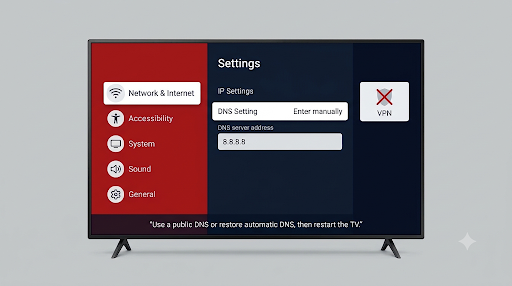
- Select DNS Setting and change it to Enter Manually.
- Type 8.8.8.8 (Google) or 1.1.1.1 (Cloudflare) and select OK.
- Restart the TV and open Netflix.
If your DNS was already set manually, switch it back to Get Automatically. A bad manual DNS setting can cause the same problem.
4. Turn off VPNs and Smart DNS
If your router runs a VPN, or you set up a Smart DNS service to watch other regions’ catalogs, turn it off. Netflix often blocks these connections, and the app may just hang instead of showing a clear error.
5. Improve the connection
- Use an Ethernet cable if the router is close. It’s the most reliable fix for weak Wi-Fi.
- Pause big downloads, game updates, and other streams on the network.
- Move the router closer, or connect to the 5 GHz band if your TV supports it.
- Test your speed at Fast.com, Netflix’s own speed test. 4K needs much more bandwidth than HD, so a connection that handles HD fine can still struggle with 4K.
If Netflix shows a network error code instead of hanging, follow our guide on fixing Netflix error NW-2-5 on a Samsung TV.
6. Still stuck? Ask your internet provider
Netflix suggests asking your ISP to confirm the TV can reach these addresses: secure.netflix.com, appboot.netflix.com, uiboot.netflix.com, and fast.com. Ask them to check for DNS problems on the router or on their own DNS servers. Some router parental controls and security filters block these domains without telling you.
How Do You Clear the Netflix Cache on a Samsung TV?
On most 2020 and newer Samsung TVs, go to Settings > Support > Device Care > Manage Storage, select Netflix, choose View Details, and select Clear Cache. If that doesn’t help, come back and select Clear Data.
- Clear Cache removes temporary files. You stay signed in.
- Clear Data resets the app completely. You’ll need to sign in again.
You can also run Device Care > Start Device Care. It frees up memory and clears cached data across apps, which helps when the TV feels slow overall.
Older models (2019 and earlier): there’s often no per-app cache button. A cold boot, a reinstall, or a Smart Hub reset does the same job.
If clearing data leads to a message saying Netflix needs to refresh its data, see our guide on Netflix error UI-800-3 on Samsung Smart TV.
How Do You Reinstall Netflix on a Samsung Smart TV?
Go to Apps, open the settings gear, highlight Netflix, and select Reinstall. Netflix comes preinstalled on most Samsung TVs, so you often won’t see a Delete option. Reinstall does the same job.
- Press Home on the remote and open Apps.
- Select the Settings (gear) icon in the top corner.
- Highlight Netflix. On some models, you press and hold the center button instead.
- Choose Reinstall, or Delete and then download it again from the Apps store.
- Wait for “Installing” to finish, then open Netflix and sign in.
While you’re in that menu, turn on Auto Update for apps so Netflix doesn’t fall behind again.
Does a Samsung TV Software Update Fix Netflix?
Yes, often. Samsung community threads show many cases where Netflix stuck at 25% was fixed only after installing new firmware. Netflix updates its app regularly, and older firmware can stop working properly with it.
- Go to Settings > Support > Software Update.
- Select Update Now.
- Keep the TV on until it restarts by itself.
- Turn on Auto Update.
If the TV can’t download the update because of the same network issue, you can download the firmware for your model from Samsung’s support site onto a USB drive and install it from there. Samsung’s guide to fixing an app that won’t work on a Samsung TV covers updates and reinstalling apps.
Can the Wrong Date and Time Stop Netflix from Loading?
Yes. Netflix uses secure connections that check the time. If your TV’s clock is far off, often after a power outage, Netflix may sit on the loading screen.
Go to Settings > General > System Manager > Time > Clock and set Clock Mode to Auto. Make sure the time zone is right too.
How Do You Reset Smart Hub on a Samsung TV?
Smart Hub reset restores all apps and Smart Hub settings to defaults. It’s the strongest fix short of a factory reset. It signs you out of every app on the TV, so have your passwords ready.
Important: switch to Live TV or an HDMI input first. Samsung notes you can’t reset Smart Hub while you’re inside an app or the Smart Hub itself.
| TV model year | Menu path |
| 2025 | Settings > All Settings > Support > Device Care > Reset Smart Hub |
| 2023 to 2024 | Settings > All Settings > Support > Device Care > Self Diagnosis > Reset Smart Hub |
| 2022 | Menu > Settings > All Settings > Support > Device Care > Self Diagnosis > Reset Smart Hub |
| 2020 to 2021 | Settings > Support > Device Care > Self Diagnosis > Reset Smart Hub |
| 2016 to 2019 | Settings > Support > Self Diagnosis > Reset Smart Hub |
| 2015 | Menu > Smart Hub > Reset Smart Hub |
| 2014 | Menu > Smart Features > Smart Hub Reset |
| 2013 | Menu > Smart Hub > Smart Hub Reset |
Enter your TV PIN when asked. The default PIN is 0000 on most Samsung TVs made before 2025. On 2025 models, use the PIN you created during setup. After the reset, open Netflix, accept the terms, and sign in.
Not sure of your model year? Go to Settings > Support > About This TV, or check the sticker on the back. In U.S. model numbers, a letter after the screen size often shows the year (for example, T = 2020, AU = 2021, B = 2022, C = 2023, D = 2024).
Why Is Netflix Stuck at 25%, 99%, or the Logo on My Samsung TV?
Netflix doesn’t publish what each loading percentage means. But user reports and Samsung community threads show clear patterns:
- Stuck at 25% or a spinning red circle: most often linked to network, DNS, or firmware problems. Try the router restart, manual DNS, and software update, in that order.
- Stuck at 99% or on the Netflix logo: often stored app data. Cold boot, then clear cache and data or reinstall.
- Freezes after picking a profile: usually a stuck sign-in session. Use the remote code to sign out.
- Loads, then goes black: that’s a different problem. See our guide to the Netflix black screen on Samsung Smart TV.
Real-world example: a TV is stuck at 25% every evening but works in the morning. That points to a busy home network or ISP at peak hours, not the TV. A wired connection or a different DNS server is the better fix than resetting the TV again and again.
Why Does Netflix Work on My Phone but Not on My Samsung TV?
Because the problem is local to the TV. Your account and internet are working. Something on the TV, such as cached data, firmware, DNS, the clock, or Smart Hub, is blocking the app.
Work through the TV-specific fixes in this order: cold boot, sign out with the remote code, clear cache and data, reinstall, update software, change DNS, and reset Smart Hub. If YouTube and other apps also fail on the TV, focus on the TV’s network settings first.
Is Your Samsung TV Too Old for Netflix?
It might be. Netflix regularly stops supporting older devices that can’t meet its technical requirements. It dropped some older Samsung TVs in December 2019, and more recent reports in 2025 and 2026 point to more Samsung smart TVs from roughly 2010 to 2015 losing the app.
Signs your TV is affected:
- A message saying Netflix is no longer available on this device.
- Netflix has disappeared from the Apps list.
- The app won’t update or install, even after a Smart Hub reset.
The fix: plug in a supported streaming device. A Roku, Amazon Fire TV Stick, Google TV Streamer, Apple TV, or a recent PlayStation or Xbox runs the current Netflix app on any TV with an HDMI port. It’s much cheaper than a new TV, and the picture quality is often better than an aging built-in app.
Should You Factory Reset Your Samsung TV?
Only as a last resort. A factory reset erases all settings, channels, apps, and sign-ins. Try it only after the Smart Hub reset and a software update have failed.
On recent models, go to Settings > All Settings > General & Privacy > Factory Data Reset (shown as Reset on many 2022 to 2024 models). Enter your PIN and confirm. Write down your Wi-Fi password and app logins before you start.
What If Netflix Loads but Then Buffers or Freezes?
If Netflix opens but videos keep pausing, lowering quality, or spinning mid-show, the cause is almost always connection speed or stability, not the app itself. Our step-by-step guide on Netflix that keeps buffering on a Samsung Smart TV covers quality settings, Wi-Fi fixes, and bandwidth checks.
Common Mistakes That Keep Netflix from Loading
| Mistake | Why it fails | Do this instead |
| Turning the TV off and on with the remote | It only enters standby | Unplug for 1 to 3 minutes, or hold power until the logo appears |
| Jumping straight to factory reset | Erases everything when a simpler fix would work | Follow the order in this guide |
| Trying a Smart Hub reset from inside an app | The option won’t work there | Switch to Live TV or HDMI first |
| Leaving a VPN or Smart DNS on | Netflix can block it silently | Turn it off and retest |
| Ignoring “Update Later” prompts for months | Old firmware drifts out of step with Netflix | Turn on Auto Update |
| Signing out without knowing your password | You get locked out of the TV app | Confirm your login on your phone first |
When Should You Contact Netflix or Samsung Support?
Contact Netflix if your account, billing, or sign-in is the problem, or if Netflix fails on every device. Contact Samsung if Netflix works everywhere except the TV and you’ve already tried a Smart Hub reset and a firmware update. Netflix itself recommends asking Samsung for help with a Smart Hub reset, firmware upgrade, or factory reset at that stage.
Have these ready: your TV’s model number, its software version (Settings > Support > About This TV), any error code, and the list of fixes you’ve already tried. That saves a lot of back-and-forth. Here’s how to contact Netflix customer service from the Netflix app.
Frequently Asked Questions
How do I reset Netflix on my Samsung TV with the remote?
Open Netflix and press Up, Up, Down, Down, Left, Right, Left, Right, Up, Up, Up, Up. A hidden menu appears with Sign out, Reset, and Deactivate. Choose Reset or Sign out, then sign back in. This works even when the Netflix home screen is frozen and you can’t reach Get Help.
Why is Netflix not working on my Samsung TV but other apps work?
When YouTube or Prime Video work but Netflix doesn’t, the internet connection is fine. The problem is usually Netflix’s stored data, a stuck sign-in, or a DNS lookup that fails only for Netflix’s servers. Sign out with the remote code, clear Netflix data, and then try a manual DNS like 8.8.8.8.
Why does Netflix keep closing or crashing on my Samsung Smart TV?
Crashes usually come from low memory, corrupted app data, or outdated firmware. Run Device Care to free up memory, reinstall Netflix, and install any pending software update. If the TV has dozens of apps installed, deleting ones you don’t use can help on older models.
Will resetting Smart Hub delete my Netflix account?
No. Your Netflix account, profiles, watch history, and My List are stored by Netflix, not on the TV. Resetting Smart Hub only signs the TV out and removes downloaded apps and their settings. Sign in again and everything is there.
Is Netflix still supported on Samsung Smart TVs?
Yes, on current and most recent Samsung TVs. Only some older models, mostly about 10 years old or more, have lost support. If the Netflix app works but just won’t load, your TV is still supported and the fixes above apply.
Why is Netflix stuck loading only on one Samsung TV in my house?
If another TV or device on the same network works, compare their settings. The problem TV may have a manual DNS entry, an old firmware version, a wrong clock, or a weaker Wi-Fi signal because of where it sits. Fix the difference, or connect that TV with an Ethernet cable.
How long should I wait before deciding Netflix is stuck?
If the loading screen hasn’t moved after about two minutes, it’s stuck. Waiting longer rarely helps. Restart the TV properly and work through the fixes instead.
Final Recommendation
Start simple. Unplug the TV for a full minute and restart your router. That alone fixes a large share of Netflix loading problems on Samsung TVs. If Netflix still won’t load, sign out with the remote code, clear the Netflix cache and data, and reinstall the app.
If it hangs at the same percentage every time, focus on the network: change the DNS, turn off any VPN, and update the TV’s software. Save the Smart Hub reset for when everything else fails. And if your TV is around 10 years old and Netflix has disappeared or won’t install, skip the troubleshooting and plug in a streaming stick. It’s the quickest way back to watching.