
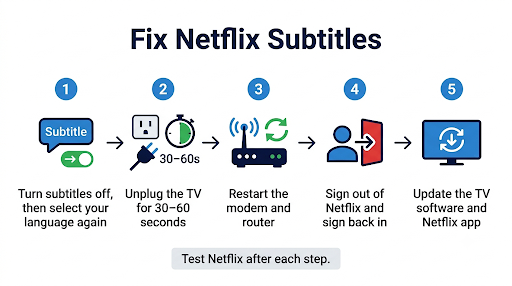
If Netflix subtitles are not working on your Samsung Smart TV, start by turning them off and back on from the Audio & Subtitles menu during playback, then fully unplug your TV for 30 seconds. Those two steps fix most cases where subtitles are missing, stuck, or disappearing mid-show. If that doesn’t do it, the cause is usually a missing language track, a stale Netflix app session, or a Samsung caption setting fighting with Netflix’s own subtitles.
This guide walks you through every fix in the right order, from 30-second checks to a Smart Hub reset. You’ll also learn why your subtitle language may not show up at all on a TV, which no restart can fix.
Quick Overview
- Toggle subtitles in Netflix: Press Up or Down on your remote during playback, open Audio & Subtitles, pick Off, then pick your language again.
- Test another title: If subtitles work on other shows, the problem is that one title, not your TV.
- Power cycle the TV: Unplug it for at least 30 seconds. Pressing the power button only puts most Samsung TVs into standby.
- Restart your modem and router: Subtitles stream separately from video, so a weak connection can drop them.
- Sign out and back in to Netflix: Use Get Help > Sign out, or the remote code if you can’t find the menu.
- Check your profile languages: Samsung TVs only show 5 to 7 subtitle languages per title.
- Reinstall Netflix or reset Smart Hub: Use this as the last step if nothing else works.
Why Are Netflix Subtitles Not Working on My Samsung TV?
Netflix subtitles usually fail on a Samsung TV for one of five reasons: a glitchy app session, an unstable connection, a missing language track, a conflicting Samsung caption setting, or an outdated TV or app. Knowing which one you’re dealing with saves a lot of time.
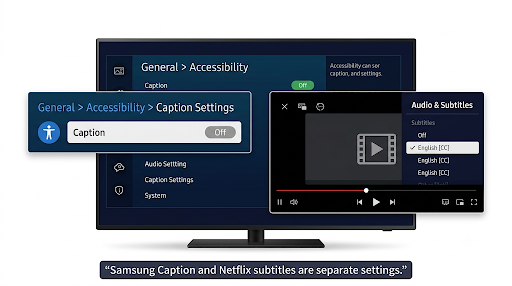
Here’s the part most guides skip. Netflix controls its own subtitles inside the app. The Caption setting in your Samsung TV’s Accessibility menu is mainly for live TV, antenna, cable, and some external inputs. So turning on Samsung captions will not make Netflix subtitles appear. In some cases, having both on can cause doubled or stuck captions.
Match Your Symptom to the Right Fix
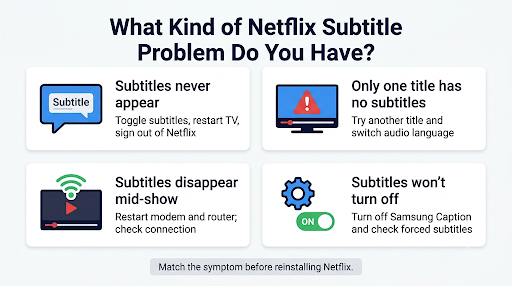
| What You See | Most Likely Cause | Best Fix to Try First |
| Subtitles never appear on any title | App glitch or account session issue | Power cycle TV, then sign out and back in |
| Subtitles work on some shows but not one title | Title-specific subtitle track | Toggle subtitles, switch audio language, or try another device |
| Your language (like English) is not in the list | TV shows only 5 to 7 languages | Change your profile’s Shows & Movies Languages |
| Subtitles disappear mid-show or show up only sometimes | Network drops or app memory issue | Restart modem and router, run a speed test |
| Subtitles out of sync with dialogue | Playback hiccup or audio delay from a soundbar | Toggle subtitles, check Samsung audio delay settings |
| Subtitles won’t turn off | Forced subtitles or Samsung captions left on | Turn off Samsung Caption, check if title has forced subtitles |
| Subtitles too big, too small, or wrong color | Subtitle appearance settings not synced | Change appearance in a browser, then reload Netflix on the TV |
How Do You Turn On Netflix Subtitles Correctly on a Samsung Smart TV?
Turn on subtitles from inside the Netflix player, not from the Samsung settings menu. This is the first thing to check, because many “not working” cases are really just the wrong menu.
- Open Netflix and start playing any movie or episode.
- Press Up or Down on your Samsung remote to bring up the playback controls.
- Select Audio & Subtitles (the speech bubble icon).
- Under Subtitles, choose your language. Pick English [CC] if you want closed captions that also describe sounds.
- Press Back and resume playback.
If subtitles were already selected but not showing, set Subtitles to Off, resume for a few seconds, then turn them back on. This forces Netflix to reload the subtitle track and often brings them right back.
Netflix’s own troubleshooting page for subtitles that won’t turn on confirms the device-side steps below.
What Should You Do If Subtitles Still Don’t Show Up?
Work through these fixes in order. Each one rules out a different cause, and the early steps are the fastest.
1. Test a Different Show or Movie
Play two or three other titles and turn on subtitles. If they work everywhere except one show, the problem is that title’s subtitle file, not your Samsung TV. Try switching the audio language on that title, since some subtitle options change based on the audio track you pick. You can also check the same title on your phone. If it’s missing there too, it’s a Netflix content issue.
2. Fully Power Cycle Your Samsung TV
Pressing the power button on most Samsung smart TVs puts them in standby, so the Netflix app keeps its old session in memory. A real restart clears it.
- Unplug the TV from the wall outlet.
- Wait at least 30 seconds. A full minute is even better.
- Plug it back in, open Netflix, and test subtitles again.
Quick alternative: Hold the power button on your Samsung remote until the TV turns off and back on and the Samsung logo appears. This does a soft restart without touching the plug.
3. Restart Your Home Network
Netflix loads subtitle files separately from the video stream. When your connection dips, video may keep playing while subtitles quietly fail or show up only now and then. This is the most common reason subtitles disappear halfway through an episode.
- Turn off your TV.
- Unplug your modem and your router (if it’s a separate device) for 30 seconds.
- Plug them back in and wait until the lights settle.
- Turn the TV on and try Netflix again.
Run a speed test at fast.com from a phone or browser on the same Wi-Fi. If video also stalls or drops quality, our guide on fixing Netflix buffering on a Samsung Smart TV covers the connection side in more depth.
4. Close and Reopen the Netflix App
Simply pressing Home leaves Netflix running in the background. To actually close it, press and hold the Back button on your remote until you return to the Samsung home screen, or exit the app from the Smart Hub. Then reopen Netflix and play a title.
5. Sign Out of Netflix and Sign Back In
Signing out refreshes your account data, including your profile’s language and subtitle preferences.
- From the Netflix home screen, open the menu on the left (or go to your profile icon if the menu is at the top).
- Select Get Help, then Sign out, then Yes.
- Sign back in and test subtitles.
Can’t find Get Help? Press these buttons on your remote in order: Up, Up, Down, Down, Left, Right, Left, Right, Up, Up, Up, Up. A hidden menu appears where you can choose Sign out, Start Over, Deactivate, or Reset.
6. Turn Off Samsung’s Own Captions
If you see doubled subtitles, subtitles you can’t turn off, or a caption box that blocks Netflix’s subtitles, Samsung’s built-in caption feature may be on.
- Press Home on your remote and go to Settings.
- Select General (called General & Privacy on many newer models) > Accessibility > Caption Settings.
- Turn Caption off, then go back to Netflix and manage subtitles only from the Audio & Subtitles menu.
Menu names vary a little by model year, so check your TV’s e-manual if the path looks different. Samsung explains these options on its page about accessibility settings on your Samsung TV.
7. Update the Netflix App and Your TV Software
An outdated app or TV firmware can break subtitle rendering, especially after Netflix changes its player.
- Update TV software: Go to Settings > Support > Software Update > Update Now. Turn on Auto Update while you’re there.
- Update apps: Open Apps from the Smart Hub, go to the settings gear, and make sure Auto Update is on. Netflix is often preinstalled, so it updates through the same system.
8. Reinstall the Netflix App
Reinstalling clears corrupted app data that a restart can’t touch. On many Samsung models, you can do this from Apps > Settings, select Netflix, and choose Delete or Reinstall. Some preinstalled versions of Netflix can’t be deleted. In that case, use the Smart Hub reset below instead.
If Netflix gets stuck while opening after a reinstall, see our fix for Netflix not loading on a Samsung Smart TV.
9. Reset Smart Hub as a Last Resort
Resetting Smart Hub clears every app, saved login, and app setting on your Samsung TV. It does not erase your picture or sound settings, but you’ll need to sign back in to Netflix and your other apps.
- Switch to Live TV or an HDMI input first. You can’t run the reset from inside an app.
- Go to Settings > All Settings > Support > Device Care > Self Diagnosis > Reset Smart Hub.
- On models before 2020, go to Settings > Support > Self Diagnosis > Reset Smart Hub.
- Enter your TV PIN. The default is 0000 unless you changed it.
- Reopen Netflix, sign in, and test subtitles.
Samsung’s official steps for your model are in its guide on how to reset your Samsung TV.
Why Is My Subtitle Language Missing on Netflix for Samsung TV?
Your language may be missing because Netflix only shows 5 to 7 subtitle languages on TVs, picked based on your location and profile language settings. Phones, tablets, and web browsers show every language available for a title. So English or another language can appear on your phone but not on your Samsung TV for the same show.
No restart or reinstall will add a language that isn’t in the TV’s list. Here’s what does work:
- On a phone or computer browser, go to your Netflix Account page.
- Select Profiles, choose the profile you use on the TV, and open Languages.
- Under Shows & Movies Languages, check every language you want subtitles in, then select Save.
- On the TV, sign out and back in (or use Get Help > Reload) so the new list loads.
Keep in mind that some titles simply don’t have your language because of licensing. Weekly-release shows can also get extra subtitle languages a little later. Netflix explains all of this in its article on why subtitles or audio aren’t available in a specific language.
How Do You Fix Netflix Subtitles Out of Sync on a Samsung TV?
Turn subtitles off and back on, or skip back 10 seconds. This resets the subtitle timing in most cases. If the drift only happens on one title, it’s likely a problem with that title’s subtitle file, and you can report it from the Netflix app or help center.
If subtitles look ahead of what people are saying on every show, check your audio setup. A soundbar or AV receiver can add delay to the sound, so subtitles match the picture but the voices come late.
- Go to Settings > Sound > Expert Settings and look for Digital Output Audio Delay or a similar option. Set it back to 0 and test again.
- Check your soundbar’s own lip sync or audio delay setting.
- Test with the TV speakers. If sync looks right, the delay comes from your audio device.
If you have sound problems along with subtitle issues, our guide to Netflix no sound on a Samsung Smart TV covers the audio side step by step.
Why Won’t Netflix Subtitles Turn Off on My Samsung TV?
Subtitles that won’t turn off are usually forced subtitles, Samsung captions left on, or an older TV bug. Start by setting Subtitles to Off in Netflix, then turn off Caption in your Samsung Accessibility settings.
- Forced subtitles: Shows made in another region can display subtitles in your region’s main language by default. For example, a Korean drama with Korean audio may always show English subtitles. Switching to an English dub, if one exists, usually removes them.
- Foreign language scenes: Some English titles show subtitles only for scenes in another language. These are part of the title and can’t be turned off.
- 2011 and 2012 Samsung models: Netflix says that if choosing None doesn’t turn off subtitles on these older TVs, you should use another device to stream.
How Do You Change Netflix Subtitle Size or Color on a Samsung TV?
Change subtitle size, font, shadow, and background color from a web browser, then reload Netflix on your TV. The TV app has fewer appearance options, so the browser is the main place to do this.
- In a browser, open your Netflix Account page and go to Profiles.
- Choose your profile and select Subtitle appearance.
- Pick the size, font, and colors you want, then save.
- On your Samsung TV, open Netflix and go to Get Help > Reload Netflix so the change takes effect.
Subtitles way too big? This often happens when Netflix’s size is set to Large and a Samsung accessibility zoom or caption size setting is also enlarged. Set one of them back to default. Also note that appearance settings may not apply to every subtitle language on TV devices.
If your new appearance still doesn’t show, switch to a different profile and back, then reload Netflix again.
Does Netflix Still Support Older Samsung Smart TVs?
Not all of them. During 2026, Netflix ended app support on many older smart TVs, and reports point to Samsung models from roughly 2015 and earlier as the most affected. On those sets, the app may stop updating, lose features like subtitles, or stop opening entirely.
If your Samsung TV is more than about ten years old and subtitles broke after an update, the fix may not be on the TV at all. A streaming stick like Roku, Fire TV, Chromecast with Google TV, or Apple TV plugged into HDMI gives you a fully supported Netflix app with working subtitles. You can confirm your exact model number in Settings > Support > About This TV.
What Do Samsung TV Models Have in Common for Subtitle Fixes?
The fixes above work across current Samsung lineups running Tizen, including Crystal UHD, QLED, Neo QLED, OLED, and The Frame. The main difference is menu wording.
| Samsung TV Age | Caption Settings Path | Smart Hub Reset Path |
| 2023 and newer | Settings > General & Privacy > Accessibility > Caption Settings | Settings > All Settings > Support > Device Care > Self Diagnosis |
| 2020 to 2022 | Settings > General > Accessibility > Caption Settings | Settings > Support > Device Care > Self Diagnosis |
| Before 2020 | Settings > General > Accessibility > Caption Settings | Settings > Support > Self Diagnosis |
Exact labels can vary by region and firmware version, so use these as a guide.
What Mistakes Make Netflix Subtitle Problems Worse?
- Turning on Samsung Caption to fix Netflix: It won’t add Netflix subtitles and can cause duplicates.
- Only pressing the power button: That’s standby, not a restart. Unplug the TV instead.
- Reinstalling before checking the language list: If your language isn’t offered on TV, reinstalling won’t help. Fix your profile languages first.
- Changing appearance on the wrong profile: Subtitle settings are saved per profile. Make sure you edit the one you watch on.
- Jumping straight to a factory reset: A Smart Hub reset solves app issues without wiping your whole TV.
Frequently Asked Questions
Why do Netflix subtitles work on my phone but not on my Samsung TV?
Your phone shows every subtitle language for a title, while your Samsung TV shows only a short list chosen by location and profile settings. If the language is there but subtitles still don’t display on the TV, the TV’s app session or firmware is the likely cause. Sign out and back in, then update the TV software.
Why did Netflix subtitles suddenly stop working on my Samsung TV?
Sudden failures usually follow a Netflix app update, a TV firmware update, or a network change. Unplugging the TV for 30 seconds clears most post-update glitches. If it started after a profile or language change, recheck your Shows & Movies Languages.
How do I get English subtitles on Netflix when they’re not available on my TV?
Add English under Shows & Movies Languages in your Netflix profile settings using a browser, then reload Netflix on the TV. If the title still has no English option, it isn’t licensed with English subtitles in your region. You can browse titles by subtitle language at netflix.com/browse/subtitles.
Why are Netflix subtitles showing in the wrong language on my Samsung TV?
Netflix picks default subtitles based on your profile’s display language and your viewing history. Open Audio & Subtitles during playback and select the right language, and Netflix will usually remember it for that show. Also check that your profile’s display language is set correctly in your account.
Do Netflix subtitles use a lot of internet data?
No. Subtitle files are tiny text files. But they still need a working connection to load, so an unstable network can make them lag or vanish while the video keeps playing from its buffer.
Can a Samsung TV factory reset fix Netflix subtitles?
It can, but it’s rarely needed. A Smart Hub reset clears app data and logins, which is where subtitle problems live. Save a full factory reset for when several apps or TV features are acting up at once.
Who should I contact if nothing fixes Netflix subtitles?
Contact Netflix if the issue is limited to Netflix or one title, and Samsung support if subtitles fail across several apps. Have your TV model number, the title name, and the symptom ready. Here’s how to contact Netflix customer service from the Netflix app.
Final Recommendation
Start simple. Toggle subtitles off and on in the Audio & Subtitles menu, then unplug your Samsung TV for 30 seconds and restart your router. If your language is missing, fix your profile’s Shows & Movies Languages instead of restarting again. If subtitles are stuck on, turn off Samsung’s Caption setting. Only move to reinstalling Netflix or resetting Smart Hub when the quick fixes fail. And if your TV is from around 2015 or earlier, a low-cost streaming stick is often the fastest permanent fix.