
Netflix error code NW-2-5 on a Samsung Smart TV means your TV took too long to connect to Netflix. It’s almost always a network problem on the TV or your home internet, not a fault in your Netflix account. In most homes, a full power cycle of the TV and router, followed by a DNS change or a Netflix reinstall, clears it in under 15 minutes.
This guide goes from the fastest fix to the most advanced. It includes the exact menu paths for older and newer Samsung TVs, so you won’t have to guess where a setting is.
Quick Overview
- Check the connection: On the error screen, select More Details > Check your network. A red X means the TV isn’t reaching the internet.
- Restart everything: Unplug the TV for at least 60 seconds. Unplug the modem and router for 30 seconds, then plug them back in and wait for them to reconnect.
- Change the DNS: Go to Network Status > IP Settings > DNS Setting > Enter manually and type 8.8.8.8.
- Reset the Netflix app: Sign out of Netflix, or reinstall it from the Apps screen.
- Reset Smart Hub if every streaming app is having trouble.
- Test another network, like a phone hotspot. If Netflix works there, call your internet provider.
What Does Netflix Error NW-2-5 Mean on a Samsung TV?
NW-2-5 is a network timeout error. Your Samsung TV sent a request to Netflix’s servers and didn’t get a reply in time, so the app stopped and showed the error. You’ll usually see a message like “Netflix has encountered an error. Retrying in X seconds. Code: NW-2-5.”
The “NW” stands for network. Netflix says this code usually points to an internet problem on the device or the home network. It’s not a billing or password issue. Nothing on your Netflix account needs to change.
That’s useful to know, because it tells you where to look. Signing in again on your phone won’t help. Fixing the path between your TV and the internet will.
Why Does Netflix Show NW-2-5 When My Internet Is Working Fine?
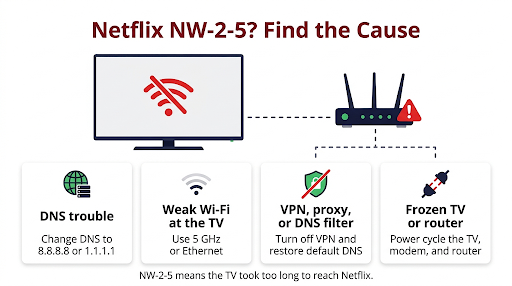
This is one of the most searched versions of the problem. Your phone and laptop stream fine, maybe even YouTube works on the same TV, but Netflix still fails. That happens because NW-2-5 is about whether the TV can reach Netflix’s specific servers, not whether it has internet at all.
Common causes when the internet seems fine:
- DNS trouble: The TV can’t translate Netflix’s server addresses. This is one of the most common causes on smart TVs.
- A stuck network session: Samsung TVs often go into standby instead of fully shutting down, so a bad connection can survive a normal power-off.
- VPN, proxy, or ad blocker: A router-level VPN, Pi-hole, or DNS filter may block one of the domains Netflix needs.
- Public or shared networks: Hotel, dorm, apartment, and office Wi-Fi often limit or block streaming.
- Weak Wi-Fi at the TV: The TV may sit in a dead zone even though your phone has a good signal near the router.
- Corrupted app data: The Netflix app or Smart Hub cache gets stuck after an update.
- Wrong date and time: If the TV’s clock is off, secure connections to streaming servers can fail.
- An ISP or router problem: Outages, old router firmware, or settings that slow traffic to certain servers.
How Do You Fix Netflix Error NW-2-5 on a Samsung Smart TV?
Do these steps in order. The early ones are quick and fix most cases. Try Netflix after each step so you know which one worked.
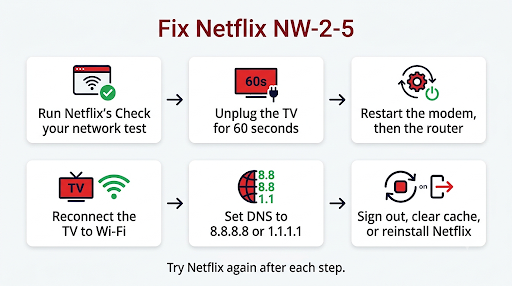
1. Run Netflix’s Built-In Network Check
On the error screen, select More Details, then Check your network. If you see a red X, the TV isn’t online, so focus on Wi-Fi and the router. If every check passes but Netflix still fails, the problem is more likely DNS, the app, or your ISP.
You can also use Samsung’s own test. Go to Settings > All Settings > Support > Device Care > Self Diagnosis > Smart Hub Connection Test. On models from before 2020, go to Menu > Support > Self Diagnosis.
2. Fully Power Cycle the Samsung TV
Turning the TV off with the remote usually just puts it into standby. A real restart clears its memory and network session.
- Turn the TV on, then unplug it from the wall outlet.
- While it’s unplugged, hold the physical power button on the TV for 10 to 15 seconds to drain leftover power.
- Wait at least 60 seconds. Netflix’s minimum is 15 seconds, but a longer wait works better.
- Plug it back in, turn it on, and open Netflix.
Faster option: Hold the power button on the remote until the TV turns off and the Samsung logo comes back. This “cold boot” restarts the system instead of putting it into standby.
3. Restart Your Modem and Router
- Turn off the TV.
- Unplug the modem and the router. If they’re one device, unplug that one.
- Wait 30 seconds, then plug the modem back in, then the router.
- Wait until all the lights are steady. This can take two to three minutes.
- Turn on the TV and try Netflix.
Many Reddit users say that unplugging both the TV and the router for a few minutes, then reinstalling the Netflix app, fixes NW-2-5 errors that keep coming back.
4. Reconnect the TV to Wi-Fi
A saved Wi-Fi profile can go stale, especially after router updates or password changes. Go to your Samsung TV’s network settings, open Open Network Settings, choose your Wi-Fi network, and connect again. A quicker shortcut is to turn the TV’s Wi-Fi off for 10 seconds and then back on.
If you have a dual-band or mesh router, try switching bands. The 5 GHz band is faster but weaker through walls. The 2.4 GHz band reaches farther. If your TV is two rooms away from the router, 2.4 GHz may be more reliable.
5. Change the DNS Server on Your Samsung TV
This is the fix that most often works when “the internet works but Netflix doesn’t.” Samsung’s own support pages suggest switching to an alternate DNS server when apps won’t connect.
| Samsung TV Model Year | DNS Menu Path |
| 2022 and newer | Settings > All Settings > Connection > Network > Network Status > IP Settings > DNS Setting > Enter manually |
| 2019 to 2021 | Settings > General > Network > Network Status > IP Settings > DNS Setting > Enter manually |
| 2017 and 2018 | Settings > General > Network > Network Status > IP Settings > DNS Setting > Enter manually |
| Older models (Menu button remotes) | Menu > Network > Network Status > IP Settings > DNS Setting |
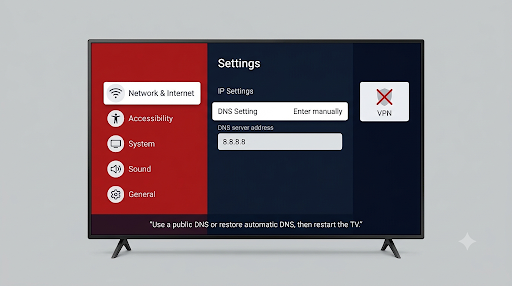
Enter 8.8.8.8 (Google Public DNS) and select OK. If that doesn’t help, try 1.1.1.1 (Cloudflare). Restart the TV, then open Netflix.
Tip: If you already set a custom DNS, or you use a Pi-hole or a filtering DNS service, do the opposite. Set DNS back to Automatic. Netflix specifically lists custom DNS, VPN, and proxy settings as things that can cause this error.
6. Sign Out of Netflix or Reset the App
If Netflix opens far enough to show the home screen, open the left menu and choose Get Help > Sign out > Yes. Then sign back in.
If the error appears before you can reach any menu, use the Netflix remote code. When the error or a blank screen shows, press these buttons on your remote: Up, Up, Down, Down, Left, Right, Left, Right, Up, Up, Up, Up. A menu should appear with Sign out, Start Over, Deactivate, or Reset. Choose one, then sign in again.
If Netflix gets stuck on a spinning circle or a red screen instead of showing NW-2-5, the steps are a bit different. See our guide on Netflix not loading on a Samsung Smart TV.
7. Clear the Cache or Reinstall the Netflix App
Clear the cache (newer models): Go to Settings > All Settings > Support > Device Care > Manage Storage, select Netflix, choose View Details, then Clear Cache. Menu names can vary slightly by model year.
Reinstall: Open Apps from the Home screen, select the Settings gear in the top-right corner, highlight Netflix, and choose Reinstall. On some models you’ll need to delete it and download it again from Apps.
Netflix comes preinstalled on many Samsung TVs, so you may only see Reinstall and not Delete. That’s normal.
8. Check the Date, Time, and Software Version
Go to Settings > All Settings > General > System Manager > Time > Clock and set Clock Mode to Auto. A wrong clock can quietly break secure connections.
Then update the TV: Settings > All Settings > Support > Software Update > Update Now. Updates often include network and app compatibility fixes. Turn on Auto Update while you’re there.
9. Reset Smart Hub
If Netflix, Prime Video, and other apps all have trouble connecting, reset Smart Hub. This signs you out of every app and resets app settings, so keep your passwords handy.
- 2025 models: Settings > All Settings > Support > Device Care > Reset Smart Hub
- 2022 to 2024 models: Settings > All Settings > Support > Device Care > Self Diagnosis > Reset Smart Hub
- Older models: Settings > Support > Self Diagnosis > Reset Smart Hub
Enter your TV PIN. The default is 0000 if you never changed it. Samsung notes that you can’t reset Smart Hub while you’re inside an app, so switch to Live TV or an HDMI input first.
10. Try a Wired Connection or a Phone Hotspot
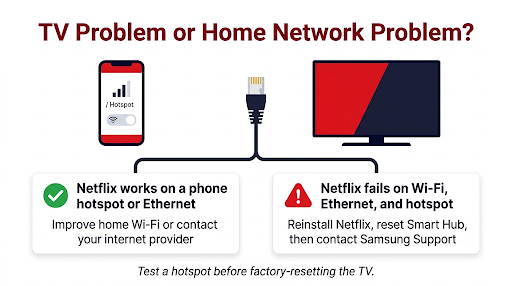
This step tells you exactly where the problem is.
- Ethernet cable: Plug the TV straight into the router. If Netflix works over the cable, your Wi-Fi signal is the problem.
- Mobile hotspot: Connect the TV to your phone’s hotspot. If Netflix loads there, your home network or ISP is blocking or slowing the connection.
A hotspot is a test, not a long-term fix. Cellular data can be too slow or too limited for regular streaming.
How Can You Improve Wi-Fi So NW-2-5 Doesn’t Come Back?
If the error keeps coming back every few days, the connection is probably just barely good enough. Netflix recommends these changes:
- Move the router closer to the TV, or to a central spot in your home.
- Get the router off the floor and out of cabinets.
- Keep it away from microwaves, refrigerators, cordless phones, and other wireless gear.
- Add a Wi-Fi extender or mesh node in the same room as the TV.
- Ask your ISP about a router firmware update or newer equipment.
Speed matters too. Netflix suggests about 15 Mbps or more for 4K Ultra HD. You can check the speed your TV actually gets by opening a browser on the TV and going to Fast.com, Netflix’s own speed test. If streams start but keep pausing, read our fix for Netflix buffering on a Samsung TV.
What Should You Tell Your Internet Provider About NW-2-5?
If Netflix works on a hotspot but not on your home network, the problem is on your ISP’s side or in the router they gave you. When you call, say this:
- Netflix shows error NW-2-5 only on the TV, while other devices work. Or say it fails on every device, if that’s true.
- Whether the TV uses Wi-Fi or Ethernet.
- Ask them to confirm the TV can reach secure.netflix.com, appboot.netflix.com, uiboot.netflix.com, and fast.com.
- Ask them to check for DNS problems on their servers or in your modem, and to test another DNS server.
- Ask about outages in your area and whether they can reset your connection from their end.
Netflix suggests running a speed test and trying Netflix again before you hang up, so you know the fix actually worked.
Is NW-2-5 Different From NW-2-4, NW-3-6, and Other Netflix Codes?
Yes, though they’re close relatives. They’re all network errors, and most of the fixes above work for all of them.
| Error Code | What It Usually Means | Best First Step |
| NW-2-5 | The TV took too long to connect to Netflix | Power cycle the TV and router, then change the DNS |
| NW-2-4 | A network problem stopped the TV from reaching Netflix | Check whether your network allows streaming |
| NW-3-6 | A network issue that’s often tied to the router or ISP | Restart the router and contact your ISP |
| NW-4-7 | Usually stale app data or a network issue | Sign out of Netflix or reinstall the app |
| UI-800-3 | App data on the device needs refreshing | Clear the cache or reinstall Netflix |
If your TV shows UI-800-3 instead, use our step-by-step guide to fixing Netflix error UI-800-3 on Samsung TVs.
What Mistakes Make NW-2-5 Harder to Fix?
- Only pressing the remote’s power button. That’s standby, not a restart. Unplug the TV or do a cold boot.
- Plugging the router back in too soon. Give it the full 30 seconds, then wait for the lights to settle.
- Leaving a VPN on the router. Netflix often blocks VPN and proxy traffic. Turn it off to test.
- Jumping straight to a factory reset. A factory reset erases everything. Reset Smart Hub first, since it targets apps.
- Changing several things at once. Test after each step so you know what actually fixed it next time.
When Should You Factory Reset Your Samsung TV?
A factory reset is a last resort. Use it only if you’ve done every step above, Netflix fails on both Wi-Fi and Ethernet, and other apps also have trouble connecting. Some Reddit users say this finally fixed stubborn cases, but you’ll have to set up the whole TV and every app again.
To do it, go to Settings > All Settings > General > Reset (on older models, Support > Self Diagnosis > Reset) and enter your PIN. If the Smart Hub Connection Test still fails after a factory reset on a working network, contact Samsung Support. The TV’s network hardware may need service.
Frequently Asked Questions
Why does NW-2-5 only happen on my Samsung TV and not my phone?
Your phone may use a different Wi-Fi band, sit closer to the router, or use mobile data. The TV also uses its own DNS and network settings. A manual DNS change and a cold boot usually close that gap.
Does NW-2-5 mean my Netflix account is locked or unpaid?
No. NW-2-5 is a connection timeout. Payment or account problems show different messages, usually telling you to update your billing info or sign in again.
Can a VPN cause Netflix error NW-2-5 on a smart TV?
Yes. A VPN or proxy on the router can block or slow traffic to Netflix’s servers. Turn it off, restart the TV, and test again. If Netflix works afterward, set the VPN to bypass the TV.
Why does NW-2-5 show up on hotel or apartment Wi-Fi?
Shared networks are often crowded or set to block streaming services. You can’t change those settings yourself, so ask the property’s network administrator, or use a hotspot as a temporary workaround.
Will resetting Smart Hub delete my Netflix downloads or profiles?
Your profiles, watch history, and lists are stored in your Netflix account, so they stay. You’ll only need to sign in to Netflix and your other apps again on the TV.
Is Netflix down, or is it my Samsung TV?
Try Netflix on another device on the same network. If it fails everywhere, check Netflix’s help center for a service outage. If only the TV fails, the problem is local, and the steps above apply.
Can Netflix support fix NW-2-5 for me?
Netflix can confirm whether its service is having problems, but it can’t fix your home network. If you’ve tried everything and want to rule out an account-side problem, here’s how to contact Netflix customer service from the app.
Final Recommendation
Start simple. Unplug the Samsung TV and the router, wait, and reconnect. If NW-2-5 comes back, set the TV’s DNS to 8.8.8.8 and reinstall Netflix. Those three steps fix most cases.
If the error only goes away on a phone hotspot or an Ethernet cable, you’ve found your answer. Improve your Wi-Fi coverage or call your ISP with the server list above. Save Smart Hub and factory resets for when every other app is failing too.
For more details, see Netflix’s official NW-2-5 troubleshooting page and Samsung’s guide to fixing apps that won’t work on a Samsung TV.