
If Netflix has no sound on your Samsung Smart TV, start by switching the show’s audio track from 5.1 to Stereo in the Audio & Subtitles menu, then unplug the TV for 60 seconds. If you use a soundbar or receiver, change the TV’s Digital Output Audio Format to PCM. These three steps fix most cases where the video plays but you hear nothing.
The rest of this guide walks you through every fix in order, from the 10-second checks to the deeper resets. It also covers setup-specific problems with HDMI ARC, eARC, optical cables, Bluetooth, and the strange bug where sound works for one episode and disappears on the next.
Quick Overview
Netflix sound problems on Samsung TVs usually come from three places: the audio track Netflix is playing, the sound output the TV is using, or an audio format your soundbar or receiver can’t decode. Try these in order:
- Check volume and mute on the TV, soundbar, and receiver.
- Switch Netflix audio to Stereo (or the track without “5.1”) during playback.
- Power cycle the TV by unplugging it for at least 60 seconds.
- Confirm Sound Output is set to the speaker you actually want to use.
- Set Digital Output Audio Format to PCM if you use a soundbar, receiver, or optical cable.
- Sign out of Netflix and sign back in.
- Run Samsung’s Sound Test, then reset sound, update the TV, and reset Smart Hub if nothing else works.
| What you’re seeing | Most likely cause | Try this first |
| No sound on Netflix, but YouTube and live TV are fine | 5.1 or Dolby Digital Plus track your speakers can’t play | Switch to Stereo, then set Digital Output Audio Format to PCM |
| No sound on every app and every input | TV setting, wrong sound output, or hardware | Check Sound Output and run the Sound Test |
| Sound on one show, silence on another | Problem with that title’s audio file | Switch audio track and report the title |
| Sound works on the first episode, then cuts out | Netflix app session glitch | Exit the app fully and power cycle the TV |
| Sound through TV speakers only, not the soundbar | HDMI ARC, Anynet+, or audio format mismatch | Check ARC port, Anynet+, and set format to PCM or Auto |
| Crackling, popping, or garbled noise from the receiver | Receiver can’t decode Dolby Digital Plus | Change Digital Output Audio Format to PCM or Dolby Digital |
Why Is There No Sound on Netflix on My Samsung TV?
In most cases, Netflix is sending audio in a format your setup can’t play, or your TV is sending that audio to the wrong place. Netflix’s own support team says that video with no sound usually points to your device’s audio settings or how your speaker system is set up, not a problem with your account.
Here are the most common causes we see behind this issue:
- 5.1 surround track selected: Many Netflix titles play a 5.1 or Dolby Digital Plus track by default. TV speakers and older soundbars sometimes stay silent instead of downmixing it.
- Audio format mismatch: Your Samsung TV may pass Dolby Digital Plus to a receiver or soundbar that only supports Dolby Digital or PCM. The result is silence or garbled noise.
- Wrong sound output: The TV may be sending sound to a Bluetooth device, an optical port, or a soundbar that is off.
- Netflix app glitch: A stuck app session can drop audio, especially when autoplay moves you to the next episode.
- HDMI ARC or eARC handshake problems: Loose cables, the wrong HDMI port, or Anynet+ (HDMI-CEC) turned off can break the audio link.
- Outdated TV software or Netflix app: Older firmware can have known audio bugs with streaming apps.
- A problem with one title: Sometimes the audio file for a single episode or movie is broken on Netflix’s side.
Is It a Netflix Problem or a Samsung TV Problem?
Open another app like YouTube or Prime Video, or switch to live TV. If those have sound and only Netflix is silent, the problem is almost always the Netflix audio track or the TV’s digital audio format. If every app and input is silent, the problem is with the TV itself or the speaker connection.
This one test saves a lot of time. Use it to jump to the right fix:
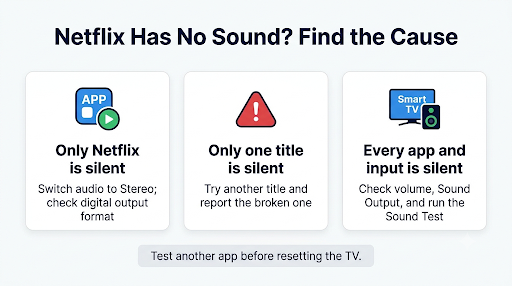
- Only Netflix is silent: Start with Fix 2 (Stereo), Fix 4 (sign out), and Fix 6 (Digital Output Audio Format).
- Only one Netflix title is silent: Go to Fix 3.
- Everything is silent: Go to Fix 1, Fix 8 (Sound Test), and the setup section below.
How Do You Fix Netflix No Sound on a Samsung Smart TV?
Work through these fixes in order. The early ones take seconds and solve most cases. Menu names can vary slightly by model year. On most 2022 and newer Samsung TVs, you’ll open Settings > All Settings first.
Fix 1: Check Volume, Mute, and Sound Output
Start simple. Press Volume Up on the Samsung remote and make sure the TV isn’t muted. If you use a soundbar or receiver, check its volume and mute too, since the TV remote doesn’t always control it.
Next, confirm where the TV is sending sound:
- Press the Home button on your Samsung remote.
- Go to Settings > All Settings > Sound > Sound Output.
- Select the speaker you want to use: TV Speaker, your soundbar (HDMI or HDMI-eARC), Optical, or a Bluetooth device.
- Go back to Netflix and play a show.
Tip: If you’re not sure what’s wrong, set Sound Output to TV Speaker as a test. If Netflix plays sound through the TV speakers, your problem is with the soundbar, receiver, or connection, not Netflix.
Fix 2: Switch the Netflix Audio Track From 5.1 to Stereo
This is the fix that works most often. When a title plays in 5.1 surround or Dolby Digital Plus and your speakers can’t handle it, you get silence. Netflix recommends changing surround sound (5.1) to Stereo when the device connects directly to the TV.
- Start playing the movie or episode.
- Press Up or Down on the remote to bring up the playback controls.
- Select Audio & Subtitles (the speech bubble icon).
- Under Audio, change English (5.1) or English [Original] (5.1) to English, English [Original], or Stereo.
- Resume playback.
The audio menu sits right next to subtitle settings. If captions are acting up too, our guide on fixing Netflix subtitles on a Samsung TV covers that menu in more detail.
Keep in mind: Netflix may switch back to 5.1 on the next title. If the fix only works for one show, move on to Fix 6 so the TV itself sends a format your speakers can play.
Fix 3: Try Another Title and Report the Broken One
If only one movie or episode is silent, the audio file for that title may be the problem. Play a different show. If it has sound, the TV is fine.
To report the broken title, sign in to Netflix on a phone or computer, open your Viewing activity from your account page, select the title, and report a problem with the sound. Until Netflix fixes it, try a different audio language or the non-5.1 track on that title.
Fix 4: Sign Out of Netflix and Sign Back In
Signing out clears the app’s current session and often brings audio back when it dropped after an episode change. Netflix lists two ways to do this on Samsung TVs.
From the Netflix menu:
- Open Netflix.
- If the menu is at the top, go left to your profile icon. If it’s on the left, scroll to the bottom.
- Select Get Help > Sign out > Yes.
- Sign back in and test a show.
If you can’t find Get Help or Sign out: Netflix’s Samsung guide says to press this sequence on your remote’s arrow keys: Up, Up, Down, Down, Left, Right, Left, Right, Up, Up, Up, Up. A hidden menu appears. Choose Sign out, Start Over, Reset, or Deactivate, then sign back in.
This is the same refresh step that clears many app data errors, including the one in our guide to Netflix error UI-800-3 on Samsung TVs.
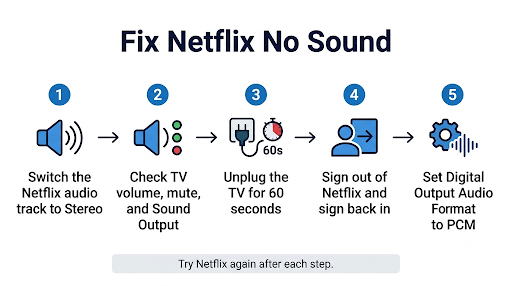
Fix 5: Power Cycle (Cold Boot) Your Samsung TV
Pressing the power button on most Samsung TVs only puts them into standby. The Netflix app can stay in memory with the same audio glitch. A full power cycle clears it.
- Turn off the TV.
- Unplug it from the wall outlet, not just the power strip switch.
- Wait at least 60 seconds. Netflix suggests pressing the TV’s power button once while it’s unplugged, or leaving it unplugged for 3 minutes.
- Plug it back in, turn it on, and open Netflix.
If you use a soundbar or receiver, power cycle it at the same time. Both devices then renegotiate the audio connection from scratch.
Quick alternative: Hold the Power button on the Samsung remote until the TV turns off and back on. This restart works if you can’t reach the outlet, but unplugging is more thorough.
Fix 6: Change the Digital Output Audio Format
If Netflix is silent only when you use a soundbar, receiver, or optical cable, this is the fix to focus on. Your Samsung TV may be sending Dolby Digital Plus to a device that can’t decode it. On Samsung’s own community forums, many owners with Denon, Marantz, Pioneer, and Onkyo receivers have reported Netflix-only silence or garbled noise that cleared after changing the digital output format.
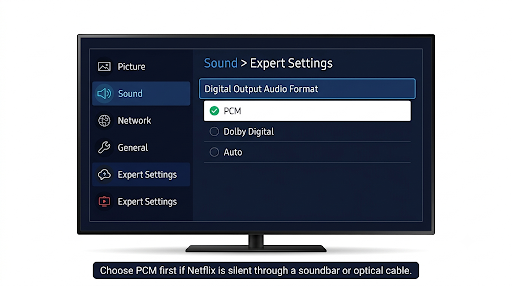
- Press Home and open Settings > All Settings > Sound > Expert Settings.
- Select Digital Output Audio Format.
- Choose PCM. This sends plain stereo that almost every soundbar and receiver can play.
- Test Netflix. If it works and you want surround sound back, try Dolby Digital next, then Auto.
What each option means:
| Format | Best for | Trade-off |
| PCM | Optical cables, older soundbars, any setup with no sound | Stereo only, no surround |
| Dolby Digital | Older 5.1 receivers that don’t support Dolby Digital Plus | No Dolby Atmos |
| Dolby Digital+ | Newer soundbars and receivers that list DD+ support | Silence or noise on devices without DD+ support |
| Auto | Modern HDMI ARC or eARC soundbars | Depends on the soundbar reporting its formats correctly |
| Pass-Through | eARC setups where the soundbar or receiver handles decoding | Not available on every model |
If the option is grayed out: Some Samsung owners report that Digital Output Audio Format locks while the Netflix app is open.
Exit Netflix, switch to live TV or another HDMI input, change the format there, and then reopen Netflix. On models with a Dolby Atmos Compatibility toggle in Expert Settings, turning it off can also stop the TV from forcing a format your receiver can’t play.
Fix 7: Check HDMI ARC, eARC, Anynet+, and the Cable
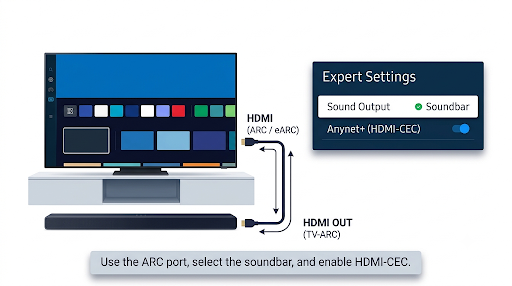
A loose or wrong connection can make your soundbar silent only in smart TV apps. Samsung’s soundbar guide starts with making sure the HDMI cable sits firmly in the ARC or eARC port on both the TV and the soundbar. A normal HDMI port won’t carry TV app audio back to the soundbar.
- Use the labeled port: Look for “ARC” or “eARC” printed next to one HDMI port on your Samsung TV.
- Reverse or replace the cable: Netflix’s own troubleshooting suggests reversing the ends of the HDMI cable. If that doesn’t help, try a different high-speed HDMI cable.
- Turn on Anynet+ (HDMI-CEC): Go to Settings > All Settings > Connection > External Device Manager > Anynet+ (HDMI-CEC) and switch it on. On older models, it sits under General.
- Check eARC mode: In Sound > Expert Settings, set HDMI-eARC Mode to Auto on models that have it.
- Bypass extras: Remove HDMI splitters or switches between the TV and the soundbar while testing.
Fix 8: Disconnect Bluetooth Devices
Samsung TVs can quietly send audio to Bluetooth headphones, Galaxy Buds, or a speaker you used last week. If that device is still paired and powered on nearby, the TV speakers go silent.
Open Settings > All Settings > Sound > Sound Output and pick TV Speaker or your soundbar. You can also turn off Bluetooth on the other device. If you watch Netflix with Bluetooth headphones on purpose, keep in mind that a slight audio delay is normal. Samsung TVs offer a Bluetooth audio delay adjustment in Expert Settings on many models.
Fix 9: Run the Samsung Sound Test and Reset Sound
Samsung’s built-in Sound Test tells you whether the TV speakers work at all. It plays a melody through the speakers.
- Go to Settings > All Settings > Support > Device Care > Self Diagnosis.
- Select Sound Test and listen for the melody.
- If the melody plays clearly, the speakers are fine. The problem is in Netflix, a setting, or an external device.
- If the melody is missing or distorted, go to Settings > Sound > Expert Settings > Reset Sound and confirm.
Reset Sound returns all audio settings to factory defaults without erasing your apps or accounts. It’s a good way to undo a setting you changed months ago and forgot about.
Fix 10: Update Your Samsung TV Software and the Netflix App
Samsung firmware updates have both caused and fixed Netflix audio bugs in the past. Running the latest version gives you the best chance of a fix.
- Go to Settings > All Settings > Support > Software Update.
- Select Update Now and let the TV finish. Don’t turn it off during the update.
- Turn on Auto Update so future fixes install on their own.
Netflix usually updates automatically on Samsung TVs when app auto update is on. If you’re not sure, open Apps, select the settings gear, and confirm auto update is enabled.
Fix 11: Clear the Netflix Cache or Reinstall the App
Corrupted app data can cause audio problems that survive a restart. On many newer Samsung TVs, you can clear it:
- Go to Settings > All Settings > Support > Device Care > Manage Storage.
- Select Netflix and choose View Details.
- Select Clear Cache. If that doesn’t help, try Clear Data, which signs you out.
If the option exists on your model, you can also delete and reinstall Netflix from the same screen or from the Apps panel. Netflix comes preinstalled on many Samsung TVs and can’t always be deleted. In that case, look for a Reinstall option instead. The full steps are the same ones in our guide for when Netflix is not loading on a Samsung Smart TV.
Fix 12: Reset Smart Hub
Smart Hub reset clears all apps and app data on the TV, then reinstalls the defaults. Use it when Netflix audio still fails after everything above. You’ll need to sign in to Netflix and other apps again.
Samsung’s reset instructions list the path as Settings > Support > Device Care > Self Diagnosis > Reset Smart Hub. Enter your PIN when asked. The default PIN on most Samsung TVs is 0000.
Fix 13: Factory Reset the TV (Last Resort)
A factory reset erases every setting, app, and account on the TV. Only use it if Netflix is still silent and the Sound Test also failed, or if Samsung support asks you to. Go to Settings > All Settings > General > Reset, enter your PIN, and confirm. Write down your Wi-Fi password and picture settings first.
How Do You Fix Netflix No Sound With a Soundbar, Receiver, or Optical Cable?
The right fix depends on how your audio is connected. Find your setup below.
| Your setup | Common Netflix sound problem | Best fix |
| Built-in TV speakers | Silence on 5.1 titles | Switch Netflix to Stereo, run Sound Test, reset sound |
| Samsung soundbar on HDMI ARC | Sound from TV speakers only, or silence | Use the ARC port, turn on Anynet+, set format to Auto or PCM |
| Soundbar or receiver on HDMI eARC | Dolby Atmos or DD+ titles go silent | Set HDMI-eARC Mode to Auto, try Pass-Through or PCM |
| Optical (Audio Out/Optical) | No sound in Netflix only | Set Digital Output Audio Format to PCM. Optical can’t carry DD+. |
| Older AV receiver (Denon, Marantz, Pioneer, Onkyo) | Popping, crackling, or garbled audio | Set format to Dolby Digital or PCM, turn off Dolby Atmos Compatibility |
| Bluetooth headphones or speaker | No sound, or sound delayed | Reconnect the device, adjust Bluetooth audio delay |
| Fire TV, Roku, or Apple TV plugged into the Samsung TV | Netflix silent on the streaming stick | Change the stick’s own audio setting to Stereo or PCM |
Important: If you watch Netflix through a streaming stick or game console, the Samsung TV’s Netflix settings don’t apply. Change the audio output on that device instead. Netflix’s Samsung TV fixes only work for the built-in Netflix app.
Why Does Netflix Sound Work for One Episode and Then Stop?
This is a known app glitch that many Samsung owners report on Reddit and Samsung’s forums. The first episode plays fine, then autoplay moves to the next one and the audio disappears. The video keeps playing.
Users report mixed results from quick workarounds. Here’s what tends to work, from fastest to most reliable:
- Open Audio & Subtitles and reselect the audio track. Switching to Stereo and back often wakes the audio up.
- Back out of the episode and restart it from the episode list instead of letting autoplay run.
- Close Netflix completely. Pressing Home leaves it running in the background, so a full power cycle (Fix 5) is better.
- Set Digital Output Audio Format to PCM if you use external speakers. This stops the TV from switching formats between episodes.
- Update the TV and the Netflix app, since these session bugs are usually fixed in software.
What If Netflix Has Other Sound Problems on Your Samsung TV?
Not every audio issue is total silence. Here’s how to handle the other common ones.
Netflix Volume Is Too Low or Dialogue Is Hard to Hear
Netflix 5.1 tracks put most dialogue in the center channel. On TV speakers, that can make voices sound quiet while music and effects stay loud. Switching to the Stereo track usually balances it. On Samsung TVs, you can also try a sound mode like Amplify or turn on Auto Volume in Expert Settings, if your model has them.
Netflix Audio Is Out of Sync on Samsung TV
If voices don’t match lips, first restart the episode. For soundbars and receivers, adjust Digital Output Audio Delay in Sound > Expert Settings. For Bluetooth, use the Bluetooth audio delay option instead. Turning on Game Mode by accident can also throw off sync on some setups, so check it’s off when watching Netflix.
Netflix Sound Is Distorted, Crackling, or Static
Distortion that happens only in Netflix almost always means a format mismatch with your receiver. Use Fix 6 and set the format to PCM or Dolby Digital. If distortion happens in every app, run the Sound Test and reset the equalizer under Sound > Expert Settings > Equalizer.
Netflix Has Sound but a Black Screen
That’s a different problem, usually tied to HDCP, HDMI, or the app’s video playback. Follow our step-by-step guide on fixing a Netflix black screen on Samsung Smart TV.
Wrong Language or a Narrator Talking Over the Show
If you hear a voice describing the scene, the Audio Description track is selected. Open Audio & Subtitles and pick the regular track for your language. The same menu fixes audio that plays in the wrong language.
What Mistakes Should You Avoid When Fixing Netflix Audio?
- Turning the TV off with the remote and calling it a restart. Standby keeps Netflix in memory. Unplug it instead.
- Factory resetting too early. It wipes everything and rarely fixes a Netflix-only audio problem. Try Fixes 2, 4, and 6 first.
- Leaving Dolby Digital+ on with an older receiver. If your receiver’s manual doesn’t list Dolby Digital Plus, pick Dolby Digital or PCM.
- Using the wrong HDMI port for a soundbar. Only the ARC or eARC port sends TV app audio back to the soundbar.
- Changing Samsung TV settings when Netflix runs on a streaming stick. Fix the audio setting on the stick itself.
- Assuming your account is the problem. Audio issues are almost never tied to your Netflix plan or billing.
When Should You Contact Netflix or Samsung Support?
Contact Netflix if only Netflix is silent after you’ve switched to Stereo, signed out, and updated the app, or if one title stays broken after you report it. You can learn how to contact Netflix customer service right from the Netflix app without leaving your TV.
Contact Samsung if the Sound Test fails, every app is silent, or the TV speakers crackle after Reset Sound. Those signs point to a TV hardware or firmware problem. Have your TV’s model number and software version ready. You’ll find both under Settings > Support > About This TV.
Frequently Asked Questions
Why does Netflix have no sound on my Samsung TV when YouTube works fine?
Netflix often streams Dolby Digital Plus or 5.1 audio, while YouTube usually sends plain stereo. Your TV speakers, soundbar, or receiver may handle stereo but fail on Netflix’s surround format. Switching the Netflix track to Stereo or setting the TV’s digital output to PCM usually fixes it right away.
How do I change Netflix audio settings on a Samsung Smart TV?
Netflix doesn’t have a global audio setting inside the Samsung app. You change audio per title through the Audio & Subtitles menu while a show plays. For a setting that sticks across every title, change the TV’s Digital Output Audio Format under Sound > Expert Settings.
Why is Netflix sound not working through my Samsung soundbar?
The most common reasons are using a regular HDMI port instead of the ARC or eARC port, Anynet+ being off, or Sound Output still set to TV Speaker. Fix the connection first, then set the audio format to Auto or PCM. Power cycling both the TV and the soundbar together often restores the link.
Does Netflix sound not working mean my Samsung TV speakers are broken?
Not usually. If other apps and live TV play sound, the speakers work. Run the Samsung Sound Test under Device Care to be sure. A clear melody confirms the speakers are fine and the problem is in Netflix or a setting.
Why does my Samsung TV say Dolby Digital+ is grayed out in Netflix?
Some Samsung firmware versions lock the format while Netflix is open, especially when the TV detects a Dolby-capable receiver over HDMI. Exit Netflix, switch to another source, change the format there, and reopen the app. Updating the TV software has fixed this lock on many models.
Can a bad internet connection cause Netflix to lose sound?
A weak connection usually causes buffering or lower picture quality first, not silence with clear video. If audio drops along with stalls and loading circles, the issue is likely your network. Our guide to fixing Netflix buffering on Samsung Smart TV walks through those steps.
Final Recommendation
If Netflix sound is not working on your Samsung Smart TV, don’t start with resets. Switch the title to Stereo, unplug the TV for 60 seconds, and sign out of Netflix and back in. Using a soundbar, receiver, or optical cable? Go straight to Digital Output Audio Format and pick PCM, then test Dolby Digital or Auto if you want surround sound back.
If every app is silent, run the Samsung Sound Test before anything else. It tells you in under a minute whether you’re dealing with a setting or a hardware problem, and that decides whether your next call goes to Netflix or Samsung.