
Netflix error code UI-800-3 on a Samsung Smart TV means the Netflix app’s stored data needs to be refreshed, or a network problem stopped Netflix from opening. In most cases, you can fix it by fully power cycling the TV, resetting or signing out of Netflix from the error screen, and restarting your router. If that doesn’t work, reinstalling Netflix or resetting Samsung Smart Hub usually clears it for good.
The trick is doing the fixes in the right order. Start with the quick, safe steps, check the number in parentheses next to the code, and only move to a Smart Hub reset or factory reset if nothing else works.
Quick Overview
Here’s the fastest path to fix UI-800-3 on a Samsung TV. Try Netflix again after each step.
- Check the full code. If you see a number like (104001) or (307006), that variant may need different steps.
- Reset Netflix from the error screen. Select More Details, then Sign out or Reset.
- Power cycle the TV. Unplug it for 3 minutes, or unplug it and press the TV’s power button once.
- Restart your modem and router. Unplug both for 30 seconds, plug them back in, and wait a minute.
- Turn off VPN, proxy, or custom DNS settings. Go back to default connection settings.
- Update the TV software and reinstall Netflix.
- Reset Smart Hub. Settings > Support > Device Care > Self Diagnosis > Reset Smart Hub.
- Factory reset or contact Samsung if the error still comes back.
What Does Netflix Error Code UI-800-3 Mean on a Samsung TV?
UI-800-3 is a Netflix app error, not a Samsung hardware failure in most cases. According to the official Netflix help article for error ui-800-3, the plain code means information stored on your device needs to be refreshed, or a network issue is blocking Netflix from opening.
On a Samsung Smart TV, you’ll usually see a message like this:
“Netflix has encountered an error. Retrying in X seconds. Code: UI-800-3”
The “UI” part stands for user interface, which is why the error typically shows up the moment you open the Netflix app or select a profile. Sometimes it appears mid-playback, too. Either way, the app can’t load the data it needs to start.
What Causes UI-800-3 on Samsung Smart TVs?
The most common triggers are:
- Corrupted or outdated app data saved on the TV
- A stuck sign-in session after a password change or account update
- Network trouble, such as a weak Wi-Fi signal, a router glitch, or an ISP outage
- VPN, proxy, or custom DNS settings that interfere with Netflix
- A Samsung TV software update that left the Netflix app in a bad state
- An older Samsung model that is no longer supported by the Netflix app
- A hardware or firmware problem, which is less common and tied to specific code variants
A quick real-world example: you change your Netflix password on your phone, and the next evening your Samsung TV shows UI-800-3. The TV is still holding old sign-in data. A simple sign out and sign back in fixes it.
What Do the Numbers in Parentheses Mean?
The number next to UI-800-3 tells you which version of the problem you have, and some versions need completely different steps. This is the part most guides skip, so check it before you start resetting things.
| Error code | What Netflix says it points to | Best first move |
| UI-800-3 (no number) | Stored device data needs a refresh, or a network issue | Follow the full step-by-step fix below |
| UI-800-3 (100018) | Information stored on the device needs to be refreshed | Reset or sign out of Netflix, then power cycle |
| UI-800-3 (205000), (205040), (202018), (106038) | Data stored on the device is stopping Netflix from playing | Sign out, restart the TV, reinstall Netflix if needed |
| UI-800-3 (307007) | A data issue on the device is stopping playback | Power cycle and sign out |
| UI-800-3 (307006), (207003) | Typically a hardware issue | Update TV software, then contact Samsung |
| UI-800-3 (207006) | Device software or settings problem | Update firmware, then restore original settings |
| UI-800-3 (104001) | The device may not be certified, or Netflix is no longer available on it | Check if your Samsung model still supports Netflix |
If you see (104001): Netflix says in its help page for error ui-800-3 (104001) that your device may not be certified for the app, or the app is no longer available on it. This often shows up on older Samsung TVs. Resetting the TV won’t change that, so a streaming stick or another supported device is usually the real fix.
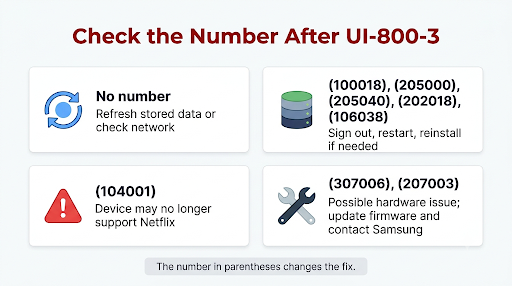
If you see (307006): Netflix’s guide to error UI-800-3 (307006) says it typically points to a hardware issue. It recommends updating the device firmware and restoring it to original settings with help from the manufacturer. If that fails, you’ll need a different device to watch Netflix.
How Do You Fix Netflix Error UI-800-3 on a Samsung Smart TV?
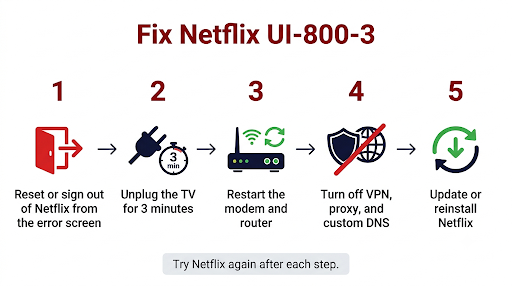
Work through these fixes in order. They go from quickest and safest to most disruptive. Most people never get past step 3.
1. Reset or Sign Out of Netflix From the Error Screen
This clears the stuck session and forces the app to reload fresh data.
- On the error screen, select More Details (or More Info).
- Select Sign out, Reset, or Deactivate.
- Select Yes to confirm.
- Sign back in with your Netflix email and password.
If Netflix opens but you can’t find the sign-out option, press the Back button on the Netflix home screen to open the menu. Then select Get Help > Sign out. Depending on your app layout, Get Help may be under your profile icon at the top left or at the bottom of the side menu.
2. Use the Secret Remote Code to Reset Netflix
If there’s no More Details button and no menu, Netflix provides a remote sequence that opens a hidden reset menu. With the Netflix error or app on screen, press:
Up, Up, Down, Down, Left, Right, Left, Right, Up, Up, Up, Up
Then choose Sign out, Reset, or Deactivate. Press the buttons at a steady pace. If you go too fast, the TV may miss an input and nothing will happen.
3. Power Cycle Your Samsung TV the Right Way
Pressing the power button on the remote usually puts a Samsung TV into standby. It doesn’t clear temporary memory. You need a full power cycle.
- Unplug the TV from the wall outlet.
- Press the power button on the TV once and wait 1 minute, or leave it unplugged for 3 minutes.
- Plug it back in, turn it on, and open Netflix.
Faster option: Samsung also supports a cold boot. Hold the Power button on your remote for about 5 seconds until the TV turns off and back on.
4. Restart Your Modem and Router
If other apps like YouTube are also slow or failing, the network is the likely problem.
- Turn off your TV.
- Unplug your modem and router.
- Wait 30 seconds, then plug them back in.
- Wait about 1 minute for the connection to come back, then turn the TV on and try Netflix.
Some routers take a few minutes to fully reconnect, so give it time before testing. If the error went away but Netflix now stutters, our guide on fixing Netflix buffering on a Samsung TV covers speed and Wi-Fi fixes.
5. Run the Samsung Smart Hub Connection Test
Your Samsung TV has a built-in tool that checks whether it can reach Samsung’s and your apps’ servers.
- Open Settings and select Support.
- Select Device Care, then Self Diagnosis.
- Select Start Smart Hub Connection Test.
If the test flags a network failure, focus on your internet connection before you try app resets. If it passes, the issue is more likely the Netflix app data.
6. Turn Off VPN, Proxy, and Custom DNS Settings
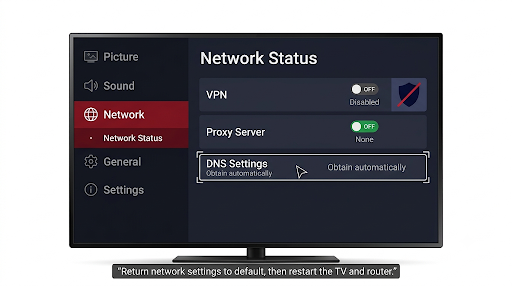
Netflix recommends changing custom modem settings, VPN or proxy settings, and custom DNS back to default. This matters if someone set up a custom DNS on the TV or router, or if a VPN is running at the router level.
On most Samsung Smart TVs, you can check DNS by going to Settings > General > Network > Network Status > IP Settings and setting DNS to Obtain automatically. Menu names can vary slightly by model year.
Try a different connection: If you’re on Wi-Fi, connect the TV to the router with an Ethernet cable. Or test with a phone hotspot. If Netflix works on the new connection, your home network or ISP is the cause.
7. Clear the Netflix Cache on Your Samsung TV
On many newer Samsung models, you can clear app cache without deleting the app. Go to Settings > Support > Device Care > Manage Storage, select Netflix, choose View Details, and then Clear Cache. Older models may not have this option. If yours doesn’t, skip to the reinstall step, which does the same job.
8. Update Your Samsung TV Software
Outdated TV firmware can break newer versions of the Netflix app.
- Go to Settings > Support > Software Update.
- Select Update Now.
- Let the TV install the update and restart. Don’t turn the TV off during the update.
If your TV can’t update over the internet, Samsung lets you download firmware for your model from its Download Center and install it from a USB drive.
9. Delete and Reinstall the Netflix App
Reinstalling wipes all stored Netflix data from the TV. It signs you out, so keep your login ready.
- Go to Apps and select the Settings (gear) icon in the top right.
- Select Netflix.
- Select Delete. If Delete is grayed out, Netflix is a built-in recommended app, so select Reinstall instead.
- If you deleted it, press Return, open Search, type Netflix, and select Install.
- Open Netflix and sign in.
On some newer Samsung TVs, you can also highlight Netflix on the home screen, press and hold the select button, and pick Reinstall from the menu.
10. Reset Samsung Smart Hub
Netflix specifically notes that Samsung users may need to reset Smart Hub. This resets all Smart Hub settings and apps, and signs you out of everything, including Netflix, YouTube, and your Samsung account. Write down your app logins first.
Make sure you’re on Live TV or an HDMI input, not inside an app. Then follow the path for your model year:
| Samsung TV model year | Reset Smart Hub path |
| 2019 and newer | Settings > Support > Device Care > Self Diagnosis > Reset Smart Hub |
| 2018 and older | Settings > Support > Self Diagnosis > Reset Smart Hub |
Enter your TV PIN when asked. The default PIN is 0000 unless you changed it. After the reset, finish the setup prompts and reinstall Netflix if it doesn’t show up. Samsung’s own troubleshooting guide for apps not working on Samsung TVs walks through the same steps.
11. Factory Reset the TV or Contact Samsung
If nothing above works, a factory reset is the last at-home option. It erases all apps, accounts, and settings, so have your Wi-Fi password and Netflix login ready. Several Samsung Community users who saw UI-800-3 after a Samsung software update reported that a factory reset finally cleared it.
For codes like (307006) or (207003), contact Samsung support before you reset. Those variants point to hardware or firmware problems that a reset may not fix.
Why Does UI-800-3 Keep Coming Back on My Samsung TV?
If the error returns after you fix it, something keeps corrupting the app data or breaking the connection. Here’s what to check:
- Router-level VPN or ad blocker: Some routers and DNS filters block Netflix servers. Parental control settings can do the same thing.
- Unstable Wi-Fi: If the TV is far from the router, switch to Ethernet or move the router closer.
- Auto-updates: A new Samsung update can trigger the error again. Reinstalling Netflix after big updates often helps.
- Old TV model: If Netflix support for your model is ending, the error may keep returning no matter what you reset.
- Full storage: TVs with very little free space can struggle to save app data. Remove apps you don’t use.
What Mistakes Should You Avoid When Fixing UI-800-3?
- Only pressing power on the remote. That’s standby, not a restart. Unplug the TV or do the 5-second cold boot.
- Jumping straight to a factory reset. It works, but it wipes everything. Try the sign-out, power cycle, and Smart Hub reset first.
- Ignoring the number in parentheses. A (104001) or (307006) code won’t be fixed by clearing cache.
- Resetting Smart Hub without your logins. You’ll be signed out of every app on the TV.
- Testing too quickly after a router restart. Give the network a full minute or two to reconnect.
How Can You Tell if It’s Netflix, Your TV, or Your Internet?
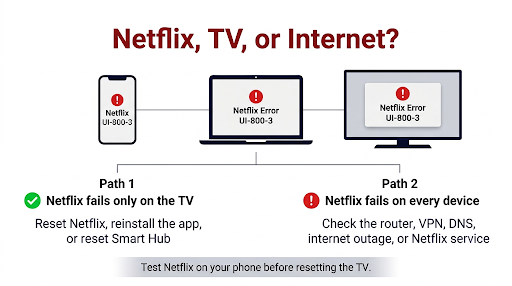
A quick comparison tells you where to focus.
| What you notice | Likely cause | Where to focus |
| Netflix fails, but YouTube and other apps work | Netflix app data on the TV | Sign out, reinstall, reset Smart Hub |
| Several apps fail or load slowly | Network or TV software | Router restart, connection test, software update |
| Netflix fails on your phone and laptop too | Netflix outage or account issue | Check Netflix service status and wait |
| Netflix works on a hotspot but not home Wi-Fi | Router, DNS, VPN, or ISP | Reset router settings or call your ISP |
| Error started right after a Samsung update | App data broken by the update | Reinstall Netflix, then reset Smart Hub |
If Netflix gets past the error but then shows a blank screen or spins forever, see our guides on Netflix not loading on a Samsung Smart TV and the Netflix black screen problem on Samsung TVs. If you get a different network code instead, our walkthrough for Netflix error NW-2-5 on Samsung Smart TV covers that one.
Does UI-800-3 Only Happen on Samsung TVs?
No. UI-800-3 can appear on LG TVs, Sony and other Android TVs, Roku, Amazon Fire TV Stick, Apple TV, PlayStation, Xbox, and Blu-ray players. The core fix is the same: refresh the stored data and check the network. The Samsung-specific parts are the Smart Hub reset, the Device Care tools, and the Samsung remote code steps covered above.
A practical workaround while you troubleshoot: plug a streaming stick or console into your Samsung TV’s HDMI port and use Netflix there. This is also the long-term fix if your Samsung model is no longer supported.
Frequently Asked Questions
Is Netflix error UI-800-3 a problem with my Netflix account?
Usually not. UI-800-3 is tied to data stored on the TV or the network connection. If Netflix works on your phone or laptop with the same account, your account is fine and the issue is on the Samsung TV side.
Will resetting Smart Hub delete my Netflix account or profiles?
No. Your profiles, watch history, and My List are saved on Netflix’s servers. A Smart Hub reset only removes app data and logins from the TV. You’ll just need to sign in again.
Why did Netflix error UI-800-3 start after a Samsung TV update?
A firmware update can leave old Netflix app data that no longer matches the new system. Reinstalling Netflix usually solves it. If not, reset Smart Hub. Some users have only fixed it with a full factory reset.
Can I fix UI-800-3 on a Samsung TV without a remote?
Partly. You can unplug the TV and router to power cycle them. For app resets and settings, you’ll need a remote. The SmartThings app on your phone can work as a remote for many newer Samsung TVs.
Does a VPN cause Netflix error UI-800-3?
It can. Netflix lists VPN and proxy settings as something to turn off when fixing this error. If you run a VPN on your router, disable it and restart the TV, then try again.
What should I do if none of the fixes work?
Note the full error code, your Samsung TV model number, and when the error appears. Then contact Samsung for TV-side issues, or reach Netflix support. Our guide on how to contact Netflix customer service from the Netflix app shows the fastest ways to reach them.
Final Recommendation
Start by checking the number next to UI-800-3. If there’s no number, or it points to stored data, sign out of Netflix from the error screen, unplug the TV for 3 minutes, and restart your router. That fixes most cases.
Still stuck? Reinstall Netflix, update your TV software, and reset Smart Hub. Save the factory reset for last. And if you see (104001) or (307006), skip the endless resets. Check your model’s Netflix support with Samsung, and use a streaming stick in the meantime so you can keep watching.